
We’ve recently come to understand that some folks who have been trying to install the Brave browser, are finding it difficult to do so. Apparently, the installer isn’t working as it should, so the installation fails to proceed. The error in question is The installer failed to start, and as you might have gathered, it only shows itself when the user attempts to install the Brave web browser to their computer.
What’s behind this error, you ask? Well, it could be many things. Maybe the installer file is corrupted, or you may be experiencing internet connection issues. Whatever the reasons are, we know how to get things back under control, so let us go on ahead and discuss that.
The installer failed to start – Brave browser
While installing Brave browser on your Windows 11/10 PC, you see The installer failed to start error, here are some suggestions that will help you resolve the issue:
- Install Brave Browser Standalone version
- Run the Brave setup file as an administrator
- Check to see if Brave is allowed to go through your Firewall
- Change your DNS settings
- Temporarily disable antivirus software.
1] Install Brave Browser Standalone version
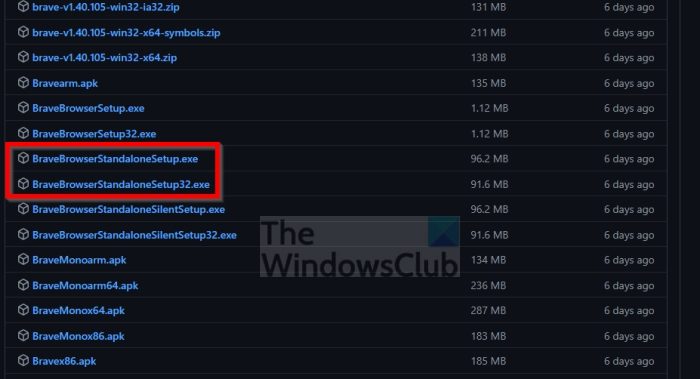
There are two versions of the Brave installer for Windows. One that requires an installation after the installer file has been downloaded, and one that installs the browser without the need for an internet connection. The latter is the standalone version, and it’s not available on the main page of the download area.
- Navigate to Brave’s GitHub release page right away.
- Scroll until you’ve come across the Release category.
- Ensure to avoid Nightly, Dev, and Beta sections.
- After locating Release, click on Assets.
- From there, find the Standalone options and download either the 32-bit or 64-bit versions.
After installation, check to see if you are still seeing, The installer failed to start error.
2] Run the Brave setup file as an administrator
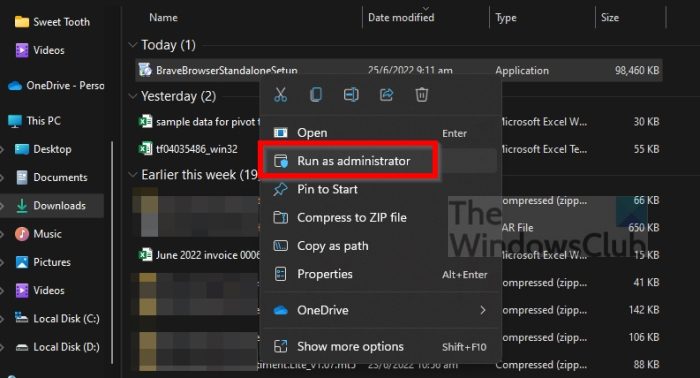
The setup file may not work because it requires administrator privileges. Usually, this is not the case, but anything is possible so let us discuss how to run the file as an admin.
- Locate the installation file after download.
- Right-click on the file.
- From the context menu, select Run as Administrator.
If everything goes well, Brave should now install without problems.
3] Check to see if Brave is allowed to go through your Firewall
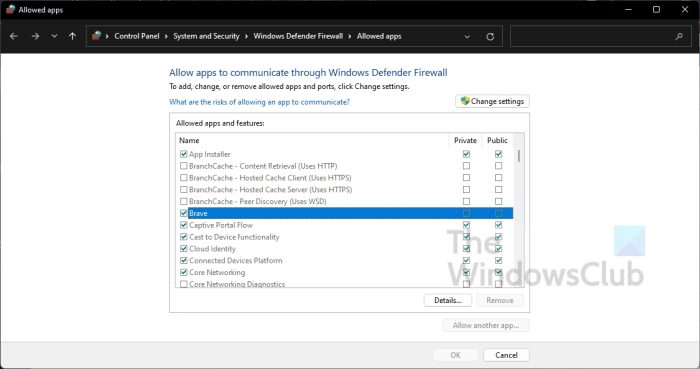
One reason the Brave installer may fail to start could be firewall issues. Maybe the Firewall is blocking the Brave installer, and if that is the case, how do we solve such an issue? Let’s take a look.
- Press the Windows key + S to launch the Search menu.
- Type Allow into the search box.
- From there, select Allow an app through Windows Firewall.
- A new window should appear.
- From that new window, please select Change Settings.
- Locate the Brave setup file.
- Make sure both Private and Public boxes are ticked.
- Click the OK button to complete the task.
Check now to see if the error is still a nuisance.
4] Change your DNS settings
Here’s the thing, changing your DNS settings can solve your problems if the issue is related to your internet connection. If you want to make the changes but have no idea how then you can also make use of the Command Prompt or PowerShell.
5] Temporarily disable antivirus software
Temporarily disable your antivirus software and see if that helps.
Hope this helps.
Brave installer failed to uncompress archive
If the Brave installer fails to uncompress the archive, first delete the corrupted installer file and download a fresh copy directly from Brave’s official site. Now temporarily disable antivirus or security software that may interfere with extraction and then run the installer as Administrator to ensure proper permissions. If it still fails, use Brave’s standalone offline installer.
Read: How to force enable Dark Mode for all websites in Brave browser.
Why isn’t my Brave browser working?
If Brave isn’t working as it should, your firewall may be blocking it from communicating with the internet. Check your Firewall settings and disable any features that may be blocking the browser. You may also need to reinstall the browser.
How do I fix my Brave browser not opening?
If Brave won’t open, try these troubleshooting steps. First, make sure your computer is connected to the internet. if that doesn’t work, try clearing your browser’s cache and cookies. If the problem persists, you can try uninstalling and reinstalling the browser.
