
Many users have reported getting a d3dx9_25.dll or d3dx9_27.dll error when opening applications or games that require this particular DLL file. In programs other than games, this issue may occur before certain graphics features are used.
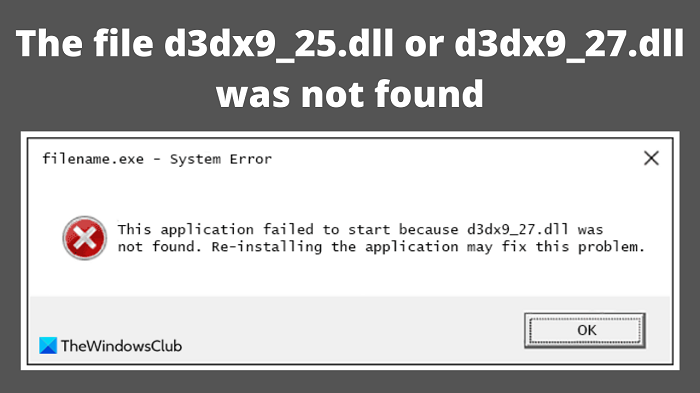
A few messages appear when this error occurs.
The program can’t start because d3dx9_25.dll is missing from your computer. Try reinstalling the program to fix this problem.
This is what the second error message looks like:
This application failed to start because d3dx9_25.dll or d3dx9_27.dll was not found. Re-installing the application may fix this problem.
We have listed some of the most common missing DLL error messages below:
- Cannot find d3dx9_27.dll
- The file d3dx9_27.dll is missing
- The file d3dx9_27.dll was not found
- D3DX9_27.DLL is missing. Replace D3DX9_27.DLL and try again
- The dynamic link library d3dx9_27.dll could not be found in the specified path
- Error initializing the application because the file d3dx9_27.dll was not found
- D3DX9_25.DLL was not found
- Cannot find d3dx9_25.dll
- The file d3dx9_25.dll is missing
- D3DX9_25.DLL is missing. Replace D3DX9_25.DLL and try again
- D3dx9_25.dll not found. Reinstalling the application might fix this
- Error initializing the application because the file d3dx9_25.dll was not found
- The application failed to start because d3dx9_25.dll was not found
- The dynamic link library d3dx9_25.dll could not be found in the specified path
Here, we discuss some important points to help you fix the problem with the d3dx9_25.dll or d3dx9_27.dll file not found on Windows 11/10.
What are the d3dx9_25.dll or d3dx9_27.dll files?
The files d3dx9_25.dll or d3dx9_27.dll are part of Microsoft’s DirectX 9 runtime libraries, specifically the D3DX9 component used by older PC games and applications for graphics rendering.
What causes missing DLL files?
Missing DLL means that an application has requested a particular DLL, but it was not found. If this occurs, you cannot locate the DLL file. The problem may occur after a program has been installed or uninstalled, or after trying to free up space on your hard drive.
Fix d3dx9_25.dll or d3dx9_27.dll was not found error
If file d3dx9_25.dll or d3dx9_27.dll was not found, use the following suggestions:
- Restart your computer
- Download and install the latest version of Microsoft DirectX
- Make sure your graphics driver is up to date
- Reinstall the problematic software program
- Download Windows OS files from Microsoft.
Let’s now see them in detail:
1] Restart your computer
There is a possibility that the d3dx9_25.dll or d3dx9_27.dll error is a one-time issue that goes away with a restart.
2] Download and install the latest version of Microsoft DirectX
If you encounter the error d3dx9_25.dll or d3dx9_27.dll was not found, you should first download and install the most recent version of Microsoft DirectX. Microsoft provides an official installer that includes all legacy DirectX 9 files. Several users have reported that this method fixed their errors. To do so, follow these steps:
- Go to the Microsoft Download page and search for DirectX.
- Download the latest version of DirectX End-User Runtime Web Installer.
- Once the installer has been downloaded, double-click it.
- Then follow the on-screen instructions to complete the DirectX installation.
- Restart your PC and check whether the error has been resolved.
If this method is not helpful, it seems that there is some kind of corruption that needs to be addressed. Let’s move on to the next solution to fix the error.
3] Update the video card driver
DirectX problems sometimes occur because of outdated or corrupted video card drivers. If you encounter this issue, you should update the video card’s drivers and see if it solves the problem.
The method is known to resolve DirectX-based problems in a few cases, so it might be right for this case as well.
4] Reinstall the problematic software program
The cause of these problems is sometimes related to a specific game or software package. Possibly, this error is caused by a faulty software installation or corrupted installation files. In that case, you may want to uninstall the problematic application and reinstall it.
To uninstall the application, do the following:
- Use the Windows key + I to open the Windows Settings app.
- From the left side of the screen click on Apps.
- Then go to the Apps & features section and find the problematic software in the list of installed programs.
- Next to the software, click on the three-dot menu button, then select Uninstall.
- You will be guided through the rest of the uninstallation process. Simply follow the instructions on the screen and let the software be uninstalled.
- Next, visit the application’s official website and download the latest version.
- Follow the installation instructions to complete the process.
- Once the installation is complete, restart your computer and see if the error is now resolved.
5] Download Windows OS files from Microsoft
If it is an OS dll file that is giving errors, you can download Windows OS files from Microsoft. This is a safe option.
What can .DLL files do?
DLLs help with code modularization, memory efficiency, code reuse, and reduced disk space. As a result, the computer’s operating system and programs run more quickly and consume less storage space. Programs that use a DLL may fail to run due to a dependency issue.
Related:
- Fix d3dx9_40.dll is missing, not found, or not designed to run error
- Fix d3dx dll file is missing errors.
