
Many users have been reporting an error about The application has failed to start because its side-by-side configuration is incorrect. This error can occur while opening a number of programs, irrespective of their origin, developer and compatibility. The error reads:
<PATH OF THE EXECUTABLE FILE>, This application has failed to start because its side-by-side configuration is incorrect. Please see the application event log or use the command-line sxstrace.exe tool for more detail.
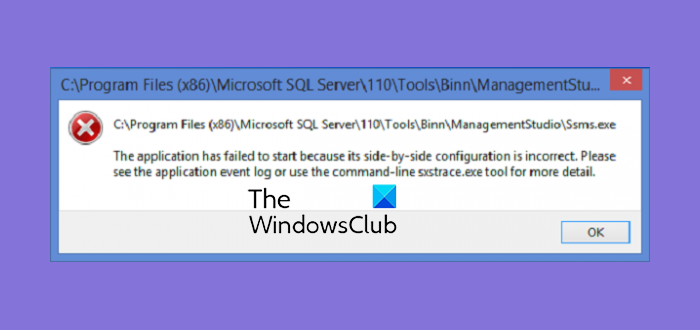
This error is related to the C++ Runtime Package in the background or to a registry value. Today, we will check out how to fix this error.
The application has failed to start because its side-by-side configuration is incorrect
We will be carrying out the following fixes to resolve this Side-by-side configuration is incorrect error:
- Reinstall the application.
- Check the Registry setting.
- Reinstall the appropriate Visual C++ Runtimes.
- Re-enable Microsoft .NET Framework.
- Run SFC & DISM scans.
1] Reinstall the application
Sometimes, a supporting module under the hood might have messed up your application. To fix that, you can try uninstalling and reinstalling your application, then check if that resolves your issues.
2] Change Registry setting
Hit the WINKEY+R button combination to launch the Run utility, type in regedit and hit Enter. Once Registry Editor opens, navigate to the following key-
Computer\HKEY_LOCAL_MACHINE\SOFTWARE\Microsoft\Windows NT\CurrentVersion\SideBySide\Winners\x86_policy.9.0.microsoft.vc90.crt_1fc8b3b9a1e18e3b_none_02d0010672fd8219\9.0
Now, check if you find a String value named as default.

Double-click it and change its Value data to match the third value in BINARY, as shown in the screen snippet above.
Reboot your computer for the changes to take effect.
3] Reinstall the appropriate Visual C++ Runtime
Search for and open Event Viewer using the Windows Search Box.
Look for the error events that are sourced by SideBySide.
Find the actual Visual C++ Runtime module causing this error.
Then download that particular module from official Microsoft Support here.
4] Re-enable Microsoft .NET Framework
You have to disable and re-enable the latest version of .NET Framework on your computer and check if that fixes your issues.
5] Run SFC & DISM scans
Open an elevated CMD and run sfc /scannow.
After that scan is completed restart your PC and run DISM /Online /Cleanup-Image /RestoreHealth.
Hope something helps!
