
Teams error saying We couldn’t connect the call may appear when you try to call someone in Teams, but the connection fails. If you’ve confirmed that the same client works with another account, the problem is tied to your specific account settings, not the app or your network.
We couldn’t connect the call.
The call could not be placed, try sending them a message first.
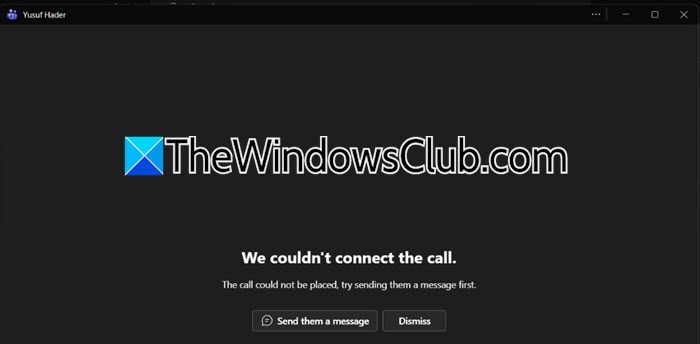
Why does Teams say we couldn’t connect the call?
The error usually occurs because of account restrictions, not because of issues with your device. Since you can make calls with a different account on the same device, the issue is specific to your account. Common reasons include not having the right calling licenses (like Phone System or Audio Conferencing), settings that block calls outside your organization, or the person you’re trying to call being offline. Sometimes, Teams needs a chat history first before it lets you call, which is why the error suggests sending a message first.
We couldn’t connect the call Teams error
If you get a Teams error, saying We couldn’t connect the call, follow the solutions mentioned below.
- Send a text message first
- Check privacy settings
- Verify both acounts are personal accounts
- Use the meeting workaround
- Add as acontact first
Let us talk about them in detail.
1] Send a text message first
When you send a text message first, Teams establishes a direct communication channel between your account and the recipient. This initial interaction validates that both parties are reachable within the Teams infrastructure, which then unlocks the call functionality since the system now recognizes an active session between you. Also, if you read the error message, it’s clearly better to text than call (no, it’s not here) in this case.
2] Check privacy settings
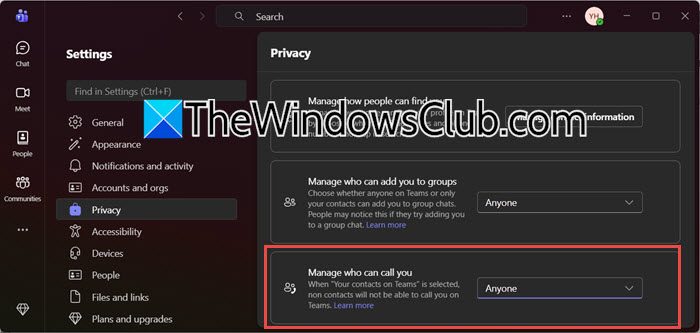
Teams has a built-in privacy setting that, by default, restricts incoming calls to only people saved in your contacts list. If your setting is still on the default Your contacts but you are trying to call someone who hasn’t been added and accepted as a contact, your own account blocks the call attempt. Changing this to Anyone removes that restriction, allowing you to place calls to any user regardless of contact status.
To make this change, open in Teams, click on the three dots, and select Settings. Go to the Privacy tab and verify that Manage who can call you option is set to Anyone instead of Your contacts.
Now, try making a call and see if it works.
3] Verify both accounts are personal accounts
Microsoft Teams is designed to keep personal and work accounts separate for security reasons. This means that one-to-one calls between a personal Microsoft account (e.g., @outlook.com) and a work or school account are blocked by design. Your friend’s personal account cannot call someone with a work account because they belong to different systems with different security rules. This shows that the problem is not a technical issue; it is a planned restriction that explains why the error happens on all devices and browsers.
4] Use the meeting workaround
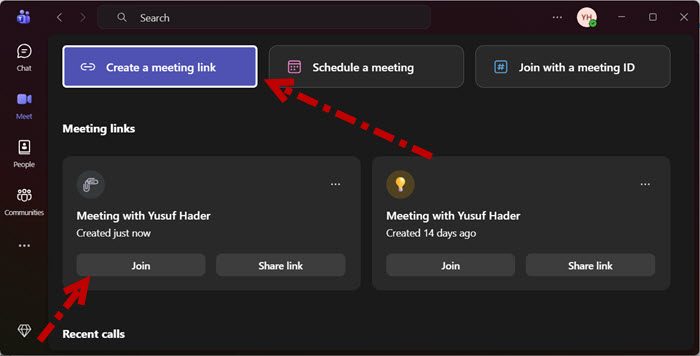
Teams meetings allow anyone to join, regardless of their account type. When someone sets up a meeting and shares the link, the person who receives it joins as a guest. This method avoids the one-to-one calling issues between personal and work accounts. As a result, audio and video work normally, even across different account types.
In Teams, go to the Meets tab and click on Create a meeting link. You will have an option to join the meeting, click on Join, and send the link of the meeting to your friend. They will have been able to join it without any hassle.
5] Add as a contact first
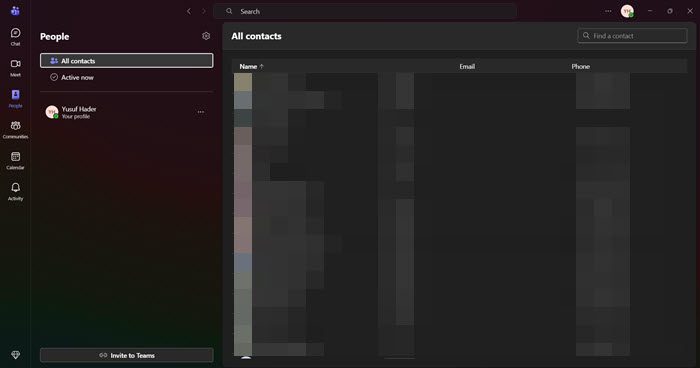
If you can’t allow everyone to call you, as that would intrude on your privacy, add that person to your contact list first. Also, the person you are trying to call has only your contacts enabled and hasn’t accepted your contact request; your call gets blocked on their end. Adding each other as contacts ensures both accounts recognize the relationship and allows calls to go through.
You can follow the same steps.
- Click on the Contact or People tab in the left sidebar of Teams.
- Type the email address or name of the person you want to call in the search bar.
- Add that person to your contacts.
Make sure that recepient also adds you as a contact. Finally, give them a call.
Hopefully, with these solutions, your issue will be resolved.
Read: Fix Microsoft Teams Call Queues not working
Teams couldn’t complete the call with your calling license
This error usually happens when your Microsoft Teams calling license has some limitations. For example, it may allow calls only to people in your organization and not to outside numbers. The problem often comes from the type of calling plan linked to your account. If you have a pay-as-you-go plan, it might not include outbound calling. Also, Communication Credits may not be set up correctly.
To fix this, your IT administrator should check your license settings in the Microsoft Teams Admin Center. They need to check whether you have the right calling plan and whether you might need to upgrade your license or add Communication Credits to enable external calling. Once your license is correct, you should be able to make calls both within and outside your organization.
Also Read: Microsoft Teams call disconnects or keeps dropping.
