
If you are a gamer, I am sure you love to share your achievements, gameplay, and anything that made you proud when gaming. It is easy to take a screenshot on the Windows PC with the PrintScreen key – but when it comes to Xbox One, it’s a little different here. The good thing is that the Xbox One has now evolved to the point where taking, sharing, and managing screenshots is easy! Let’s talk about it.
The Xbox One’s built-in system allows you to take screenshots of in-game moments. In simple words, you can take screenshots of everything on Xbox One, i.e., the Xbox Dashboard, Settings, Apps, and so on. There is a way, which I have mentioned at the end.
How to take a screenshot on Xbox One
- Launch a game. You can start playing it for the best results.
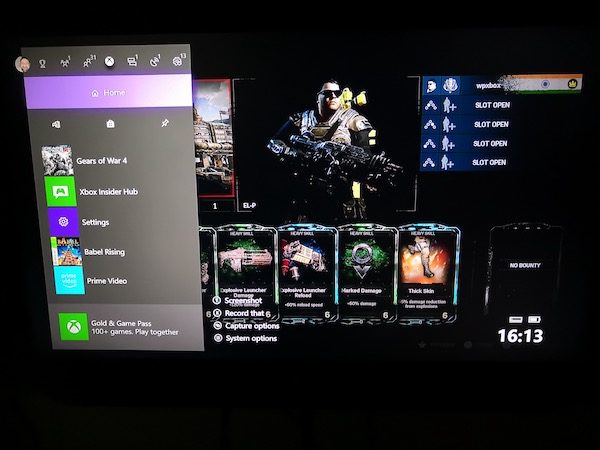
- When you find a moment of which you want to take a screenshot, press the Xbox Button on your controller.
- It will open the Guide Menu. Press Y button on the controller, and it will take a screenshot of the current scene.
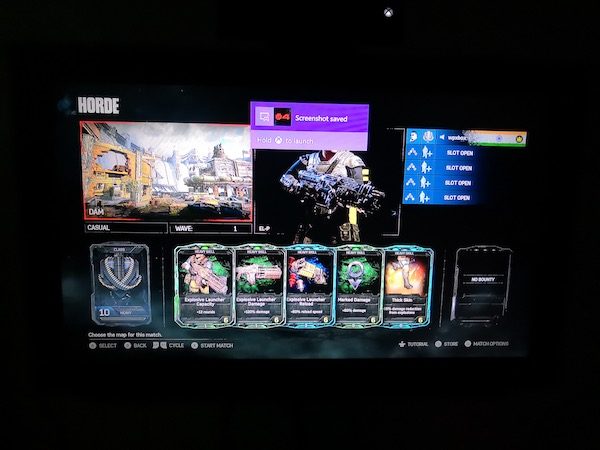
- The screenshots are saved to the console, or if you have set up an external drive for media, it will be saved there.
- You will get a confirmation message about it as well.
How to share screenshots from Xbox One
Once you have taken the screenshot, you will naturally want to share it. Xbox One offers several ways to share a screenshot. While you can always copy it to your PC and share it anywhere in the world, let’s find out how to do it from Xbox One. Xbox One isn’t just about gaming; it also has a social aspect that lets you share to the Xbox Feed and Clubs with your friends, and so on.
- Press the Xbox Button on your controller to open the Guide Menu.
- Right at the end of the guide menu, you will notice a couple of options. They are:
- Screenshot.
- Record that. (More on this in a detailed post)
- Capture options.
- System Options.
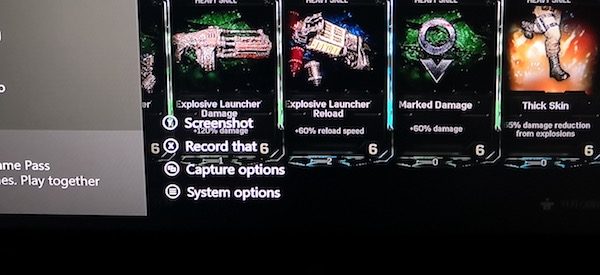
- Long Press the View button on the controller (the button with double window) to open Capture options.
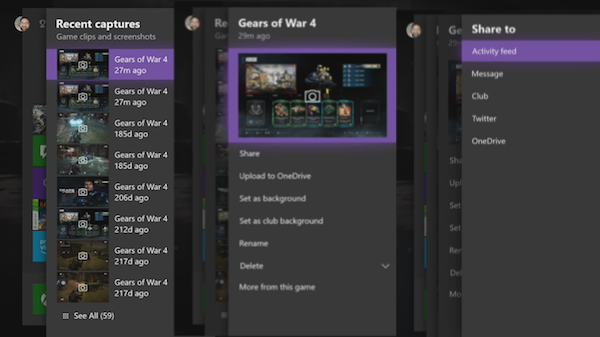
- This will list all the Recent Captures you have till now. It also includes details of how many days ago you took that screenshot.
- Select the screenshot which you want to share, and press A button.
- This will open a Share Panel where you will have a lot of options including Share, Upload to OneDrive, set as Background, Rename, Delete and more from this game. The names are self-sufficient on what they do.
- Select Share and press the A button. Here you can share:
- Activity Feed.
- Message.
- Club.
- Twitter.
- And OneDrive.
Note:
- As of now, only X is allowed for social media sharing. Go to Settings > Account > Linked social accounts.
- When you upload the screenshot from Xbox One to OneDrive, it will be saved under Pictures > Xbox Screenshots.
Deleting a screenshot from Xbox One
Interesting to note that Xbox Live offers to save some of your screenshots to its servers in case you need them later or switch consoles. You will know this when you plan to delete a screenshot.
- Press the Xbox Button on your controller, and it will open the Guide Menu.
- Long Press the View button on the controller (the button with double window) to open Capture options.
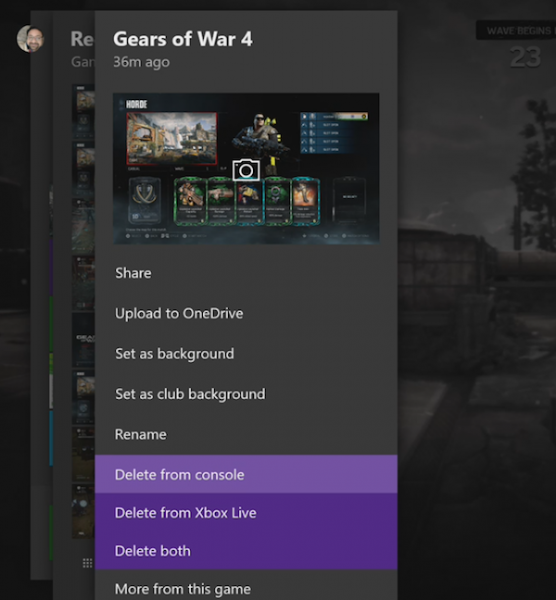
- Select the screenshot you want to delete, choose Delete from the menu.
- You will get three options here.
- Delete from Console
- Delete from Xbox Live
- Delete both.
- Select what suits you best.
Batch Delete Screenshots from Xbox One
If you want to mass delete images, instead of a long press of View Button, make a normal one, and you should get an option which says Manage Captures.
This will show all the screenshots on Xbox Live and Xbox One. First, select Xbox One and then Filter out Screenshots. Then use the right bumper to select the multi-select option, which is at the extreme right. Here you can select multiple screenshots to delete or upload to OneDrive.
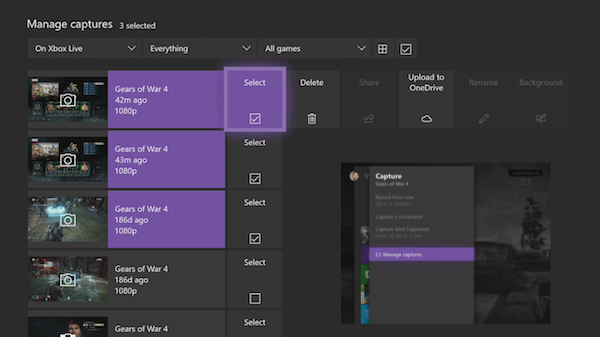
To check upload status of your images, you can switch from On Xbox LiveUploadlaod Queue here, and see the progress. It is possible to cancel an ongoing upload of video or screenshots if it has not finished.
Taking Screenshot of Xbox One Dashboard, Settings & Other Apps
While this is not possible from within the Xbox One, but if you have a Windows 10 PC which you can connect to the same network, and stream to your PC, a simple “PRINTSCREEN” gets the job done. Make sure you have enabled OneDrive to upload screenshots automatically, and you will have everything saved.
However, some Apps, like Netflix, will not allow streaming to any display other than the primary one. This means you cannot record or take screenshots of those apps and services.
This is all you need to manage your screenshots and share them anywhere you want. Remember, if you want to do it from a PC, make sure to use an external drive that you can always connect to your PC, and do more.
