
Capturing screenshots on Windows 11/10 is simple. All the user is required to do to capture the whole screen in one go is press Win+PrntScr key in combination on the hardware keyboard. Once done, the laptop screen dims, indicating the screenshot is captured and ready for your view in the User/Pictures/Screenshots folder.
However, the setting added to OneDrive forces the captured screenshots to be auto-saved to a special folder in the user’s OneDrive profile and in the cloud i.e., screen captures are saved to a Pictures\Screenshots folder in your local OneDrive profile, which is then synced to the Microsoft Cloud.
The move is intended to place cloud storage as a free or cheap replacement for files stored locally on your PC. While the concepts interest many users, a handful of them find it quite bothersome. Here’s a post walking you through the process of forcing Windows 11/10 to stop automatically saving screenshots, photos, and videos to OneDrive whenever you connect your camera or phone to your PC.
Stop saving screenshots to OneDrive automatically
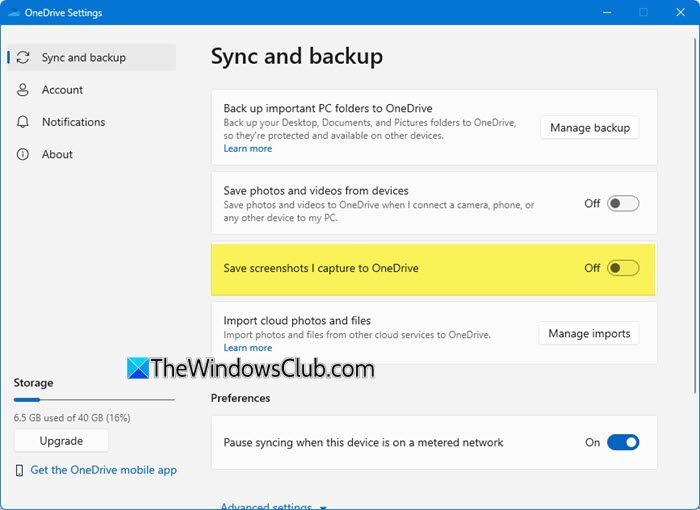
Locate the OneDrive icon in the Windows System Tray, just move the mouse cursor there, right-click on the cloud icon, and select Settings option.
Thereafter, in the Syc and Backup section, locate Save screenshots I capture to OneDrive and toggle the switch to Off.
If you feel keeping a backup of all your documents and screenshots is essential, you can enable the option to automatically Save Screenshots to OneDrive. Move the mouse cursor to the lower right-hand corner of your computer screen again, right-click OneDrive icon, chose settings, and switch to ‘Auto-save‘ tab. There, simply check the options displayed.
Read: Where are Screenshots and Snips saved in Windows
If you wish to also stop saving photos and videos whenever you connect a camera, phone or other device to your PC, you should also toggle the switch to Off against Save photos and videos from devices.
Read: Make Windows save Documents locally, instead of OneDrive
This functionality is seen as a result of the heavy integration of OneDrive service with Windows 11/10.
If you do not use it, you could disable OneDrive or uninstall OneDrive completely too.
Our post on how to take a desktop screenshot on Windows might also interest you.
