
Event ID 4199 indicates an IP address conflict on your network, which can disrupt your computer’s network connectivity. This error has several possible causes, ranging from network configuration issues to third-party software interference. In this post, we are going to talk about this issue and see what you can do if the system detected an address conflict for an IP address, with Event ID 4199.
The system detected an address conflict for IP address.
Source: Tcpip
Event ID: 4199
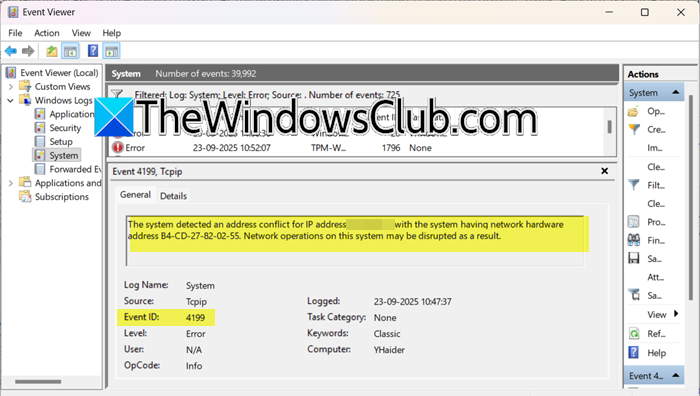
What is Event ID 4199?
When this error occurs, your computer detects that another device on the network is using the IP address it wants to use. To prevent conflicts, Windows may refuse to use this address, resulting in a loss of network connectivity. You may see an address in the 169.254.x.x range (APIPA), which is not routable and can leave you without internet access. Conflicts often involve the address 0.0.0.0 during initial connections. This can happen when Windows’ Duplicate Address Detection (DAD) process interacts with a switch feature called IP Device Tracking. If the switch sends an ARP probe while Windows is checking for conflicts, it may mistake the probe as another device claiming the address. Misconfigured DHCP servers assigning already-used addresses can also cause this issue.
The system detected an address conflict for IP address, Event ID 4199
If your system detects an address conflict for an IP address with Event ID 4199, follow the solutions mentioned below.
- Reset your computer’s Network Configuration
- Adjust Windows Duplicate Address Detection
- Check for third-party software interference
- Modify the DHCP Server Scope
Let’s discuss them in detail.
1] Reset your computer’s Network Configuration
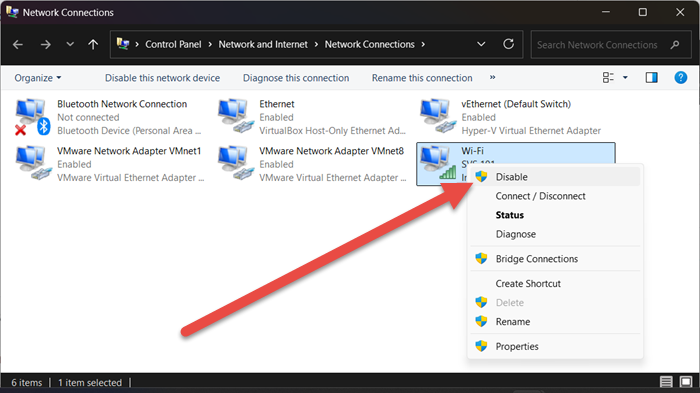
The issue may be nothing but a glitch, and resetting the network protocols should resolve the issue for you. It clears out a corrupted or stuck network state without making permanent system changes. To reset your system’s network configuration, follow the steps below.
- Open the Command Prompt as an administrator.
- Then, run the following commands one by one.
ipconfig /release

ipconfig /renew
- For IPv6 conflicts, you can also try to reset the interface. You can do that using the command – netsh interface ipv6 renew. However, if it fails, try the alternative method listed below.
Alternatively, go to Control Panel > Network and Internet > Network and Sharing Center > Change adapter settings, right-click your active network connection, select Disable, wait a moment, and then select Enable.
Check if the issue is resolved.
Read: Release TCP/IP, Flush DNS, Reset Winsock, Reset Proxy with Batch File
2] Adjust Windows Duplicate Address Detection
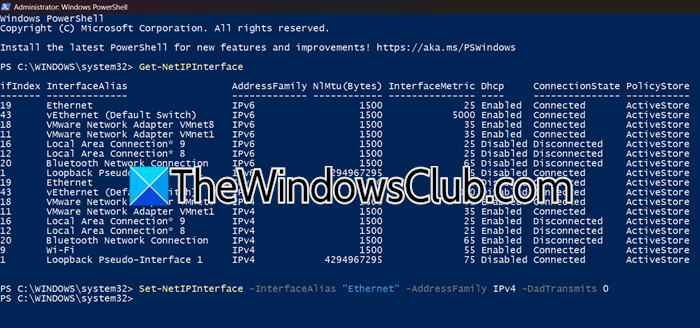
In this solution, we are going to make Windows less sensitive to conflicts during its initial network setup by reducing the number of duplicate address checks Windows performs, and minimizing the chance of it reacting to a switch’s ARP probe. You can follow the steps mentioned below.
- Open PowerShell as an administrator.
- Then, run the following command.
Set-NetIPInterface -InterfaceAlias "Ethernet" -AddressFamily IPv4 -DadTransmits 0
- Replace Ethernet with the name of your network connection (find it using the Get-NetIPInterface command).
Use this only in a well-managed network, as it slightly increases the risk of undetected duplicate IP addresses.
3] Check for third-party software interference
Some security software can interfere with your network, causing problems. To solve this, uninstall any recently added firewall or network privacy software, like Portmaster. After uninstalling, restart your computer and check if the error persists. If the issue is resolved, consider contacting the software vendor or checking for an updated version.
4] Modify the DHCP Server Scope
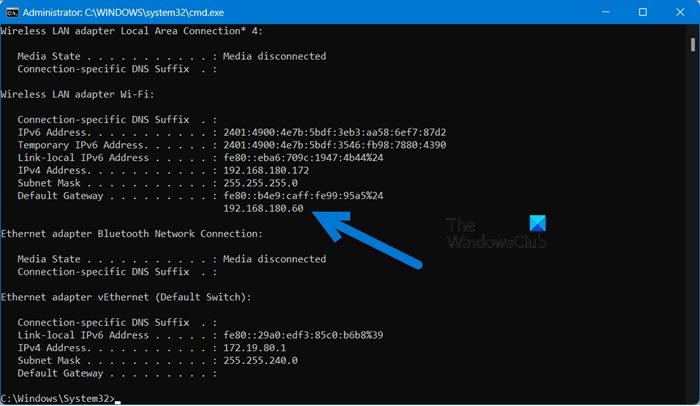
If the conflict involves a specific, valid IP address, your DHCP server might be assigning an address reserved for a device. This can cause issues because it prevents the DHCP server from assigning an IP address reserved for important devices, such as your router, printer, or other essential equipment. Follow the steps below to complete the same task.
- Open Command Prompt as an administrator and then run the following command.
ipconfig /all
- Look for the “Ethernet Adapter” or “Wireless LAN Adapter” section. The number next to Default Gateway (e.g., 192.168.1.1) is the address of your router.
- Open a web browser (like Chrome or Edge) on a device connected to your network.
- Type your router’s IP address (e.g., http://192.168.1.1) into the address bar and press Enter.
- You will see a login page. If you have never changed the credentials, you need to use the default username and password. These are often found on a sticker on the router itself. Common defaults are admin for both the username and password.
- If the default credentials don’t work and you cannot remember setting new ones, you may need to reset the router to its factory settings using the small reset button on the device
- Once logged in, look for the section that manages LAN and DHCP settings. The exact name varies by brand, but it is typically under Advanced Settings, Network or LAN Settings, or DHCP Server or Local Network.
- You will see fields for the Starting IP Address and Ending IP Address. This defines the pool of addresses the DHCP server can assign.
- Adjust the starting address to a number that comes after all your statically assigned devices.
- If your router is 192.168.1.1 and you have statically assigned printers and servers up to 192.168.1.50, set your DHCP pool to start at 192.168.1.51 and end at 192.168.1.254.
Finally, save the changes and see if the issue is resolved.
Hopefully, with the help of the solutions mentioned earlier, your issue will be resolved.
Read: No Internet after setting Static IP on Windows
How do I fix an IP address conflict?
To fix an IP address conflict, restart your computer and router. This forces both devices to clear their network caches and request a fresh IP address from the router, which typically resolves the temporary conflict. If the problem persists, ensure no two devices on your network are manually set to use the same static IP address.
