
If you use both a Windows computer and a Mac, you know the challenges it can bring. You might finish a document on your MacBook and need to present it from your Windows PC, or struggle to find photos scattered across devices. Fortunately, you don’t have to choose between platforms. In this post, we’ll discuss some of the best free tools for syncing files and other content between Windows and macOS.
Sync files between Windows and Mac using free tools
If you are in the market for apps to sync content between Windows and macOS, check out the list below.
- Microsoft OneDrive: The best for Microsoft 365 users
- Google Drive: Easy Cloud Storage for everyday use
- Sync.com: Privacy-First Cloud Storage
- Apple iCloud Drive: A Solid Choice for Apple-Centric Users
- Dropbox: The Feature-Rich Veteran
- FreeFileSync: Sync folders manually
- Syncthing: Create a private file-sync network
Let us talk about them in detail.
1] Microsoft OneDrive: The best for Microsoft 365 users
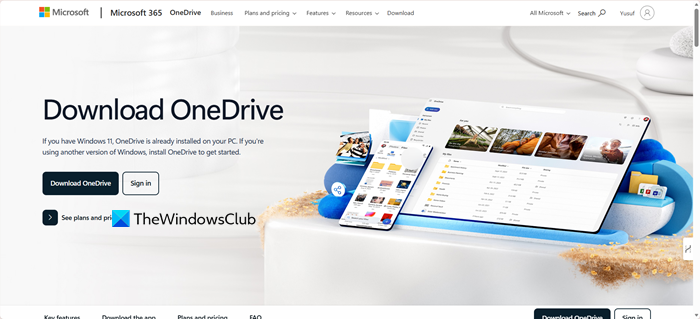
If you are the kind of person who sips his morning coffee in front of a Word, Excel, or PowerPoint document, the best app for you would be OneDrive. On Windows, it quietly backs up your Desktop, Documents, and Pictures folders, syncing them to the cloud without fuss. On macOS, a quick install of the OneDrive app drops those same files right into Finder, always updated and ready.
The real kicker, though, is pairing it with a Microsoft 365 subscription. For a monthly or yearly fee, you’re not just getting the full Office suite; you’re also unlocking 1 TB of cloud storage per user. That means you can start drafting a report on your iMac, tweak it on a Windows laptop mid-commute, and finish polishing it from whichever device you happen to be on.
2] Google Drive: Easy Cloud Storage for everyday use
Google Drive is one of the simplest cloud storage options out there. It works smoothly across Windows, Mac, Android, and iOS, so your files are always within reach, no matter what device you’re using. You start with 15 GB of free storage, which is shared with Gmail, making it a generous entry point compared to many competitors.
Its biggest strength is how well it connects with Google’s own apps, Docs, Sheets, and Slides. Anything you create in those apps is automatically saved to Drive and instantly available everywhere.
Another useful feature is the choice between Streaming and Mirroring files on your computer. Streaming keeps files online until you open them, saving local space. Mirroring, on the other hand, keeps a full copy on your hard drive so you can access everything offline. This flexibility is especially handy for laptops with limited storage.
3] Sync.com: Privacy-First Cloud Storage
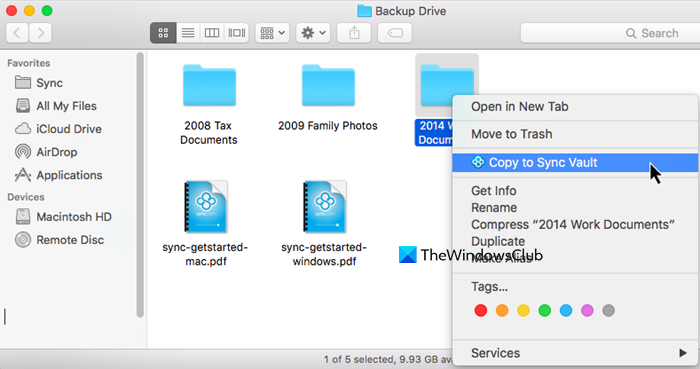
Sync.com prioritizes your privacy with its strong security features. It uses end-to-end encryption, so your files are scrambled before they leave your computer. This way, even the company cannot access your stored files. If security is your main concern, Sync.com is a great choice.
But it’s not just about privacy; it’s also a powerful and user-friendly syncing tool. It has apps for all major platforms, including Windows and macOS, making it easy to share files and work with others securely.
4] Apple iCloud Drive: A Solid Choice for Apple-Centric Users
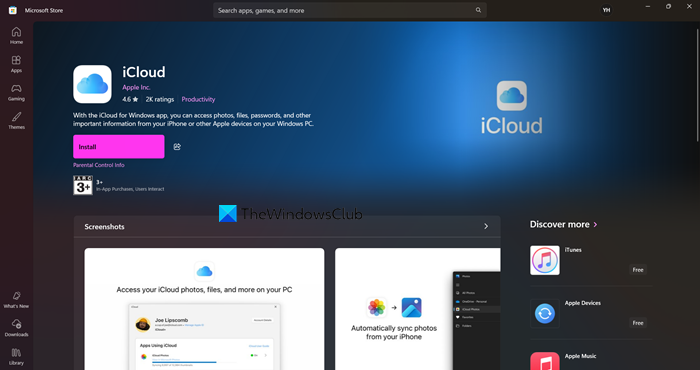
You might think iCloud Drive is just for Apple devices, but that’s not the case anymore. Apple now has a dedicated iCloud app for Windows. This app lets you access your iCloud photos, documents, and files on your PC. If you mainly use Apple products like an iPhone, iPad, and Mac but need to use a Windows computer for work or other tasks, this is the easiest solution.
On Apple devices, the integration works smoothly. Files saved on your Mac desktop show up automatically on your other Apple devices. With the Windows app, you can now connect everything. You get 5 GB of free storage to start, with affordable upgrade options.
5] Dropbox: The Feature-Rich Veteran
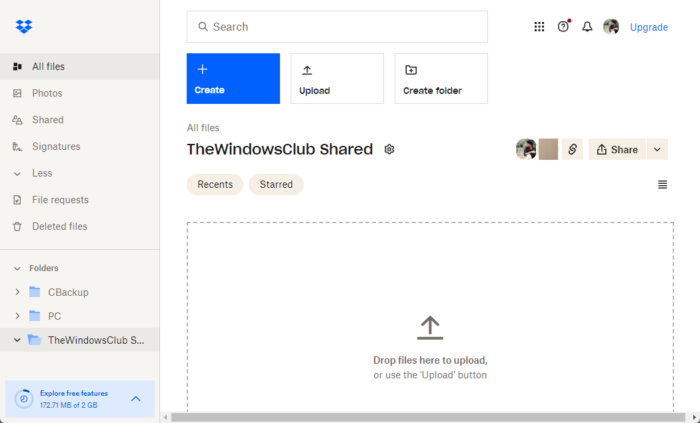
Dropbox was one of the first services to make cloud syncing mainstream, and it’s still a strong choice today. Beyond storing files, it adds handy extras like document editing, screen recording, and even e-signatures. For teams, the App Center makes it easy to connect Dropbox with popular tools such as Slack and Zoom.
Its cross-platform support is excellent, and the Smart Sync feature works much like Google Drive’s streaming. You can see all your files in Explorer or Finder without downloading them, which saves local storage space.
The free plan is limited to 2 GB, but the paid options are competitive and come with enough features to replace several other apps, making Dropbox more than just a storage solution.
6] FreeFileSync: Sync folders manually
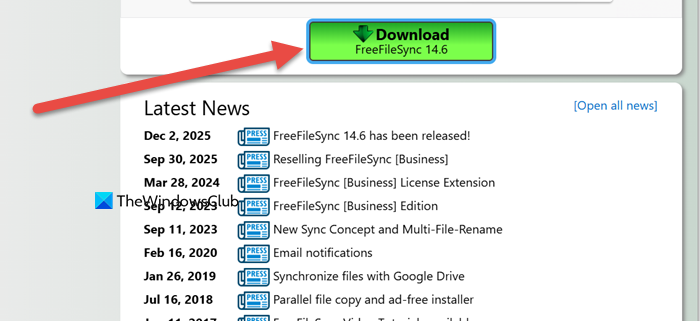
FreeFileSync.org is a free, open-source program for comparing and synchronizing folders on your computer. It is great for backing up or matching folders across computers and external drives. You start by selecting your source and destination folders. Then you pick a sync method, such as one-way mirroring, and run the comparison. You can review the changes before starting the sync, which makes it ideal for scheduled local backups rather than constant, automated syncing between devices.
7] Syncthing: Create a private file-sync network
Syncthing takes a different approach by creating a private, automatic file-syncing network without a central cloud server. Once set up on your devices (Windows, Mac, Android, etc.), it syncs files between them in real time over your local network or the internet. All data is encrypted for security, and nothing is stored on a third-party server, making it an excellent choice for users who prioritize privacy and want a seamless set-it-and-forget-it sync experience across their devices. Navigate to Syncthing.net to download the app.
That’s it!
Read: Microsoft To Do app for Mac Comparison with Reminders app
How to sync data between Mac and Windows?
To sync data continuously between Mac and Windows, use a cloud storage service like OneDrive, Google Drive, or Dropbox. Install the app on both computers and place your files in its synced folder; any changes will update automatically on the other device. For a direct connection without the cloud, you can enable file sharing over your local network instead.
Read: Free File and Folder Synchronization sofware for Windows 11
What is the best way to transfer files from Windows to Mac?
The best method depends on your goal. If you are moving all your data to a new Mac, the Migration Assistant is the best way, as it transfers files, email, contacts, and more to the correct locations on your new computer. For regularly sharing files between two existing computers, setting up a direct network connection using file sharing is fast and efficient. For simpler, one-off transfers, using a cloud storage service or an external drive formatted as exFAT (which both operating systems can read and write) are very reliable and straightforward option.
Also Read: iCloud vs OneDrive – Which is better? A comparison.
