
When Microsoft decided to bring the Surface devices to market, the company wanted to make sure that folks could do real work. Now, the Surface Pen pressure sensitivity is not working as it should when folks are using art programs. These owners are experiencing issues with apps such as FireAlpaca, GIMP, and even Photoshop CS6, although they work just fine with Office 365 and the Surface app.
Before proceeding, ensure that the apps you’re using are updated to the latest versions, if possible. We understand that most designers prefer to use Photoshop; therefore, an update isn’t likely due to Adobe’s business practices.
Surface Pro Pen pressure sensitivity not working
There are basically two things you need to do to fix the problem:
- Alter pressure sensitivity with the Surface app
- Install the latest WinTab drivers
1] Alter pressure sensitivity using the Surface app
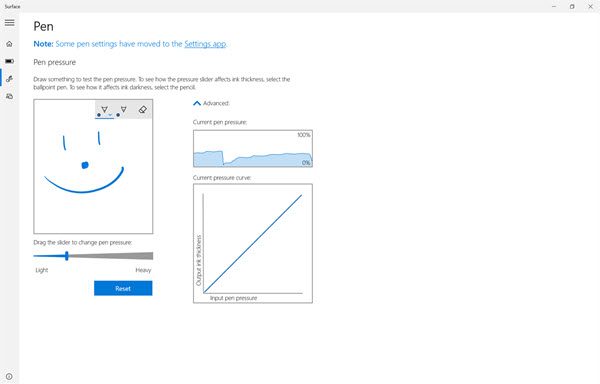
The Surface app should come as default on your Surface Pro, so we simply ask that you launch it and change the sensitivity settings. This might or might not work, but at the same time, it doesn’t hurt to try.
We should also note that the Surface app is only compatible with Surface devices, so it’s not necessary to download the app from the Microsoft Store for non-Surface products.
2] Install the latest WinTab drivers
Here’s the thing: We strongly believe that the reason your Surface Pro is experiencing problems with pressure sensitivity, particularly with GIMP and other programs, has much to do with the WinTab drivers.
What you need to do at this point, is run Windows Update on your Surface device or download and install the latest Surface software, firmware, and drivers from Microsoft.
The following are the drivers you should download, and after that, check if the pressure sensitivity is back to normal and working as it should. These links are for downloading all current drivers for the Surface, including optional WinTab drivers:
- Surface (Wi-Fi)
- Surface (AT&T 4G LTE)
- Surface (4G LTE) in North America (non-AT&T)
- Surface (Y!mobile 4G LTE) and Surface(4G LTE) outside of North America.
Trust this helped you resolve your Surface Pro sensitivity issues.
Related reads:
- Surface Pen Eraser not erasing or working properly
- Surface Pen won’t write, open apps, or connect to Bluetooth
- Surface Pen Tilt not working.
