
If you run or compile a VBA script and encounter an Excel error “Subscript out of range” error, here is how to fix it in Windows 11. Because there may be multiple causes, here you will find some of the most common ones and solutions to resolve this issue.
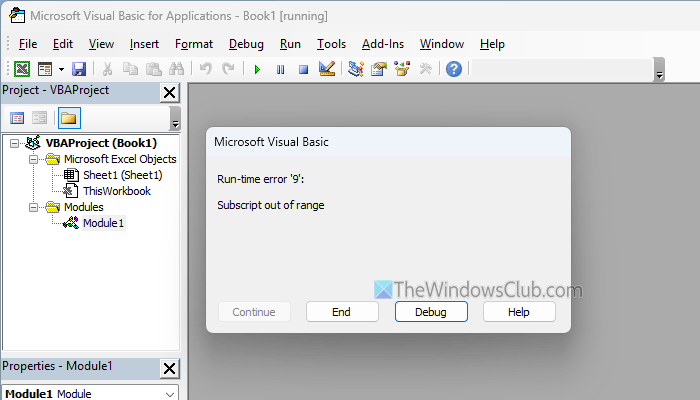
The entire error message says something like this:
Run-time error ‘9’:
Subscript out of range
What is the error Subscript out of range in Excel?
To be specific, Excel VBA shows Subscript out of range error when the used index or name is not specified in the array or is invalid. Apart from that, it could appear when the workbook or worksheet is not open or is invalid.
Fix Subscript out of range error in Excel
To fix the Subscript out of range error in Excel, follow these solutions:
- Verify Workbook
- Verify Worksheet
- Rectify typing mistakes
- Re-open closed Workbook
- Use correct array
- Find and specify correct elements
To learn more about these solutions, continue reading.
1] Verify Workbook
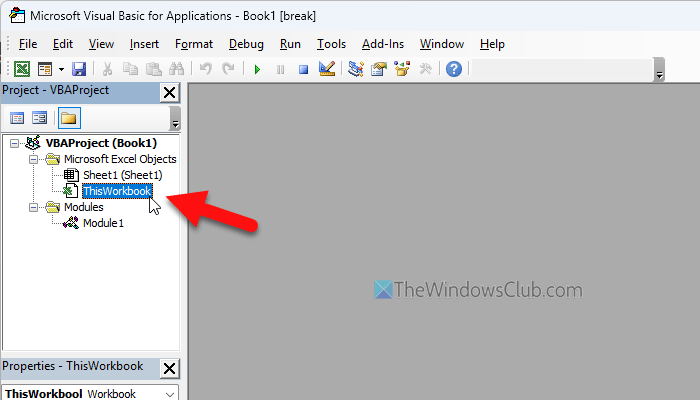
It is the very first thing you must check before doing anything else. If the corresponding Workbook is unavailable or not selected when compiling the VBA script, there is a high likelihood of encountering this error.
That is why it is recommended that you open and select the desired Workbook first. For that, you can head to the Project section on the left-hand side and click on the Workbook under Microsoft Excel Objects.
Read: How to Repair a corrupted Excel Workbook
2] Verify Worksheet
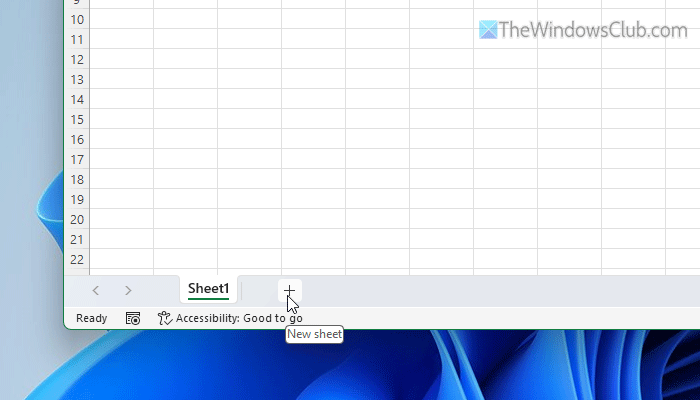
Once the Workbook is ensured, it is time to verify the Worksheet or spreadsheet. If you select the wrong worksheet, you may encounter this problem when running the script. If your script is worksheet-oriented, there is a high chance of getting this problem in Excel VBA.
If the problem persists, do the following:
- Create a new worksheet and transfer all the data from the old one to the new one.
- Run the VBA script.
Read: Difference between Worksheets and Workbooks in Excel
3] Rectify typing mistakes

Although it is pretty small, many people have reported this error because of a spelling mistake. As your VBA script doesn’t tolerate any typing errors, it is very important to check for spelling mistakes if you get this error.
Read: Free Spelling, Style, Grammar Checker Plugins & Software
4] Re-open closed Workbook
At times, Excel makes a blunder when you have multiple workbooks, each containing many worksheets. If that happens, there is a very simple solution:
- Close the current workbook. You can close Excel for that.
- Next, open Excel on your computer.
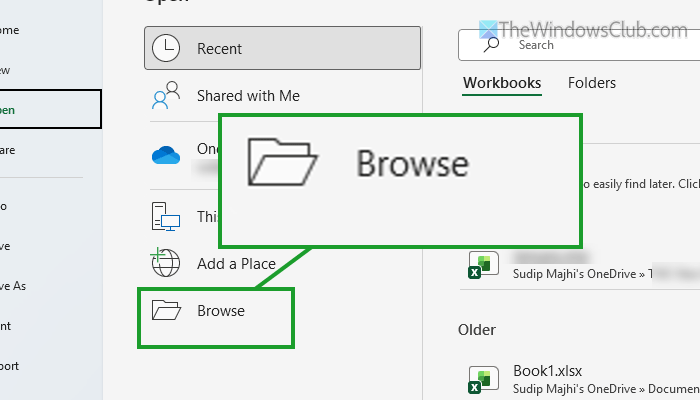
- Click on File > Open and choose the Workbook.
- Try running the same VBA script.
Read: Excel opening a Blank workbook or sheet [Fix]
5] Use correct array
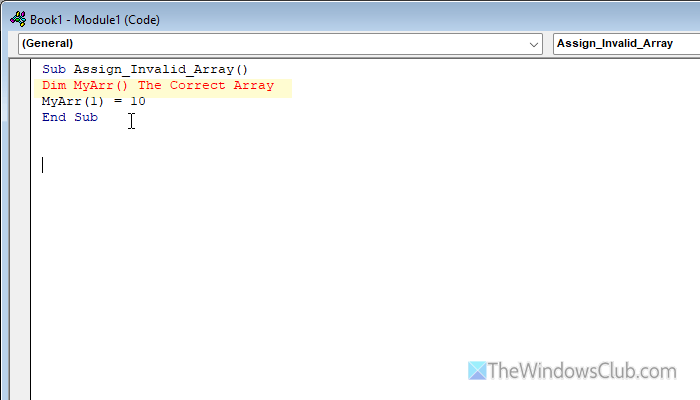
When you declare an element in an array, you must use the correct one. If you enter an array that doesn’t exist or your array has a spelling mistake, you will find the above-mentioned error. In other words, if you see this error message, it is recommended to check the array and the correctly declared elements.
Read: You can’t change part of an array error in Excel
6] Find and specify correct elements
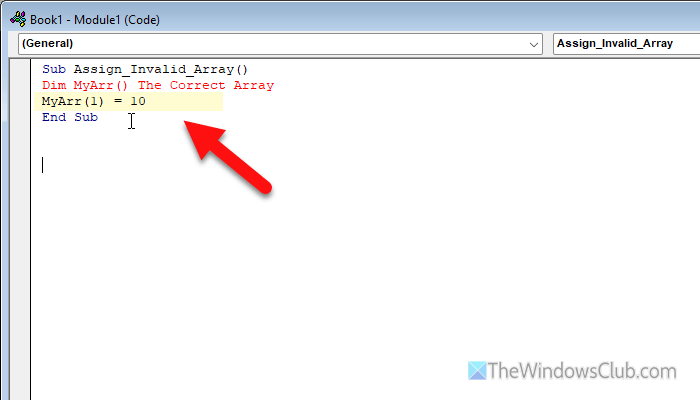
If you create a VBA script without specifying the number of elements, it will definitely show the aforementioned error message. Therefore, if you have made such a mistake, it is time to rectify it as soon as possible. To do that, you must first find an array with a specific number of elements.
Then, mention the number of elements or the elements that you want to access in the array. You can define it like this:
myArray(1) = 10

myArray(2) = 20
and so on.
Read: REFRESH RECOMMENDED Excel error message
Bonus tips: If none of the aforementioned solutions work for you, try repairing Microsoft 365. At times, internal damage could cause this error. Go through this detailed guide to repair Microsoft 365.
How to fix Runtime error 9, Subscript out of range in Excel?
To fix the runtime error 9 subscript out of range error in Excel, verify the corresponding workbook and worksheet, check for spelling mistakes, use the correct array declaration, etc. Other than this, you can try re-opening the closed workbook as well.
How do I change from subscript to normal in Excel?
To change from subscript to normal in Excel, select the subscript text first. Right-click on it and select Format Cells. Remove the tick from the Subscript checkbox and click the OK button.
