
Windows File Explorer is a very powerful tool. It can classify and organize data. It lets users access files from any address easily, no matter which folder they have open. If you want to sort Folders by Size or Month in Windows 11, read this article for the steps.

You might have to first add some columns in Explorer if you do not see some.
How to sort Folders by Size in Windows 11
The easiest method to sort folders by size in your Windows File Explorer is as follows:
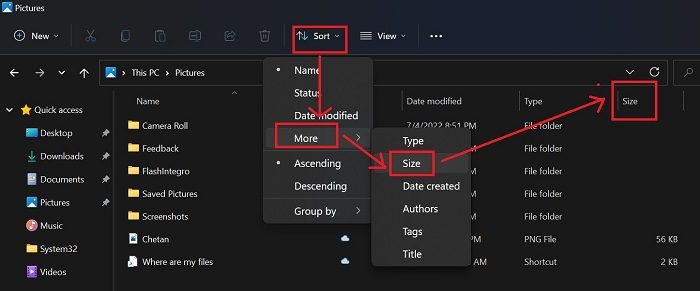
- Open the File Explorer window.
- In the top ribbon, you will notice the option for Sort. Please click on the downward-pointing arrow associated with it.
- Now, if you find the option for Size, please click on it.
- If now, select More and then click on Size.
- Now, if you need to know the specific size in the order of which all these were arranged, then try the Details view.
- Simply click on View on the top and select Details.
If you wish to change the order of the size from ascending to descending and vice versa, then while in the Details view, click on the Size tab once.
Read: Best Windows 11 File Explorer Tips and Tricks
How to sort Folders by Month in Windows 11
While sorting files by size was easy, there is no direct option to sort files and folders by month or their creation/modification. The option doesn’t exist in additional settings either. However, you can use the following workaround:
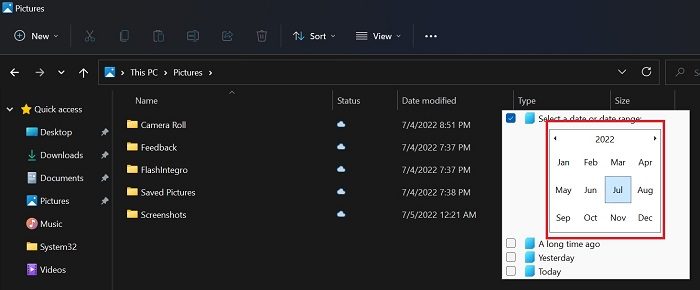
- Open the folder in which you need to classify the items as per the month.
- Click on View and select Details to arrange the folder in the Details view.
- In the Date modified column, click on the downward pointing arrow associated with the word Date modified.
- Now, check the checkbox associated with Select a date or date range.
- Click on the month-year.
- This will contract the calendar and show the months.
- Now select a month and it will all files modified in that month only.
The disadvantage of this method is that it is cumbersome, and it doesn’t show all files classified in the order of the month of creation/modification. It only shows files modified in a specific month.
Read: Best File Explorer Tips and Tricks for Windows 10
How to arrange files and folders in order of month created and not month modified?
This change is easy. Choose Date created instead of Date modified, and the rest of the procedure stays the same. Right-click on the Date modified option and select More. From the list, select Date created and click the OK button.
Read: Managing Files and Folders in Windows 11 – Tips & Tricks
Why can’t I find my File Explorer?
Ideally, File Explorer should be pinned to the Taskbar. If not, you can press Win+E to open File Explorer. Another method of accessing Explorer is to search for it through the Windows Search bar. Once you find it in Search or the Start Menu, you can pin it back to the Taskbar. Right-click and choose Pin to Taskbar.
Now read: Windows 11 Tips and Tricks.
