
If you have noticed an icon with 2 small blue overlays, know that the Windows OS placed it to indicate that the file or folder has been compressed to save disk space. If you are looking for a way to remove these two blue compression arrows on desktop icons, then this post will show you how to do it. My younger daughter recently brought this to my notice and so I decided to write about it.
2 small blue overlays which appear on desktop icons

You may have noticed several icons in your Windows operating system with an overlay icon. This could be the most common overlay arrow icon, indicating that it’s a shortcut; or it could be a padlock icon, indicating that you have a private item in a non-private directory. Two small blue arrows in the top-right corner of the icon indicate a compressed file or folder.
To save disk space, the Windows operating system allows you to compress files and folders. When you compress a file, using the Windows File Compression function, the data is compressed using an algorithm, and rewritten to occupy lesser space. When you access that file again, the data has to be decompressed again before you can access it. Thus, reading compressed files takes more time and consumes more processing power. The compression behavior is as follows:
- If you move a file from a DIFFERENT NTFS drive into a compressed folder, it is also compressed.
- If you move a file from the SAME NTFS drive into a compressed folder, the file retains its original state, either compressed or uncompressed.
The 2-arrows can appear if you compressed the folder or file, or if you moved the file or folder into a compressed folder.
Remove two blue compression arrows on desktop icons

You have two ways of removing this icon overlay. The first is to decompress the file or folder and the other to prevent Windows from displaying this overlay icon even when the folder is compressed. In the latter case, you will not know simply by looking at the icon if the item is compressed or not and that could be a disadvantage.
1] Decompress via Properties
To decompress a file or a folder, right-click on and the file or folder and under the General tab, select Advanced.
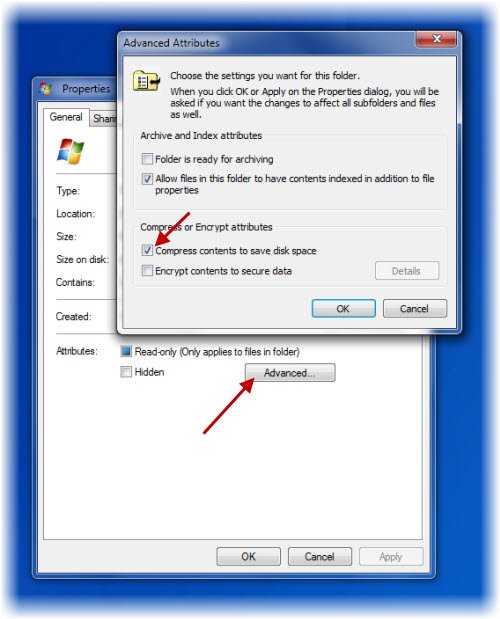
Here, uncheck the option to Compress contents to save disk space and click Apply/OK. Windows will start uncompressing the contents, and the 2 arrows will disappear.
Read:
- How to remove Green Check Marks on Desktop Icons
- How to remove Lock Overlay Icon on Encrypted Files?
2] Registry method
Before you begin, create a System Restore Point first. Now to remove the 2-arrows overlay icon, you will have to open Registry Editor. To do so, press Win+R in combination. In the empty field of the Run dialog box that appears on your computer screen, type regedit and hit Enter.
When the Registry Editor opens, navigate to the following location:
HKEY_LOCAL_MACHINE\SOFTWARE\Microsoft\Windows\CurrentVersion\Explorer\Shell Icons
Please note that, if the Shell Icons key does not exist, you will have to create it. To do so, select File Explorer, right-click Explorer, choose New and select ‘Key’ from the options displayed, and name the key as Shell Icons.
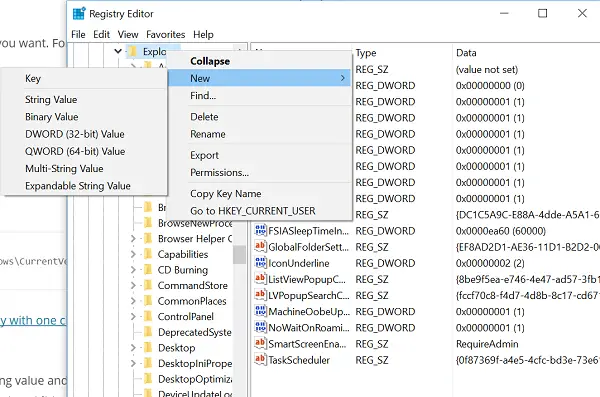
If you already have Shell Icons, you will see a string 179 in the right panel of your window screen. If not, create a new String Value and name it 179.
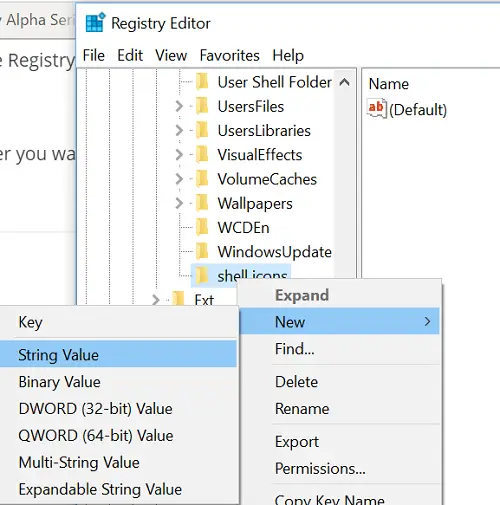
Now set its Value Data to the full path of a blank icon file. You will have to create a blank or transparent .ico file of size, or you can download this one from our servers and use it.
Now, to remove the 2-arrow icon overlay, edit the string value 179 and insert the path of the blank .ico file you want to use.
At any point, if you would like to restore to the original settings, simply delete the 179 String.
We recommend the first way of doing it.
You can also use our freeware Ultimate Windows Tweaker to remove the double blue arrows icon overlay for compressed files. You will find the tweak under the Customization section> File Explorer tab.
What are little arrows on my desktop icons?
The little icons on the desktop indicate that they are shortcuts to programs. When you create a shortcut to a program on your desktop, Windows places a small arrow in the bottom-left corner of that icon. Double-clicking on the shortcut launches that particular program.
What does Blue circle arrows mean?
If you are on Windows 11 or Windows 10 and have set up OneDrive, you may see a blue arrow icon on files you place on your desktop. The same icon can also appear when you create a desktop shortcut to a program. This icon means that OneDrive is currently syncing the file you placed on your desktop to the cloud. After the sync process is complete, the circle arrow icon will be replaced with a green tick.
TIP: If the icon does not change, you could clear rebuild the Icon Cache using our freeware Thumbnail and Icon Cache Rebuilder.
