
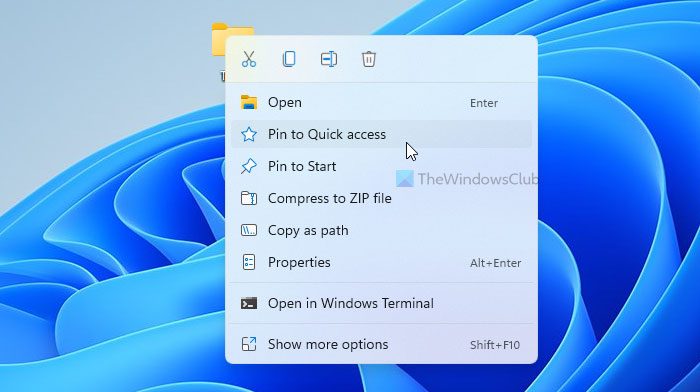
If you want to show a Pin to Quick access option in the right-click context menu in Windows 11, this guide will help you do that using the Registry Editor. With the help of this option, you can pin any folder to the Quick access menu in the File Explorer.
What is Quick access in Windows 11
Quick access is the panel that opens when you click on the File Explorer icon on the Taskbar. Even if you open the File Explorer from the Taskbar search box, it opens the Quick access panel on Windows 11. However, if you change the setting from the Folder Options wizard, you can find a Quick access menu on the left sidebar panel in the File Explorer.
By default, you can see some Library folders such as Documents, Pictures, Downloads, Desktop, etc. Additionally, you can find some frequently used folders in the Quick Access panel on Windows 11.
In other words, this section helps you pin and open specific folders quickly, so you don’t need to navigate to a long path to do the same. However, there is no direct option to pin a folder to Quick Access. To pin your desired folder to the Quick Access menu, use the drag-and-drop method. Nonetheless, you might feel awkward doing so. In that case, you can show or add a Pin to Quick access option in the right-click context menu so that you can pin any folder to Quick access without the drag and drop technique.
How to show Pin to Quick access in the context menu in Windows 11
To show Pin to Quick access in the context menu in Windows 11, follow these steps:
- Open Notepad on your computer.
- Paste the following text in the Notepad.
- Click on File > Save As.
- Select a location where you want to save the file.
- Enter a name with .reg extension.
- Choose All Files from the Save as type drop-down list.
- Click the Save button.
- Double-click on the .reg file.
- Select the Yes option twice.
- Right-click on a folder to find the Pin to Quick access option.
To learn more about these steps, continue reading.
At first, you need to open the Notepad on your computer. For that, you can take the help of the Taskbar search box. Once it is opened, paste the following text:
Windows Registry Editor Version 5.00

[-HKEY_CLASSES_ROOT\AllFilesystemObjects\shell\pintohome]

[HKEY_CLASSES_ROOT\AllFilesystemObjects\shell\pintohome]
"CommandStateHandler"="{b455f46e-e4af-4035-b0a4-cf18d2f6f28e}"
"CommandStateSync"=""
"MUIVerb"="@shell32.dll,-51377"

[HKEY_CLASSES_ROOT\AllFilesystemObjects\shell\pintohome\command]
"DelegateExecute"="{b455f46e-e4af-4035-b0a4-cf18d2f6f28e}"

[-HKEY_CLASSES_ROOT\Drive\shell\pintohome]

[HKEY_CLASSES_ROOT\Drive\shell\pintohome]
"CommandStateHandler"="{b455f46e-e4af-4035-b0a4-cf18d2f6f28e}"
"CommandStateSync"=""
"MUIVerb"="@shell32.dll,-51377"
"NeverDefault"=""

[HKEY_CLASSES_ROOT\Drive\shell\pintohome\command]
"DelegateExecute"="{b455f46e-e4af-4035-b0a4-cf18d2f6f28e}"

[HKEY_CLASSES_ROOT\Folder\shell\pintohome]
"AppliesTo"="System.ParsingName:<>\"::{679f85cb-0220-4080-b29b-5540cc05aab6}\" AND System.ParsingName:<>\"::{645FF040-5081-101B-9F08-00AA002F954E}\" AND System.IsFolder:=System.StructuredQueryType.Boolean#True"
"MUIVerb"="@shell32.dll,-51377"

[HKEY_CLASSES_ROOT\Folder\shell\pintohome\command]
"DelegateExecute"="{b455f46e-e4af-4035-b0a4-cf18d2f6f28e}"

[-HKEY_CLASSES_ROOT\Network\shell\pintohome]

[HKEY_CLASSES_ROOT\Network\shell\pintohome]
"CommandStateHandler"="{b455f46e-e4af-4035-b0a4-cf18d2f6f28e}"
"CommandStateSync"=""
"MUIVerb"="@shell32.dll,-51377"
"NeverDefault"=""

[HKEY_CLASSES_ROOT\Network\shell\pintohome\command]
"DelegateExecute"="{b455f46e-e4af-4035-b0a4-cf18d2f6f28e}"
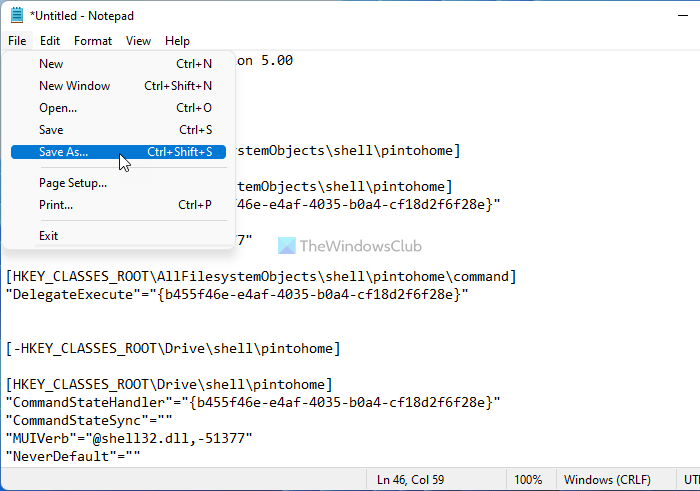
Click on the File menu and choose the Save As option.
Next, select a location where you want to save the file and enter a name with .reg extension (for example, addpintoquickaccess.reg). Now, expand the Save as type drop-down list, and choose the All Files option. Then, click on the Save button.
Once done, double-click on the .reg file and select the Yes option on the UAC prompt. Then, click the Yes button again to confirm the change.
After doing so, you can right-click on any folder to find the Pin to Quick access option.
How to remove Pin to Quick access in the context menu in Windows 11
To remove Pin to Quick access in the context menu in Windows 11, follow these steps:
- Open Notepad on your PC.
- Paste the following text in the Notepad window.
- Press Ctrl+Shift+S.
- Choose a path where you want to save the file.
- Enter a name with .reg file extension.
- Choose All Files from the Save as type menu.
- Click the Save button.
- Double-click on the .reg file.
- Click on the Yes button in the UAC prompt.
- Click the Yes option on the confirmation window.
Let’s check out more about these steps in detail.
To get started, you need to open the Notepad on your PC and paste the following text:
Windows Registry Editor Version 5.00

[-HKEY_CLASSES_ROOT\AllFilesystemObjects\shell\pintohome]

[-HKEY_CLASSES_ROOT\Drive\shell\pintohome]

[-HKEY_CLASSES_ROOT\Folder\shell\pintohome]

[-HKEY_CLASSES_ROOT\Network\shell\pintohome]
Then, press the Ctrl+Shift+S to open the Save As panel. Here you need to choose a name with .reg file extension. Then, select the All Files from the Save as type drop-down menu, and click on the Save button.
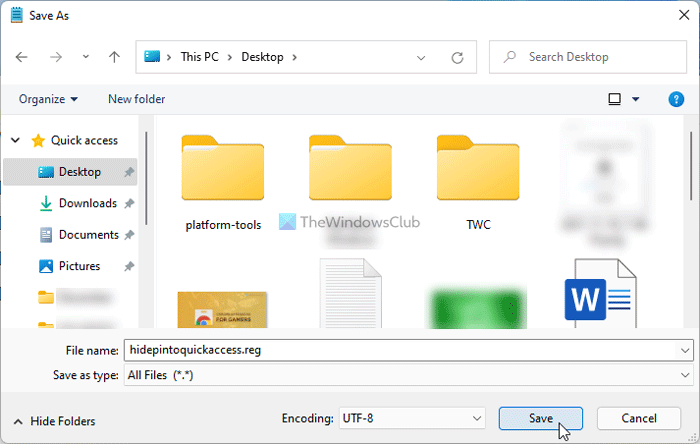
Once done, double-click on the .reg file and click on the Yes option twice to remove the Pin to Quick access option from the context menu.
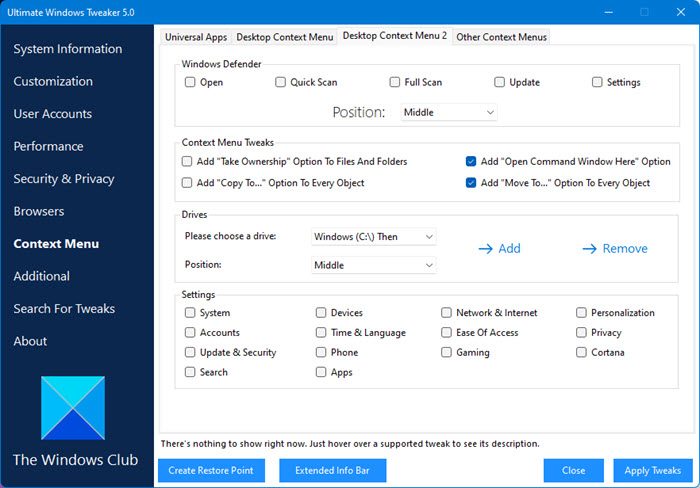
TIP: You can easily add or remove several items from the context menu with a click using the Ultimate Windows Tweaker.
How do I remove Pin from Quick access from context menu?
To remove the “Pin to Quick Access” option from the right-click context menu in Windows 11, follow the guide in the article. In other words, you need to create a .reg file. Next, double-click on it and select the “Yes” option twice to confirm the change.
Read: How to remove Add to Favorites from Windows 11 Context Menu
How do I turn off Pin to Quick Access?
If you are referring to the ‘Pin to Quick Access’ option when you drag and drop an item to the Quick Access panel, you should know that this is not possible. However, if you have manually added an option to the context menu, you can use the guide above to disable the “Pin to Quick access” option from the right-click menu.
Now read:
