
Channels are the dedicated sections in Teams that allow you to keep your conversations organized by specific topics, projects, and disciplines. If a Channel disappears in Teams, you cannot view its chats. In such a case, you do not need to panic, as this article will guide you on what you can do if the shared Channels are not showing in Teams.
Shared Channels not showing in Teams
Use the following fixes if the Shared Channel is not showing in Teams:
- Sign out and sign back in
- Clear Teams cache
- Expand the particular Channel category drop-down
- Check the Favorites section
- Check the Chats and Channels settings
- Unhide inactive Channels
- Restore the deleted Channel
- Try the web version
- Uninstall and reinstall Teams
All these fixes are explained below in detail.
1] Sign out and sign back in
The first step is to sign out and sign back in. Follow these steps:
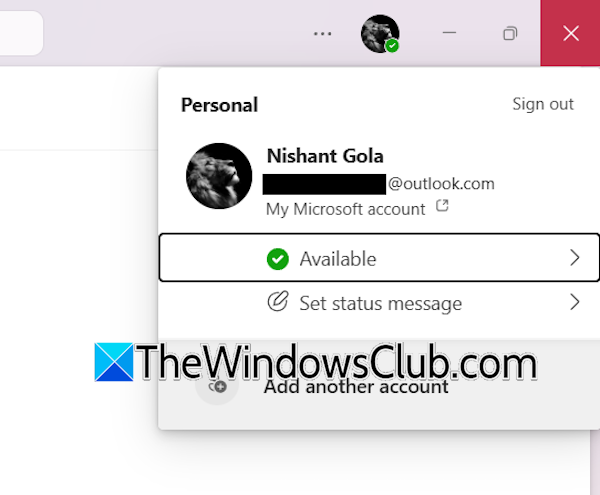
- Open teams.
- Click on your profile icon on the top right side.
- Click Sign out.
Now, restart Teams and sign back in. Check if the issue persists.
2] Clear Teams cache
You should also try clearing the Teams cache because sometimes issues occur due to the corrupt cache in Teams. First, completely close Teams, open your File Explorer, click on its address bar, type the following path, and press Enter.
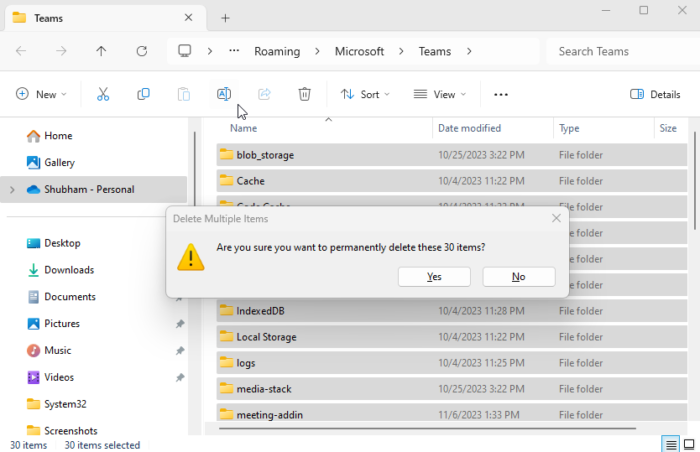
%appdata%\Microsoft\Teams
Now, delete all the folders there. Launch Microsoft Teams. It will automatically create all the deleted folders.
3] Expand the particular Channel category drop-down
In Teams, you can create multiple Channel Categories under the Teams and Channels section. Expand a particular category and click the See all channels link. You will see all the channels added to that category. Click Show to show a Channel in the selected category.
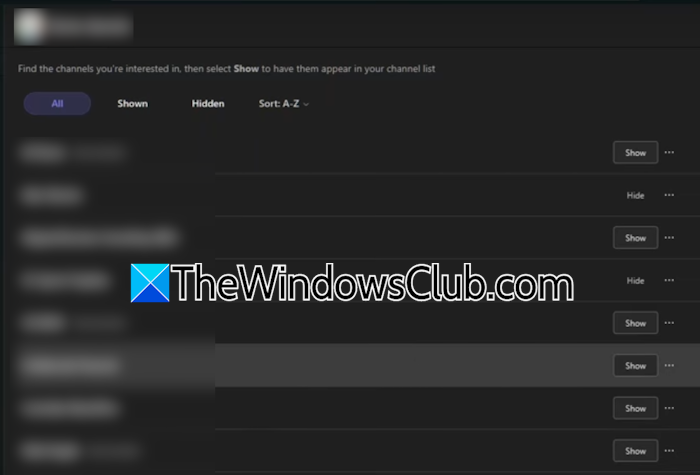
If you do not see your Channel under a particular category, expand all the available categories and view all the channels in that category.
4] Check the Favorites section
The new updated version of Teams allows you to move your Channels to the Favorites section. If you have a shared computer, someone else might have moved the Channel(s) to the Favorites section. Check this.
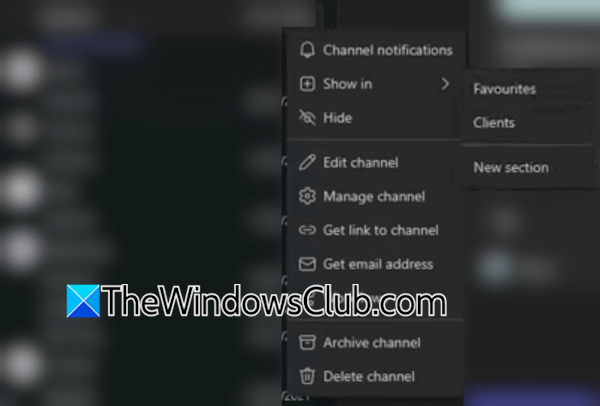
If the Channel is added to the Favorites section, you can again move it to the Teams and Channels section. To do this, click the three dots next to the channel and select Move to or Show in. Now, select the Channel name.
5] Check the Chats and Channels settings
Check the Chats and Channels settings. Follow these steps:
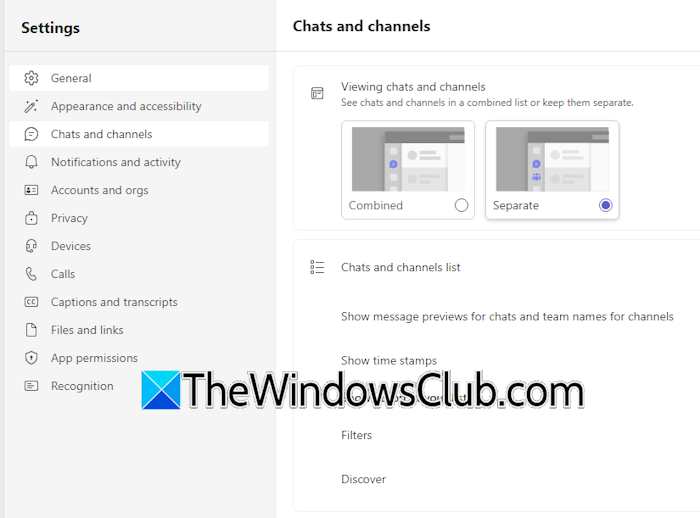
- In Teams, click on the three dots on the top right side and select Settings.
- Select Chats and Channels on the left side.
- Select Separate under the Viewing chats and channels category.
6] Unhide inactive Channels
Microsoft Teams hides inactive channels by default. These hidden channels are not visible under your created channel category. Check this setting too.
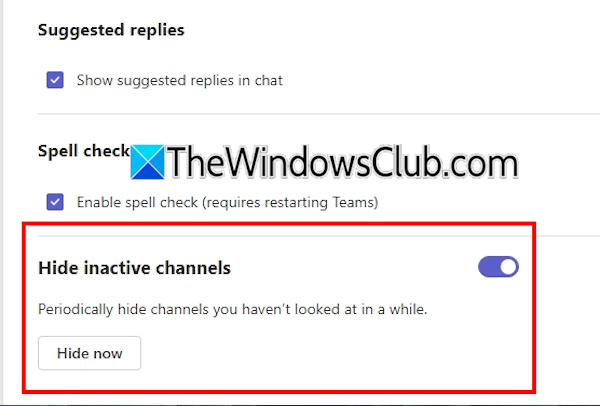
Follow these steps:
- Open Teams Settings.
- Select the Chats and Channels category on the left side.
- Scroll down and turn off the Hide inactive channels switch.
Now, all your inactive hidden Channels will become visible in Teams.
7] Restore the deleted Channel
You might have accidentally deleted the Channel, or someone else has deleted it if you use a shared computer.
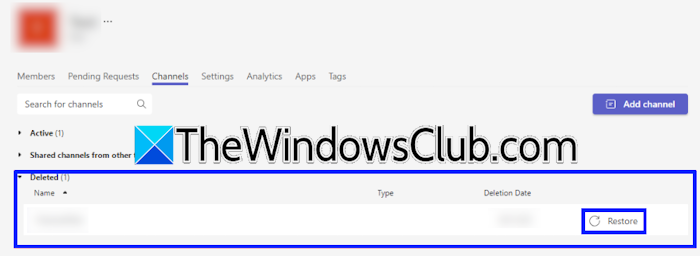
Follow these steps:
- Select the Teams category on the left side.
- Click on the three dots next to the Team for which the Channel was deleted.
- Select Manage Team.
- Switch to the Channels tab and expand the Deleted section at the bottom.
- Click Restore to restore the deleted Channel.
You can only restore deleted channels within 30 days of the deletion date. If you do not see the Restore button, your Teams owner might have restricted your permissions. In this case, contact your Team owner and ask them to restore the channel.
8] Try the web version
Try the web version of Teams and see if your Channels appear there. Open your web browser and visit the official web page of Teams. Sign in to Teams using your right Microsoft account credentials.
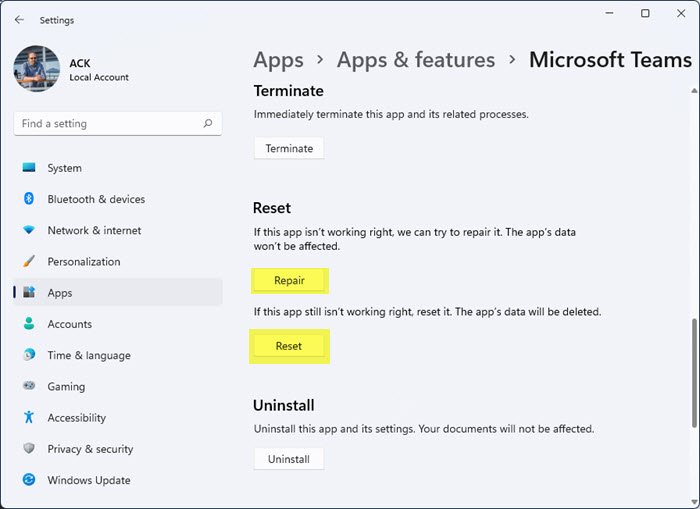
If your Channels show in the Teams web app, reset or repair Teams. Open Windows 11 Settings and go to Apps > Installed Apps. Search for Microsoft Teams and click on the three dots next to it. Click Advanced options. Scroll down and click Repair. If this does not help, reset Teams.
9] Uninstall and reinstall Teams
If none of these fixes work, uninstall Teams and restart your computer. Now, download the latest version of Teams from the official website and install it.
That’s it. I hope this helps.
Why is my Teams Channel not showing up?
If the Teams Channel is not showing up, check the Chats and Channels settings. Teams hide inactive channels by default. Please check and disable this setting. Another possibility is that the Channel was deleted by mistake. Check this and restore the Channel.
Read: Fix No Healthy Upstream error
How to make a Channel visible in Teams?
When you create a Channel in Teams, it is visible by default. However, Teams hides inactive Channels by default. If your Channel is inactive for a certain period, it may be hidden. You can check this in Teams settings.
Read next: Teams screenshot not working.
