
If you are trying to take screenshots on Team but nothing happens, you are not the only one. A lot of users are facing the same issue where the screenshot is working fine everywhere except in Microsoft Teams. Luckily, several troubleshooting fixes can restore the screenshot function. In this guide, we will walk through them to get Teams Screenshot back on track.
Screenshot not working in Microsoft Teams
If taking a screenshot is not working on Teams, execute the solutions mentioned below.
- Verify Team shortcuts and permissions
- Try the web versions
- Update Teams, Outlook, and clear the cache
- Reset Teams settings
- Reinstall Teams
- Contact MS Support
Let’s get started with the troubleshooting guide.
1] Verify Team shortcuts and permissions
![Teams screenshot not working [Fix]](https://www.thewindowsclub.com/wp-content/uploads/2025/08/teams-screenshare.png "Teams screenshot not working [Fix]")
Teams allows users to capture a screenshot using the Ctrl + Shift + S shortcut key. However, this feature can stop working due to disabled shortcuts, incorrect permissions, or conflicts with other apps. If the shortcut key is not working, and no other app is working in the background, verify that Windows Screen Recording has permissions to function properly. Here’s how to do the same.
- Click Win + I to open Settings, and navigate to Privacy and Security.
- Click on Screenshot and Screen Recording, look for Windows Teams, and ensure the toggled key is on.
- Now, right-click the Teams shortcut, select Run as administrator, and then go to Teams settings.
- Click on Keyboard shortcuts, and confirm Ctrl + Shift + S is set for screenshots.
Now, check if you can take the screenshot, and if it is coming out properly. If not, see the next solution.
If the shortcut is correct but does nothing, the feature may be disabled by your organization’s IT administrator. Admins can disable screenshots for compliance or security reasons. If you are in a work environment, this is a likely cause, and you should contact your IT helpdesk before proceeding.
2] Try the web versions
When screenshots are not working on the desktop app, switch to the web version of MS Teams to identify whether the issue is specific to the Windows client. The browser version runs without the same conflicts caused by cached data or outdated app builds. If screenshots work fine on the web, then the issue lies with the desktop app, and not with the system.
3] Update Teams, Outlook, and clear the cache
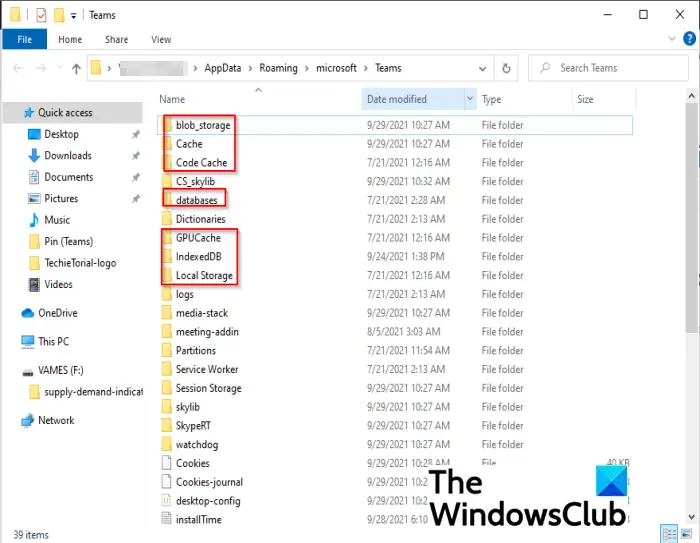
Many screenshot issues stem from outdated software and corrupted files. It is necessary to keep apps updated, as they release new patches to address bugs that may be interfering with the screenshot functionality. To update Outlook and Teams, launch the apps, go to the profile, and select Check for Updates/ Update Options. Wait for the update to install, and once both of them are updated, the next step is to clear out the cache.
- Close Teams properly by right-clicking on the system tray icon and selecting Quit.
- Now, click Win + R to open the Run dialog box, and navigate to the following location, and clear their content.
- %appdata%\Microsoft\Teams\application cache\cache
- %appdata%\Microsoft\Teams\blob_storage
- %appdata%\Microsoft\Teams\Cache
- appdata%\Microsoft\Teams\databases
- appdata%\Microsoft\Teams\GPUcache
- appdata%\Microsoft\Teams\IndexedDB
- appdata%\Microsoft\Teams\Local Storage
- appdata%\Microsoft\Teams\tmp
- Make sure to not delete the folder.
Re-launch the app now, and take the screenshots now. Slide to the next solution if the issue persists.
4] Reset Teams settings
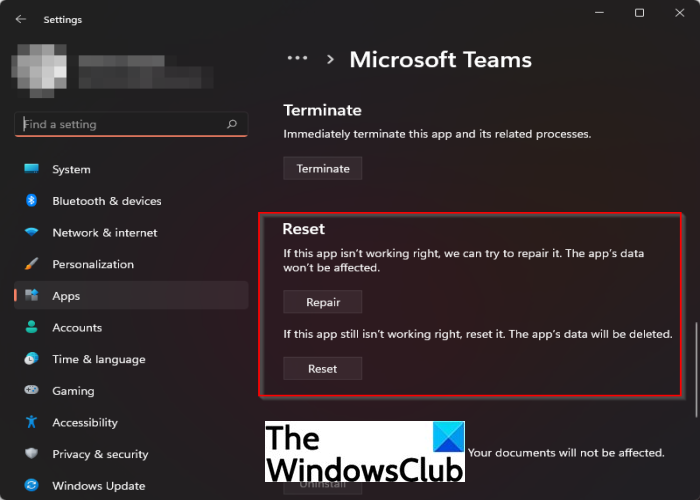
Teams stores users’ preferences and configuration data in files like settings.json. These files become corrupted or misconfigured and then interfere with built-in functions like screenshots. In such cases, we have to reset the settings, and for that, follow the procedure given below.
- Open Settings.
- Go to Apps > Installed apps.
- Search for “Teams”.
- Click on the three dots associated with the app and click on Advanced Options.
- Now, scroll down and click on Repair. If the issue still persists, click on Reset.
Finally, open Teams and check if the issue is resolved.
6] Contact MS Support
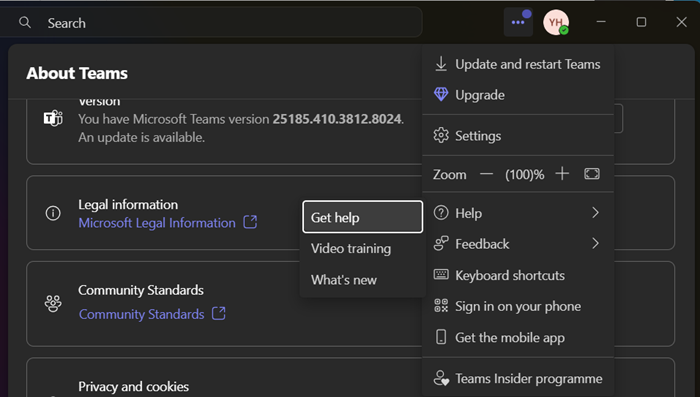
If you have exhausted all the troubleshooting steps without success, this indicates a deep internal issue requiring expert intervention. To do the same, open Teams, click on your profile, and select Help. Next, click on Report a problem, and describe the issue, including all the steps tried and error messages. They will be able to provide tailored solutions and help resolve the issue.
That’s it!
Read: Fix Microsoft Teams Login issues: We couldn’t sign you in
Screenshot stops working after typing
Temporary glitches, outdated apps, or conflicting background processes are some of the common factors. This specific behavior often points to a conflict with your keyboard software or Input Method Editor (IME). Applications like language input tools (e.g., IME for Japanese/Chinese) or keyboard macro utilities can activate when typing and may intercept the Ctrl + Shift + S shortcut. Try closing these applications or switching your input method back to English (US) to see if it resolves the issue. The general fixes above, especially checking for software conflicts, also apply here.
Read: Fix MSTeams.exe Bad Image Error Status 0xc0000020
How to allow screenshots on Teams?
To allow screenshots on Teams, open Teams, go to Settings > Privacy. There, ensure that the screenshot option is enabled, and if unavailable, check the device system settings or permissions to allow screen capture.
Also Read: Fix CAA20004 Microsoft Teams Sign in Error.
