
Power BI is a cloud service that lets users access and share their Microsoft Excel reports anywhere on any device. The service works in tandem with Excel to offer a complete self-service analytics solution. Thus, everyone can benefit from using Power BI with Excel files. The Excel and Power BI teams have been busy rolling out new capabilities and tools that allow users to share their Excel data and insights to Power BI Publisher for Excel more quickly and easily.
The following are some ways Excel and Power BI can ensure better cooperation.
Share Excel insights with Power BI Publisher
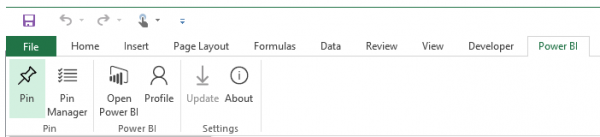
If you would like to quickly save snapshots of important PivotTables, charts, cell ranges, and other objects from across all of your spreadsheets to a single place, Power BI Publisher for Excel offers this option. Simply select a range or an element in your workbook and, under the Power BI tab, click Pin. See the screenshot below.
Thereafter, select an existing dashboard from the list or if required, create a new one.
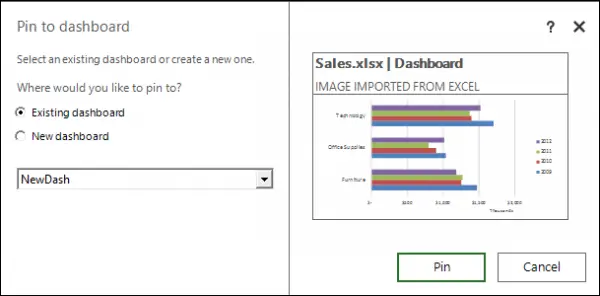
To do so, click the Pin button and you’re done!
One feature that should find mention here is that Power BI publisher for Excel also allows you to keep your pinned elements up to date with the Pin manager. However, you need to download Power BI Publisher for Excel to get it started. Download it from here.
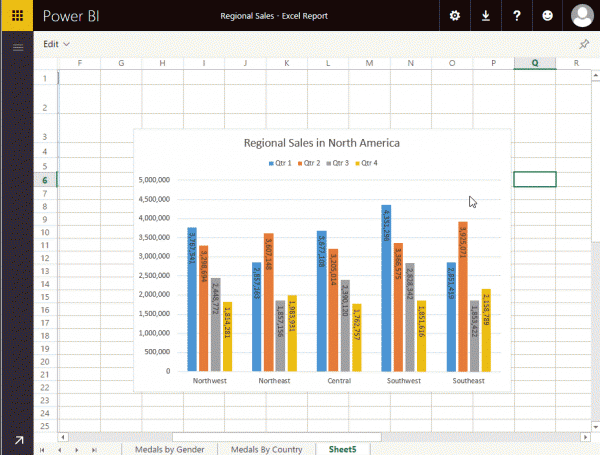
Pinning Excel elements to your Power BI dashboard
Upload your Excel reports to Power BI and select a range, a table or a chart.
Then, simply click the Pin button and your Excel tile should become a part of your dashboard.
In addition to pinning your Excel reports on Power BI, you can also pin content to your dashboards and view spreadsheets when you click the respective tile.
Publish to Power BI from Excel
Publishing your workbook content to Power BI directly from Excel 2016 is as smooth as a breeze. After having your workbook published, you can keep working on it in OneDrive for Business.
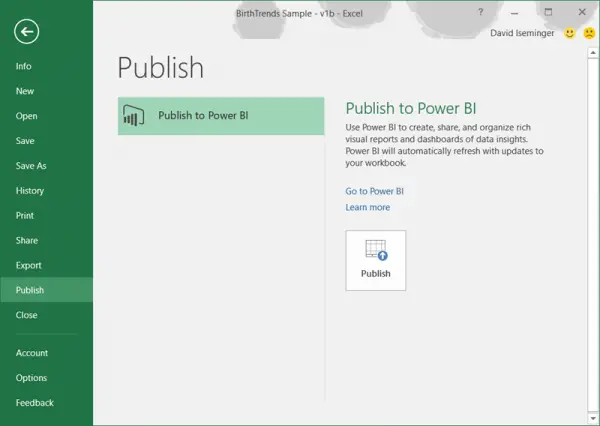
The good point is, Power BI automatically refreshes when you make updates to your workbook. For publishing your Excel workbook to Power BI, simply select File > Publish.
That’s it!
Read: Fix Power BI Desktop login issues.
