
When running Windows Setup, you may sometimes receive an error message – Something happened; Setup has failed to determine supported install choices. The only option you are given is to press Close and exit the setup. This error can occur when trying to downgrade to the previous version of Windows using the built-in mechanism.
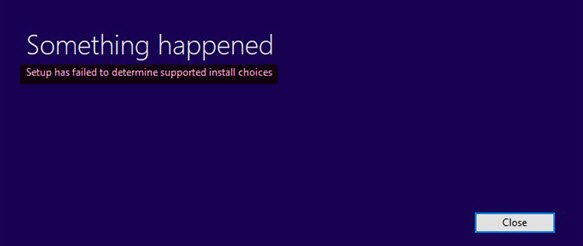
Windows Setup has failed to determine supported install choices
The cause of this problem could be a corrupt image or an incomplete set of files. Other than this, compatibility issues could be causing this. It could also be that the module used to downgrade the operating system version is not configured correctly.
If you face this error, log in as an administrator and try the following solutions sequentially to fix the problem:
- Run the Windows Setup program in Compatibility Mode for the downgraded version
- Use the Image for the lower version available on Microsoft’s official website.
1] Run the Installer program in compatibility mode for the downgraded version
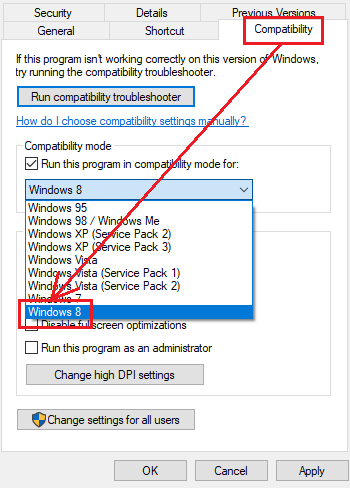
Suppose you need to downgrade Windows 11 to Windows 10; you could try running the Windows Setup file in Compatibility Mode for Windows 10.
The procedure to do so is as follows:
- Right-click on the Setup file and select Properties.
- In the Compatibility tab, Check the box corresponding to “Run this program in compatibility mode for.” Select the version of Windows in the drop-down menu.
- Click on Apply and then on OK to save the settings.
Now right-click on the Sep file and select Run as Administrator to commence the downgrade process.
2] Use the Image available on Microsoft’s official website
One of the reasons for this issue is a corrupted image or an image folder containing incomplete files. In both these cases, the best resolution would be to download the image file from Microsoft’s official website to be sure it will work.
Read: How to create System Image in Windows.
TIP: This solution also seems to have helped some. Say you are using Windows Home edition. Open Control Panel > System applet. Click on the Get more features with a new edition of Windows link. You will be asked for the authentication code for the OS you purchased. Enter it, and you should be good to go.
Why does my Windows installation keep failing?
Windows installation failures can occur for various reasons, including incompatible hardware drivers, corrupt installation files, insufficient disk space, or hardware issues. Ensure your system meets the requirements, download installation files from a reliable source, and update drivers. Perform a disk cleanup, free up space, and check hardware health.
How do I repair Windows installation?
To repair a Windows installation, boot from your installation media, select “Repair your computer,” and use options such as System Restore, Startup Repair, or Command Prompt for manual fixes. If issues persist, consider an in-place upgrade to preserve data and applications. Back up important data before attempting repairs to prevent data loss.
