
Some users are unable to make changes to their OneNote notebook(s) due to the “This section cannot be edited because it’s in an archive format” error. This article lists some fixes for this error.
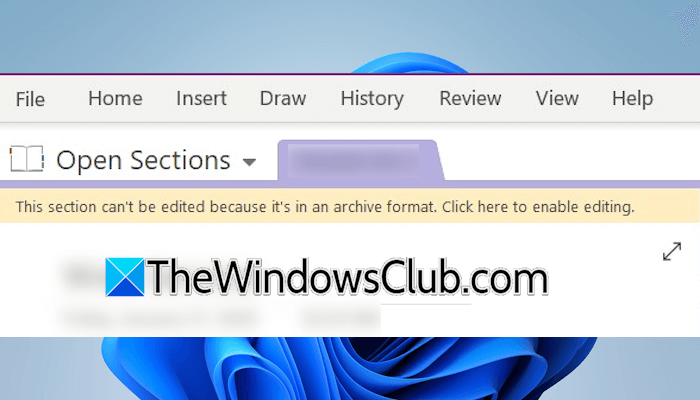
The complete error message is:
This section cannot be edited because it’s in an archive format. Click here to enable editing.
This section cannot be edited because it’s in an archive format OneNote error
Use the following fixes for the “This section cannot be edited because it’s in an archive format” error in OneNote.
- Sign out and sign back in
- Export the affected section
- Edit the notebook online
- Create a new notebook
- Repair or reinstall OneNote
All these fixes are explained in detail below:
1] Sign out and sign back in
The error might be occurring due to a temporary glitch. Completely close OneNote and open it again. OneNote keeps running in the background after being closed. To check this, click on your system tray after exiting OneNote. If you see a OneNote icon there, this means that it is running in the background. Now right-click on its icon and click Close. Now, open OneNote and see if the error occurs.
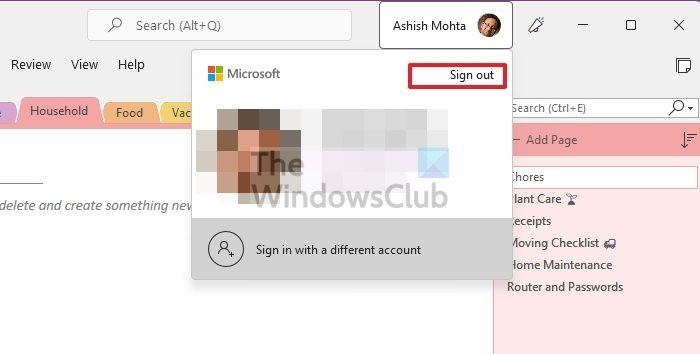
If this does not help, sign out and sign back in. In OneNote, click on your profile icon on the top right side and then click Sign Out. You will see the following message:
Removing this account will sign you out from this and other Office applications.
Click Yes. Before you sign out, save all your pending work in other Office applications. Restart your computer. Open OneNote and sign back in.
2] Export the affected section
You can also try this workaround. Export the affected section, then copy or move it to your notebook.
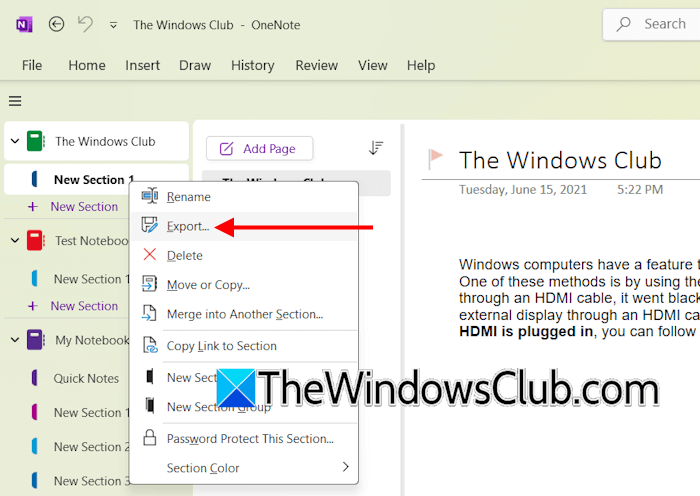
Follow these steps:
- Right-click on the affected section in OneNote and select Export.
- Save the section on your hard drive with another name.
- Completely close OneNote.
- Open File Explorer and navigate to the location where you have exported the section.
- Double-click on the section to open it in OneNote.
The section will appear as a separate section in OneNote under the Open Sections tab. Right-click on it and select Move or Copy. Select the targeted notebook and click Move or Copy. Now, check if you can edit it. If the error disappears, you can delete the previous section.
3] Edit the notebook online
Check if you can edit the notebook online. Follow these instructions:
- In OneNote, go to File > Info.
- You will see all your open notebooks and their respective OneDrive links there.
- Copy the entire link of the affected notebook.
- Open your web browser and paste the link in the address bar. Hit Enter after that.
- You will be prompted to sign in. Sign in with the same Microsoft account.
- Now, select the affected section and start editing it online.
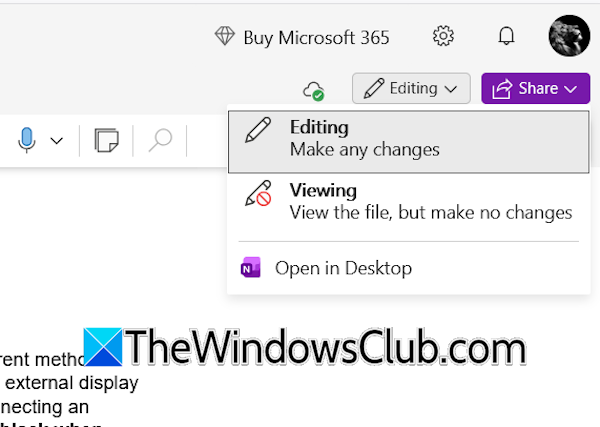
If you cannot edit the notebook online, the OneNote mode might be set to Viewing. Change it to Editing.
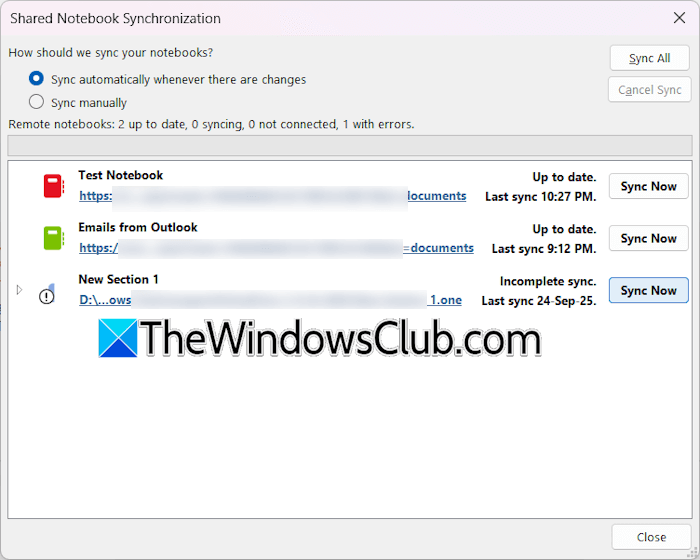
After making the required changes, open OneNote desktop and go to File > Info. Click View Sync Status. Now, click Sync All and check if the error disappears.
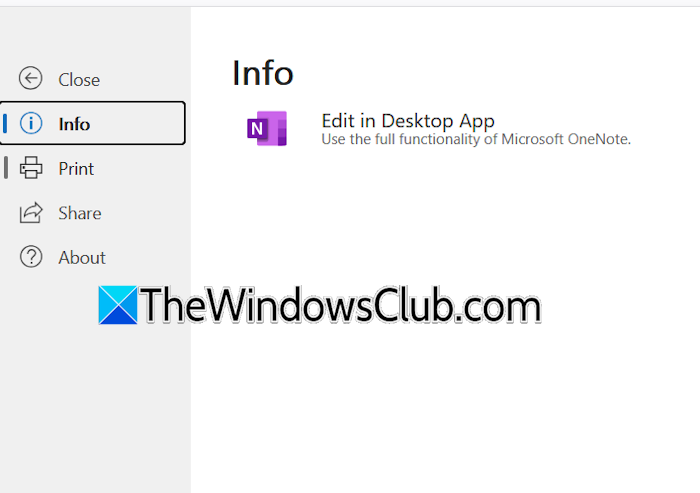
If this does not help, right-click on the affected notebook in OneNote desktop and select Close This Notebook. Now, go back to the web browser where you have opened the notebook. Click File > Edit in Desktop App. Click Open Link in the popup window in your web browser.
4] Create a new notebook
You can move or copy the affected section to a new notebook. Follow these steps:
- Go to File > New and create a new notebook.
- Now, right-click on each section of the affected notebook and select Move or Copy.
- Select the newly created notebook and click Copy.
Similarly, copy all sections from the affected notebook into the new notebook. If this helps, you can delete the previous notebook.
5] Repair or reinstall OneNote
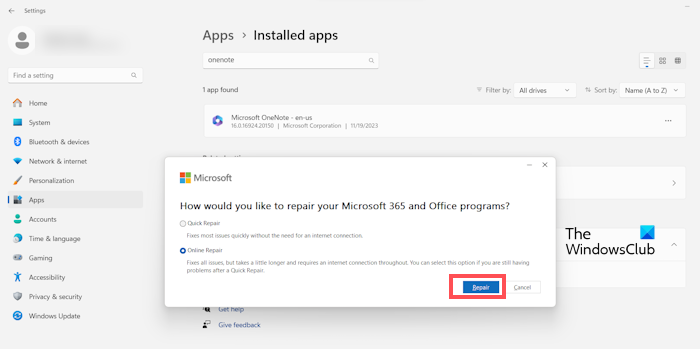
If none of these fixes help, you can try repairing or reinstalling OneNote. Open Windows 11 Settings and go to Apps > Installed apps. Search for OneNote and click on the three dots next to it. Click Modify and then click Online Repair.
If online repair does not work, reinstall OneNote.
That’s it. I hope this helps.
Why is my OneNote not letting me edit?
There can be many reasons why OneNote won’t let you edit. The affected notebook or section might have been corrupted or not synced properly. You can try forcing a sync of the notebook. If it is a shared notebook, you might not have editing rights. In such a case, you need to contact the notebook’s owner.
Can I recover a deleted OneNote section?
Yes, you can recover the deleted OneNote section. When you delete a section in OneNote, it is moved to OneNote Recycle Bin. Select your notebook, then click History > Notebook Recycle Bin. The deleted sections will appear under the Deleted Notes tab. Right-click on the deleted section and select Move or Copy. Now, copy or move it to the required notebook.
Read next: How to fix Misplaced Sections in OneNote.
