
Microsoft Teams has become a central hub for workplace communication, making it easy to lose track of important messages in the flow of constant chats. The Save this message feature was a vital tool for many users to bookmark critical information for later reference. However, a significant number of users have recently reported that this function has disappeared, causing confusion and workflow disruptions. In this post, we will see what you can do if you are the Save this message is missing in Teams.
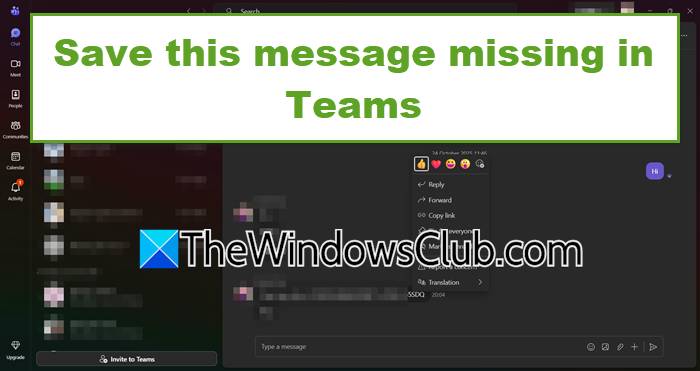
In your Microsoft 365 tenant, the “Save this message” option is not visible in the message overflow menu (… -> More actions) on either the Teams desktop app (version 26032.206.4355.6508) or the web client, despite Microsoft’s roadmap (ID 496369) stating a complete rollout to General Availability between late August and early September 2025. According to the official Microsoft 365 Roadmap and Message Center post (MC1104306), this feature is enabled by default without any admin configuration. The absence of the option may indicate that the rollout is incomplete for your specific tenant, that there is a temporary service-side issue preventing it from appearing, or that a client-side caching problem is at play. Since Microsoft asserts there are no admin controls to disable the feature, the issue is likely due to a deployment delay or glitch.
Save this message missing in Teams
Let’s go through tips and solutions if your Save this message is missing in Teams.
- Verify Tenant release schedule
- Force a client update and clear cache
- Test with a brand new test user
- Use the Official Feedback Channel
Let us talk about them in detail.
1] Verify Tenant release schedule
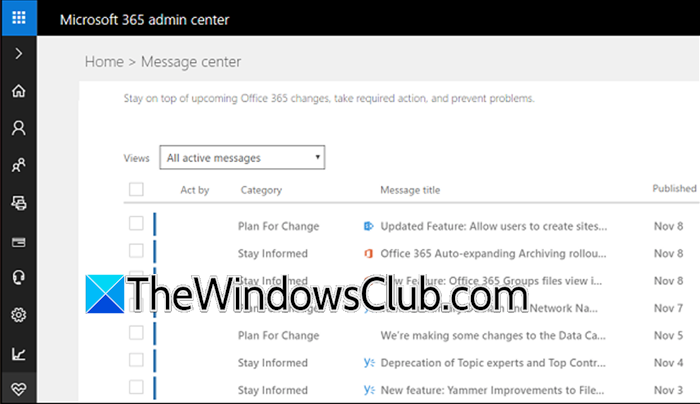
Microsoft rolls out features over several weeks. Your tenant might be scheduled for a later wave.
You need to go to the Microsoft 365 admin center, then go to Message center, search for post MC1104306. Compare the dates in this post with Microsoft’s published roadmap to confirm if your tenant is marked as completed or still pending.
2] Force a client update and clear cache
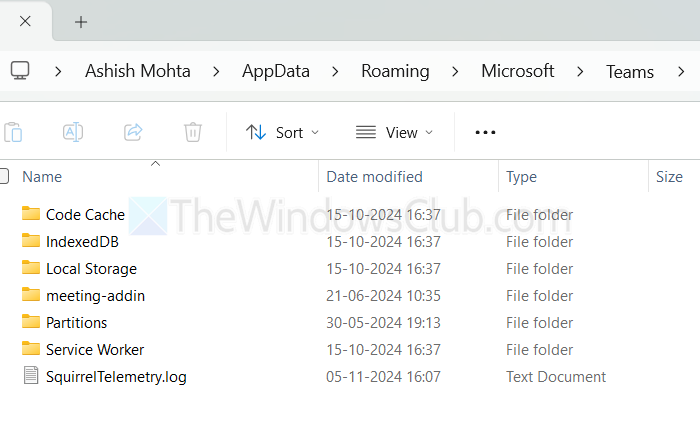
Even if the server-side feature is active, an outdated client or corrupted cache can prevent the new menu option from rendering. Therefore, we need to clear the cache and force a client update. To do that, follow the steps below.
- In the Teams desktop app, go to your profile and then check for updates.
- If you are able to update Teams but encounter the same issue, we need to clear the Teams cache.
- Finally, restart Teams.
This forces a fresh download of the latest UI components.
3] Test with a brand new test user
By creating a test user, we can determine whether the issue is tenant-wide or specific to existing user profiles. You need to create a new test user in your Microsoft 365 admin center. Sign in as this user on Teams Web. Check for the Save this message option. If it appears for the new user, the problem is related to existing user profiles or cached data.
4] Use the Official Feedback Channel
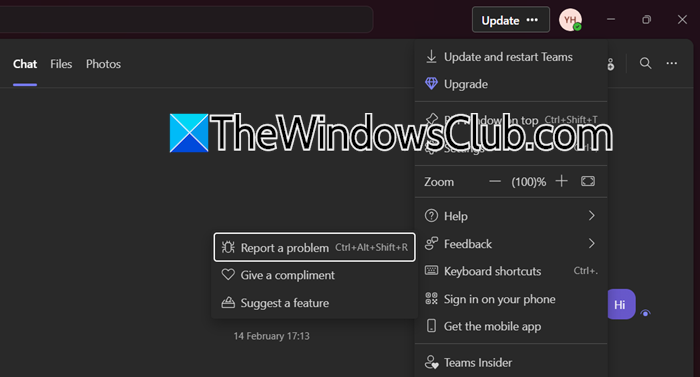
If the above steps fail, reporting it directly is the fastest way to get Microsoft’s attention on a potential tenant-specific outage.
You need to open Teams, click on the three dots, select Feedback, and click on Report a bug. Now, submit your grievance, and hopefully, Microsoft will try to work on it and resolve the issue.
Hopefully, with these solutions, your issue will be resolved.
Read: How to set scheduled Out of Office status in Teams
Why did my message disappear on Teams?
If you are referring to a message you previously saved, it may disappear if the original message in the chat or channel was deleted by the sender or removed due to a retention policy. According to Microsoft, the saved copy is linked to the original and will be removed automatically when the original is deleted.
Read: How to enable and use Just Me in Microsoft Teams
