
Some users cannot play Roblox due to the “Roblox encountered an unexpected error” message. According to the reports, this error appears when launching Roblox. If you encounter this error and cannot play Roblox games, this article will help you.
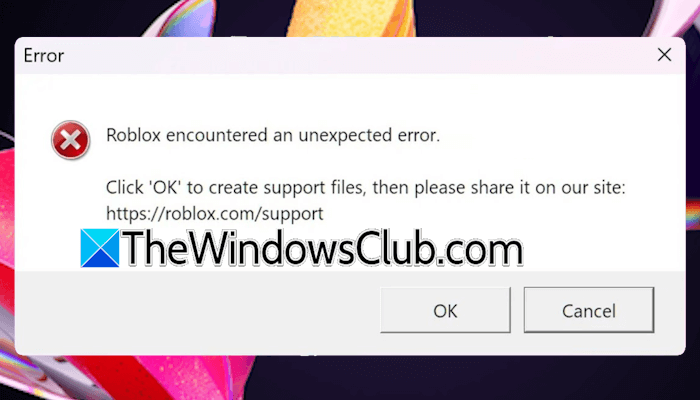
The complete error message is:
Roblox encountered an unexpected error.
Click OK to create support files, then please share it on our site.
Roblox encountered an unexpected error, click OK to create support files
Use the following fixes for the “Roblox encountered an unexpected error” on Windows 11. Before proceeding, check for Windows Update and install it (if available).
- Disable Virtualization in BIOS
- Clear Roblox cache
- Delete all junk files
- Disable your antivirus
- Change the Exploit Protection setting
- Add Media features
- Reinstall Roblox
- Create a new user profile
- Turn off Memory Integrity
All these fixes are explained in detail below:
1] Disable virtualization in BIOS
If Virtualization is enabled on your system, you may encounter this error in Roblox. Hardware Virtualization is required for running virtual machines on Windows. For example, running another operating system in a virtual environment. If you do not use Virtual Machines, you can disable this feature in your system’s BIOS.
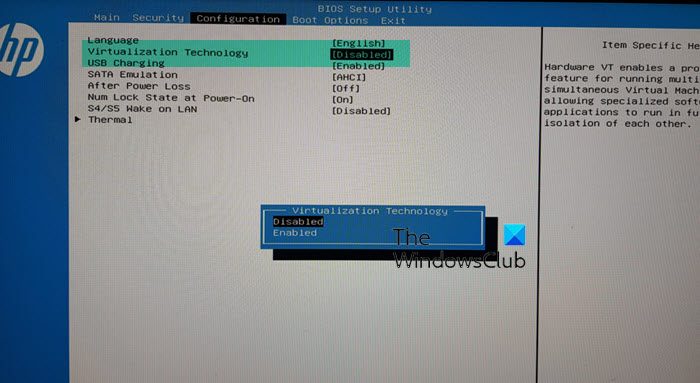
The steps to disable hardware virtualization vary by computer brand. Therefore, refer to the user manual of your system to know the right steps to disable hardware virtualization. After disabling virtualization, check if you can play Roblox.
2] Clear Roblox cache
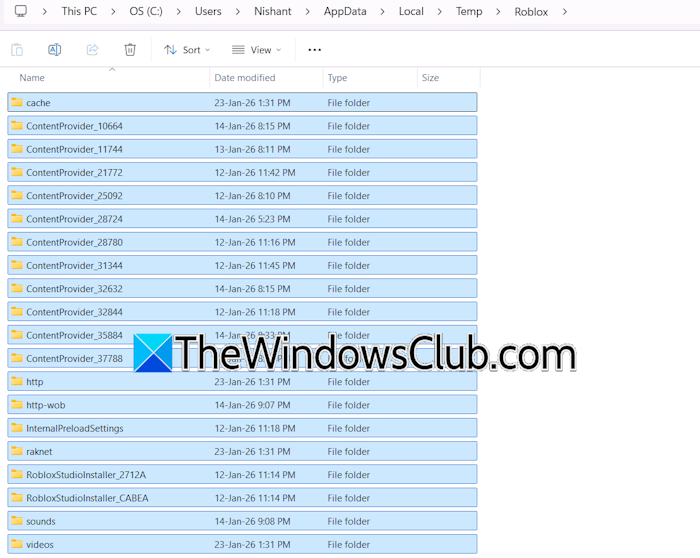
Corrupt Roblox cache files can also cause issues. If this is the case with you, clearing the cache can help. To clear the Roblox cache, open the Run command box, type %temp%, and click OK. This will open the Temp folder in File Explorer. Now, locate and open the Roblox folder. Delete all files inside it.
3] Delete all junk files
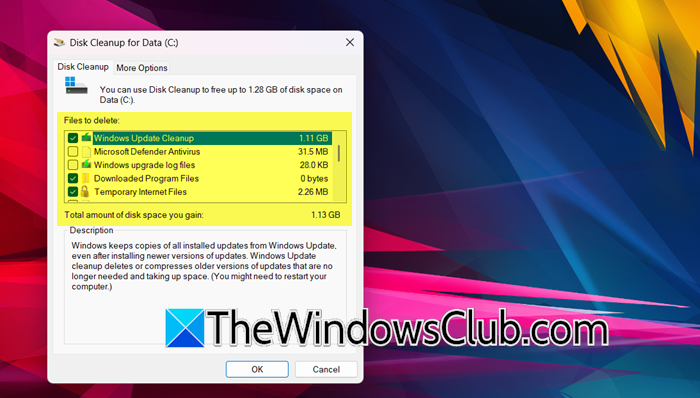
If the issue persists, I suggest you delete all junk files, as they can cause multiple issues with apps or programs. First, empty the Temp folder, then run the Disk Cleanup to delete remaining junk files.
4] Disable your antivirus
Your antivirus might be conflicting with the Roblox launcher and causing this error. To confirm this, disable your antivirus. If this fixes the issue, you need to add the Roblox exe file to your antivirus exception list.
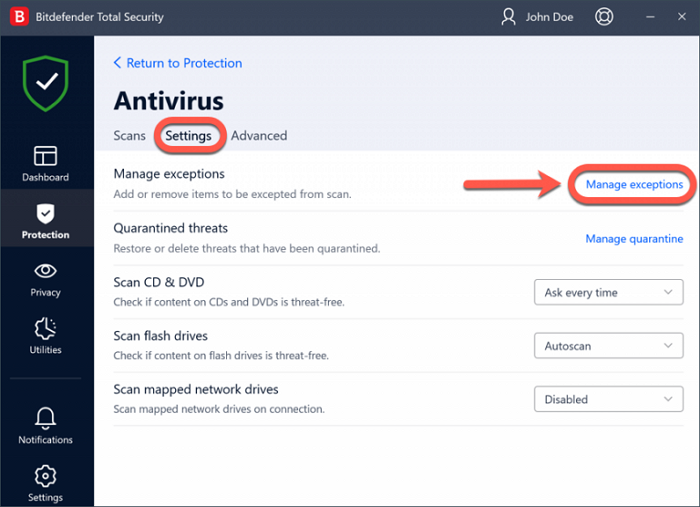
Right-click on the Roblox desktop shortcut and select Open file location. This will open the default install location of Roblox. You will find the Roblox exe file there.
5] Change the Exploit Protection setting
If the issue persists, you can change the Exploit protection setting for Roblox. Follow these steps:
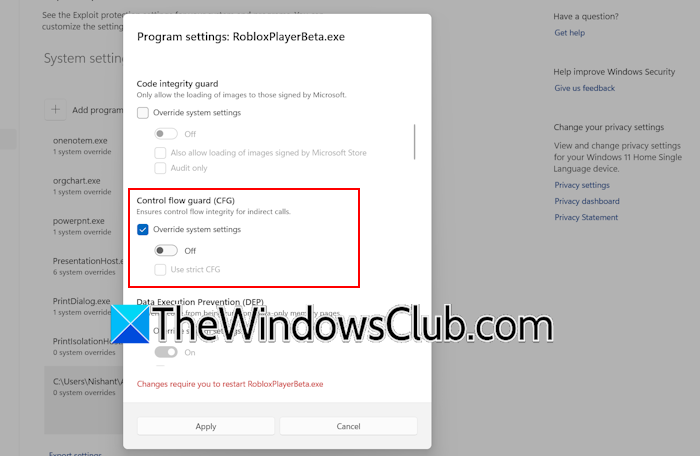
- Open Windows Security.
- Select App and Browser Control.
- Now, click Exploit protection settings.
- Select the Program settings tab and then click Add program to customize.
- Select Choose exact file path.
- Now navigate to the installation location of Roblox and select the exe file.
- Scroll and search for the Control Flow Guard setting and turn it off. If the option to turn off this setting is greyed out, select the Override system settings checkbox. After that, you will be able to turn off this setting.
After completing the above steps, restart your computer.
6] Add Media features
If the issue persists, you can try adding Media Features. The Media Features are available as optional features on Windows 11.
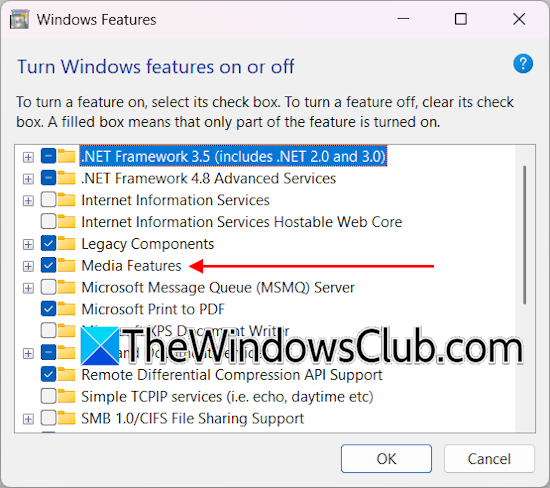
The steps to enable these features are as follows:
- Click on Windows Search and type Windows Features.
- Click Turn Windows features on or off from the search results.
- Select the Media Features checkbox and click OK.
Windows will install the required files to install Media Features. After that, restart your computer. Now, launch Roblox and see if the error occurs.
7] Reinstall Roblox
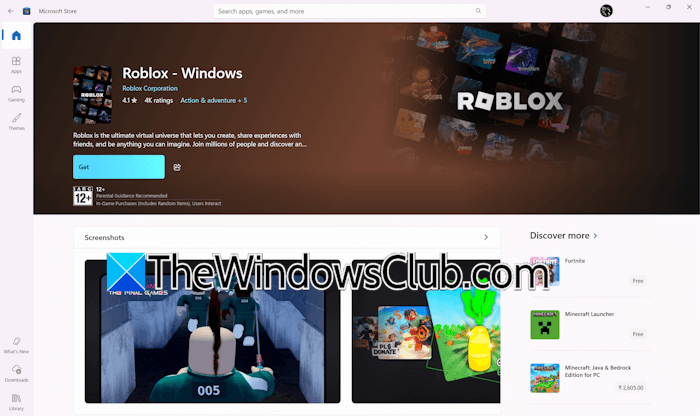
If the above fixes do not work, you can reinstall the Roblox Player. First, uninstall it via your system Settings, then restart your computer. Now, download its latest version from the official website and run the installer file. Alternatively, you can also install it from the Microsoft Store.
8] Create a new user profile
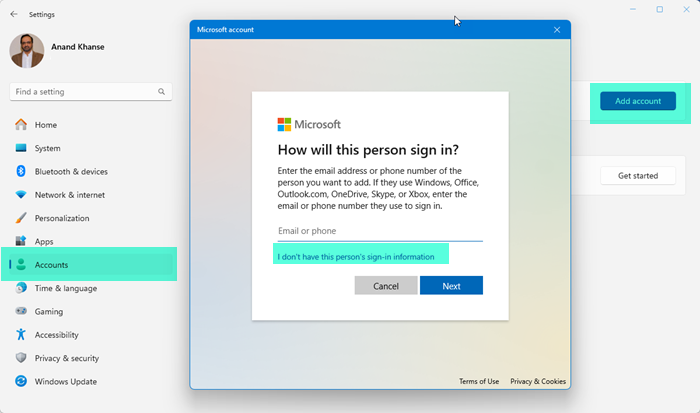
Sometimes, problems are associated with a particular user profile. You can check this by creating a new user profile on your system. Sign in to the new user profile and launch Roblox. Sign in to Roblox using your account credentials. If the error does not appear, you can continue playing Roblox in that user profile and use the previous user profile as your work profile. Or, you can also transfer the entire profile data to the new profile using a third-party tool, such as Transwiz.
9] Turn off Memory Integrity
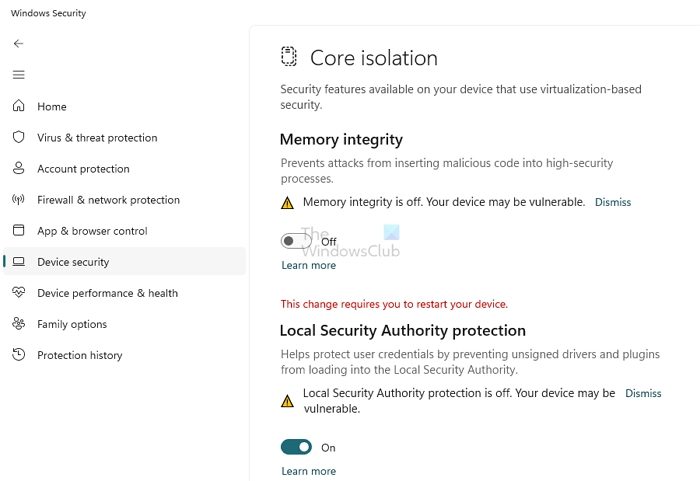
This is the last resort. Turning off Memory Integrity is not recommended. However, if none of the above fixes worked, you can disable Memory Integrity. After disabling this feature, reinstall Roblox.
That’s it. I hope this helps.
Is 267 a ban?
Yes, Roblox error code 267 indicates your account has been banned from the experience by its creator for violating Roblox community standards. This ban is not issued by Roblox. You can still access other features and experiences on the platform.
Is error code 277 a ban?
The error code 277 on Roblox is not a ban. This error code indicates connection issues. Roblox displays this error code when the client application servers fail to establish a network connection on users’ devices.
Read next: You have been kicked due to unexpected client behavior.
