
For any PC gamer, the Xbox Game Bar is a useful tool, as it helps with screen recording, performance monitoring, and in-game overlays. Usually, the tool doesn’t cause any issues and runs in the background. However, you may occasionally encounter glitches, and resetting the Xbox Game Bar is the only option. If you aren’t sure how to do so, here is a quick guide.
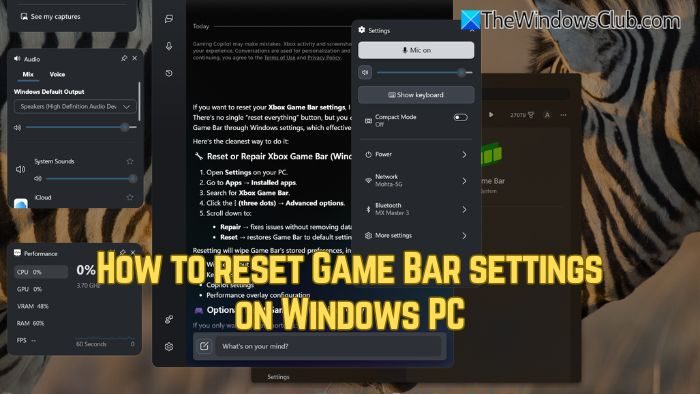
How to reset Game Bar settings on Windows PC
If Game Bar is not working as expected or you want to go back to default settings in Windows 11/10, follow any of these methods:
- Repair it via Windows Settings
- Reset it using PowerShell
- Reset it using Command Prompt
- Reinstall it via the Microsoft Store.
1] Repair it via Windows Settings
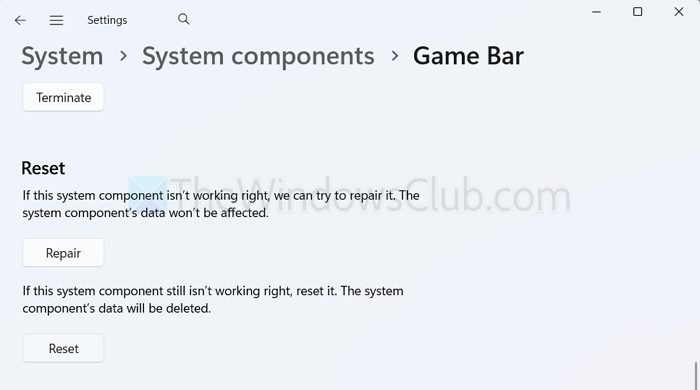
The easiest way to reset the Xbox Game Bar is via the Settings. Here’s how:
- Press Windows Key + I to open Settings.
- Go to System > System components.
- Over here, search for Game Bar, click on the three dots icon, and select Advanced options.
- Finally, scroll to the bottom and select Repair.
If resetting doesn’t resolve the issue, consider using the Reset option in the same menu.
2] Reset it via PowerShell
In addition to Settings, you can repair it using PowerShell. Here’s how:
- Right-click on the Start button and select Terminal (Admin).
- Copy and paste the following command and hit Enter:
Get-AppxPackage Microsoft.XboxGameOverlay | Remove-AppxPackage
- Next, to reinstall Game Bar, run the following command:
Get-AppxPackage -allusers Microsoft.XboxGameOverlay | Foreach {Add-AppxPackage -DisableDevelopmentMode -Register "$($_.InstallLocation)\AppXManifest.xml"}
3] Reset it using Command Prompt
Open Command Prompt (Admin) and execute the following command:
winget install Microsoft.XboxGamingOverlay
This will reinstall Game Bar using the Windows Package Manager, thereby resetting all its settings to their defaults.
4] Reinstall it via the Microsoft Store
To reinstall Xbox Game Bar, uninstall it first and then open Microsoft Store and search for Xbox Game Bar. Click Install.
This will install the latest version of Game Bar, thus resetting all its settings to their defaults.
So those were two quick ways to reset the Xbox Game Bar. If the reset doesn’t work, check whether Game Bar is enabled under Settings > Gaming.
Will resetting the Xbox Game Bar delete my recorded clips and screenshots?
No. Resetting the Game Bar only restores the app’s settings to default and fixes configuration issues. Your recorded clips and screenshots remain safe in the Videos> Captures folder on your PC. However, custom preferences like shortcuts, audio settings, and overlays will be removed.
Can I completely disable Xbox Game Bar instead of resetting it?
Yes, you can fully disable the Xbox Game Bar if you don’t use it or suspect it’s affecting performance. Open Settings > Gaming > Game Bar and toggle off “Open Xbox Game Bar using this button on a controller” and related options. You can also go to Settings > Apps > Installed apps > Xbox Game Bar > Advanced options and disable background permissions or terminate the app. Disabling stops it from running in the background and prevents accidental launches while gaming.
