
This post features solutions for repairing damaged RAW drive without formatting or losing data. A RAW drive is a storage device that has a RAW file system and hasn’t been formatted or assigned to a file system like FAT12/FAT16/FAT32 or NTFS/NTFS.
Drives can sometimes be damaged, corrupting their data and rendering them RAW. In this case, the traditional solution suggests formatting the drive – but this will cause data loss. Luckily, there are some other methods to repair a damaged raw drive without data loss.
Can I recover data from a RAW drive?
Yes, it’s possible to recover data from RAW drives. There are two main ways to do so: convert the RAW drive back to a readable format, like FAT32, NTFS, or exFAT, or the required files directly from the RAW drive. However, several data recovery programs are available to help with this. They use advanced algorithms and techniques to recover data from a damaged drive.
Repair damaged RAW Drive without formatting or losing Data
To repair a damaged RAW drive without formatting or losing data, follow these methods. The idea is to recover the data from the RAW drive ultimately:
- Use CHKDSK
- Use Diskpart Command line
- Use Disk Management
- Use Third-Party Data Recovery Software
Let’s now see these in detail.
1] Using CHKDSK
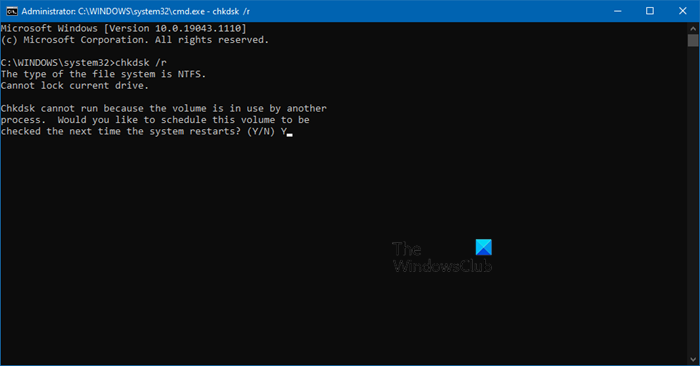
CHKDSK is a Windows utility that scans and repairs system errors. It also checks for corrupted hard drive parts, which may cause this issue. Here is how you can run a CHKDSK Scan:
- Click on Start, search for Command Prompt, and click on Run as Administrator.
- Type the following command and press Enter.
CHKDSK C:/f/r/x
- Here C is the drive on which you want to run chkdsk.
- The command won’t start running as your device’s root drive is in use. However, when you restart your PC it’ll ask you to begin scanning.
- Type Y, press Enter and then reboot Windows.
- The CHKDSK command will now start running. Wait for the procedure to complete.
- Then power on your device and check if the error is resolved.
2] Using Diskpart Command line
In this step, we’ll use the Diskpart command in the Command Prompt to fix the damaged RAW drive. Here’s how:
- Open the Command Prompt as an Administrator.
- Type diskpart and hit Enter to open the Diskpart utility.
- Type list disk and hit Enter to see all the connected drives.
- Here, identify the RAW drive and note it’s associated disk number.
- Now type these commands one-by one and hit Enter.
select disk A (Replace "A" with the disk number of the RAW drive)
attributes disk clear readonly
attributes disk clear offline
attributes disk clear hidden
attributes disk clear noerr
recover partition table
exit
- Open the File Explorer and check if the RAW drive is converted to NTFS or not and if you’re able to access your data.
3] Using Disk Management
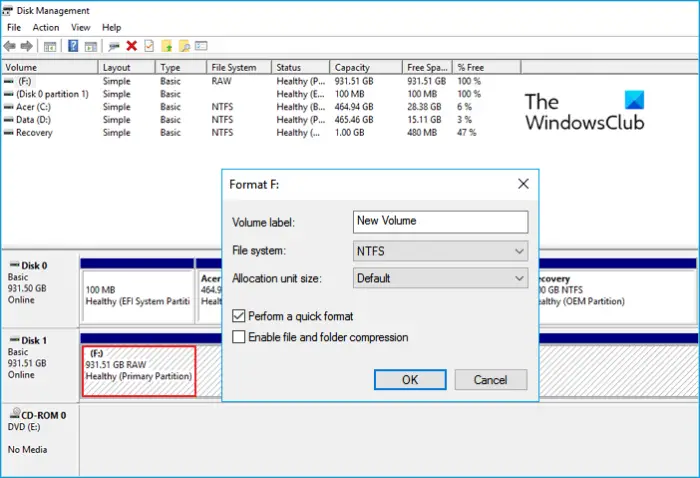
You can also fix the RAW drive using Disk management in Windows. Do note that this will format all data present on the disk. Here’s how:
- Press the Windows key + R to open the Run dialog box.
- Type diskmgmt.msc and hit Enter.
- Once Disk management opens, right-click on the RAW drive and select Format.
- Now set the volume label, File system, and allocation size. Check the option Perform a quick format and click on Ok to proceed.
- Once the drive gets formatted, it’ll be converted into NTFS, and you can use it as usual.
4] Using Third-Party Data Recovery Software
If none of these methods help, consider using third-party data recovery software such as WonderShare Recoverit, EaseUS, MiniTool, etc. There are some free ones as well as some paid software available, too. Go through the posts and see which one meets your requirements.
Note: All these suggestions mentioned above may not work in some cases, and there is always a risk of data loss. So, proceed at your own risk.
We hope this post helps you.
How to fix a corrupted external hard drive without formatting using CMD?
To fix a corrupted external hard drive without formatting using CMD, connect the drive and open Command Prompt as Administrator, then type chkdsk X: /f /r /x (replace X with your drive letter). This command scans the disk for errors, fixes file system issues, attempts to recover bad sectors, and forces the drive to dismount before repair. Once finished, safely eject and reconnect the drive to check if it’s accessible again.
Related: How to fix RAW partition in Windows
How do I fix my RAW hard drive without losing data?
To fix your RAW hard drive without losing data, firstly, run a CHKDSK scan and repair the drive. Doing so will convert the RAW drive to NTFS, and the data will be readable again. If that doesn’t help, use data recovery software to recover your data.
Can you fix a dead HDD?
This depends on the extent of the hard drive’s damage. If the damage is physical, there is a very low chance it’ll be fixed. However, if it’s corrupted, there are several ways to recover the HDD.
