
In this tutorial, we will show you how to remove Windows Spotlight ‘Learn about this picture’ desktop icon in Windows 11. Earlier, it was limited or restricted to turn on or enable Windows Spotlight feature to lock screen only, but now, Microsoft has come with a new feature for Windows 11 using which you can display Windows Spotlight backgrounds on the desktop. Though the feature is handy to display different backgrounds or images from time to time, it also displays a Learn about this picture icon on the desktop, as visible in the image below.
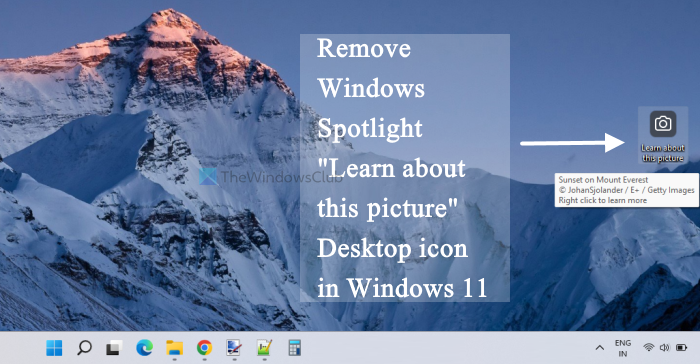
There is no direct option to remove this icon and you may find it annoying. So, if you want to remove or hide this Windows Spotlight desktop icon, then you can use a Registry trick covered in this post.
What is “Learn about this picture” icon on the Desktop in Windows 11?
When you choose Windows Spotlight to show desktop backgrounds on your Windows 11 computer, a Learn about this picture icon also appears on the desktop in the top-right corner. You can move that icon anywhere on the desktop and use that icon to get more information about the displayed picture, switch to the next picture, like that picture, etc.
Everything is fine, and it works and looks like any other desktop icon. But, unlike other desktop icons, you can’t use the Delete or Shift+Del hotkeys, cut, copy, paste options or move the Windows Spotlight desktop icon to a folder. So, those who want to get rid of this Windows Spotlight desktop icon can try the Registry trick added in this article.
Remove Windows Spotlight Learn about this picture Desktop icon
Before using this Registry trick, you should create a backup of the Registry so that you can restore the Registry if needed. When you have done that, follow these steps:
- Open Windows Registry Editor
- Select the NewStartPanel key
- Create a
{2cc5ca98-6485-489a-920e-b3e88a6ccce3}DWORD value - Add 1 in its Value data
- Refresh your desktop.
Let’s have a look at all these steps in detail.
First of all, use the Search box of Windows 11/10 to open Windows Registry Editor. All you need to do is type regedit and hit the Enter key.
In Registry Editor, select the NewStartPanel key available under the HKEY_CURRENT_USER root key. The path is as follows:
HKEY_CURRENT_USER\Software\Microsoft\Windows\CurrentVersion\Explorer\HideDesktopIcons\NewStartPanel
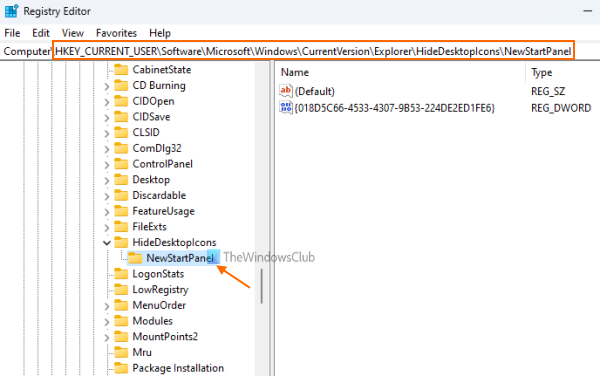
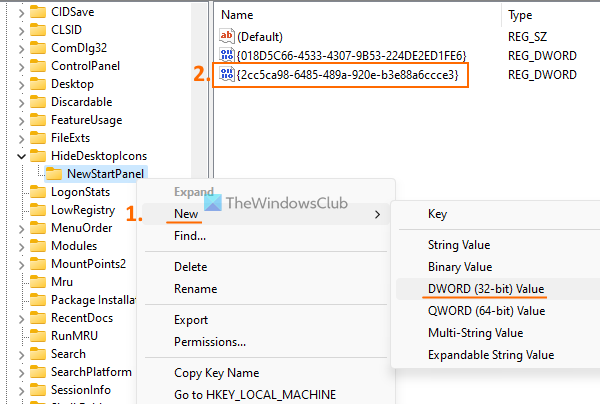
Now open the right-click context menu of NewStartPanel, expand the New menu, and use the DWORD (32-bit) Value option. After that, rename that DWORD value to {2cc5ca98-6485-489a-920e-b3e88a6ccce3}.
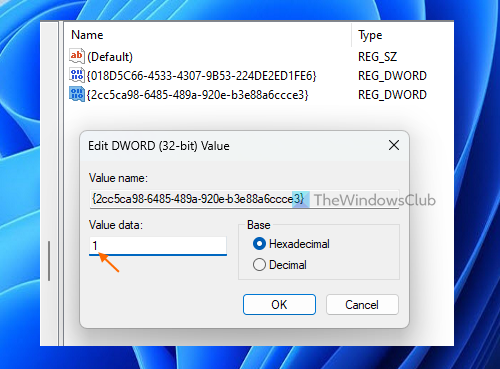
Double-click on that value to open its edit box. When the box is opened, add 1 in the Value data field. Press the OK button.
Finally, go to your Windows 11 desktop and press F5 or use the context menu to refresh it. After you refresh the desktop, the Windows Spotlight icon will disappear.
To show Learn about this picture icon again on the desktop, you can simply repeat the steps mentioned above, and delete this {2cc5ca98-6485-489a-920e-b3e88a6ccce3} value.
Related: How to find Windows Spotlight Lock Screen images in Windows.
As of now, this is the only built-in option for removing this Windows Spotlight icon from the Windows 11 desktop. Upcoming updates may also let you do this through the Settings app or another option. Until then, you can use this Registry trick.
TIP: You can also use the Picture, Slideshow, or Solid color option for Background available under the Personalization category of the Settings app to remove or hide the Windows Spotlight desktop icon. But that option will also stop showing Windows Spotlight images for the desktop background. So, this Registry Editor method is better.
Hope this helps.
Read: How to Enable or Disable Desktop Search Bar in Windows 11
How do I get a Spotlight background in Windows 11?
Windows 11 now provides a built-in feature to set Windows Spotlight backgrounds as desktop wallpapers. To do this:
- Open the Settings app by pressing Win+I hotkey
- Click on the Personalization category available in the left section
- Access the Background page
- Click on the drop-down menu available for Personalize your background section
- Select the Windows spotlight option.
How to hide desktop icons in Windows 11?
Whether you want to hide desktop icons on Windows 11 or a Windows 10 computer, there are a few native options to do that. These are:
- Using the desktop context menu
- Group Policy Editor
- Desktop Icon Settings.
While the first two options let you hide all the desktop icons (including desktop shortcuts), the Desktop Icon Settings option lets you hide/unhide Recycle Bin, This PC, user folder, Network icons, etc.
Read next: How to reset the Windows Spotlight feature.
