
Windows Spotlight feature in Windows 11/10 allows users to fetch an image from Bing and set it as the Lock Screen background image automatically. However, some people have reported that Windows Spotlight is not working for them and that at times Windows Spotlight is stuck on the same picture. If you are facing this issue, then this tutorial will show you how to reset Windows Spotlight preferences and fix the problem.
Windows Spotlight not working
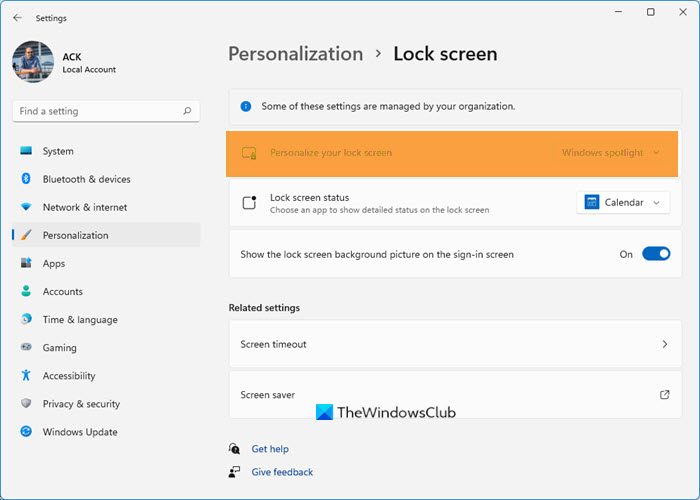
There may be plenty of reasons, why your Windows 11/10 machine is not fetching new wallpaper from Bing. Resetting Windows Spotlight settings & preferences are very likely to help you.
But before you begin you have to ensure that you have a working Internet connection as Windows Spotlight features require an active internet connection to show new wallpaper on the lock screen. Otherwise, it won’t be able to grab the image from the repository. So make sure that you are connected to the Internet. You may also run System File Checker to replace potentially corrupted system files.
1] Reset Windows Spotlight preferences
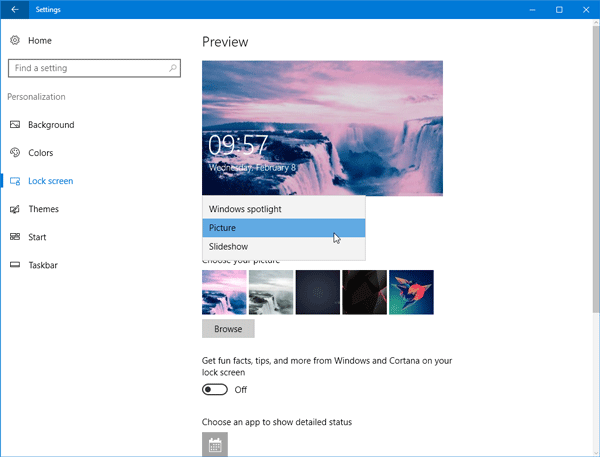
If in spite of being connected to the Internet, you face problems, you may want to reset Windows Spotlight preferences and settings and see if that helps. The following steps would let you reset the Windows Spotlight settings in Windows 11/10 – there is no need of any software, though.
Before you begin, create a system restore point first.
Next, open Settings panel by pressing Win+I and go to Personalization > Lock Screen. Under the Background option, choose Picture and set a picture as default lock screen background.
Next, navigate to the following folder,
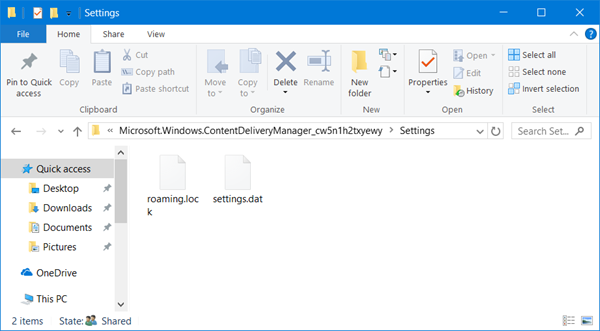
C:\Users\<username>\AppData\Local\Packages\Microsoft.Windows.ContentDeliveryManager_<characters>\Settings
You will have to first unhide all hidden folders in Windows.
Now, here in this folder, you will see two files called roaming.lock and settigns.dat. Delete both of them.
Having thus reset Windows Spotlight preferences & settings, open the Lock Screen personalization settings and set Windows Spotlight as the default lock screen background.
If this does not help, you want to proceed to the next step.
Read: Switch to next picture is greyed out in Windows Spotlight
2] Re-register Windows Spotlight
To do this, open an administrator Powershell windows, type the following and hit Enter:
Get-AppxPackage Microsoft.Windows.ContentDeliveryManager -allusers | foreach {Add-AppxPackage -register "$($_.InstallLocation)\appxmanifest.xml" -DisableDevelopmentMode}
Now check your lock screen and see if you have a new wallpaper or not.
Related: Turn on or off Windows Spotlight using Registry or Group Policy Editor.
I hope this helps.
If nothing works, you can always go back to the created system restore point.
Windows Spotlight Settings not saving
If Windows Spotlight settings aren’t saving, do this:
- Reset Spotlight Configuration: Open Windows Settings > Personalization > Lock Screen and change the background from Windows Spotlight to Picture. Next navigate to
%USERPROFILE%\AppData\Local\Packages\Microsoft.Windows.ContentDeliveryManager_cw5n1h2txyewyand delete the contents of LocalState\Assets and Settings folders. - Re-register Spotlight: Open PowerShell as adminisntartor and run:
Get-AppxPackage Microsoft.Windows.ContentDeliveryManager -allusers | foreach {Add-AppxPackage -DisableDevelopmentMode -Register "$($_.InstallLocation)\AppxManifest.xml"}.
Now, go back to Windows Settings and set it back to Windows Spotlight. Remember to check the box for Get fun facts, tips, tricks, and more on your lock screen.
How to force Windows Spotlight to change picture?
To change the Windows Spotlight picture, click the camera icon in the top-right corner of your desktop and select “Switch to next picture” from the drop-down menu. This action will update the Spotlight image on your desktop. If the icon isn’t visible, right-click the desktop and update your Windows settings.
How to reset Windows Spotlight lock screen?
To reset Windows Spotlight on the lock screen in Windows 10, navigate to Settings > Personalization > Lock Screen. Switch the “Background” setting from “Windows Spotlight” to “Picture” or “Slideshow.” Restart your PC, then revert the setting back to “Windows Spotlight” to refresh the feature.
