
You may receive the error 0xc0000005 on devices that have the Diagnostic Data Level manually configured to the non-default security setting of Zero. Additionally, you may also receive an error in the Application section of Windows Logs in Event Viewer with Event ID 1000. It will have a reference “svchost.exe_RasMan” and “rasman.dll.” If you face this issue, then, we will show you how to fix this issue when the Remote Access Connection Manager Service is not working.
Fix Remote Access Connection Manager Service not working
Before we start talking about the solution, you should know that the Remote Access Connection Manager (RasMan) service manages dial-up and VPN connections from the computer to the Internet or other remote networks. When you connect, the Service dials the connection or send a VPN connection request. However, the issue only occurs when a virtual private network (VPN) profile is configured as an Always On VPN (AOVPN) connection with or without a device tunnel.
You can fix RasMan error 0xc0000005 on Windows 11/10 using the following methods:
- Install Windows Updates
- Fix using Group Policy
- Enable Telemetry from Settings
- Use Registry Editor to Enable Telemetry.
1] Install Windows Updates
Before you begin, ensure that you have the latest Windows Update installed on your computer system. Make sure KB4505903 is installed.
Go to Settings > Update & Security > Windows Update and select Check for updates.
If you are using Microsoft Update Catalog to update, then get the standalone package for this update, go to the Microsoft Update Catalog website. When using Windows Server Update Services (WSUS), you can import this update into WSUS manually.
2] Fix using Group Policy
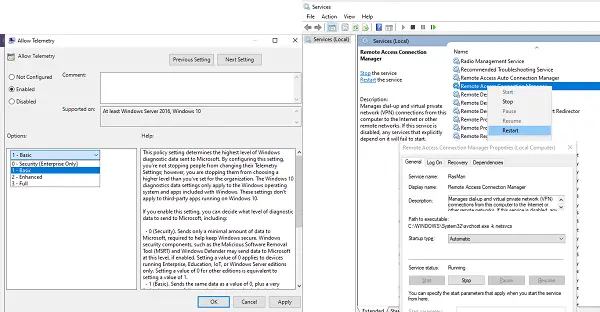
We will need to enable Telemetry and run the RASMAN service.
- Open Group Policy Editor by typing gpedit.msc in the Run prompt
- Navigate to Computer Configuration> Administrative Templates > Windows Components > Data Collection and Preview Builds > Allow Telemetry
- Open the policy, and then choose one of the security level, i.e., Basic, Enhanced, and Full.
- Click OK > Apply and exit.
- Now, type Services.msc in the Run Prompt to open the Services Manager.
- Locate Service with name Remote Access Connection Manager, and restart it.
See if this has resolved the issue.
3] Enable Telemetry from Settings
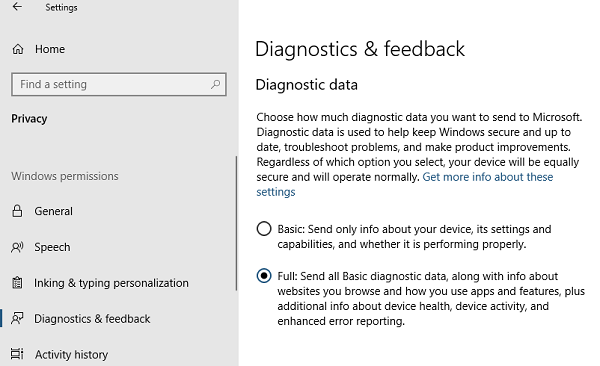
- Use Win + I to open Settings
- Navigate to Privacy > Diagnostics and Feedback
- Choose Basic or Enhanced under Diagnostic data
- Now, type Services.msc in the Run Prompt to open the Services Manager.
- Restart Remote Access Connection Manager Service.
4] Use Registry Editor to Enable Telemetry
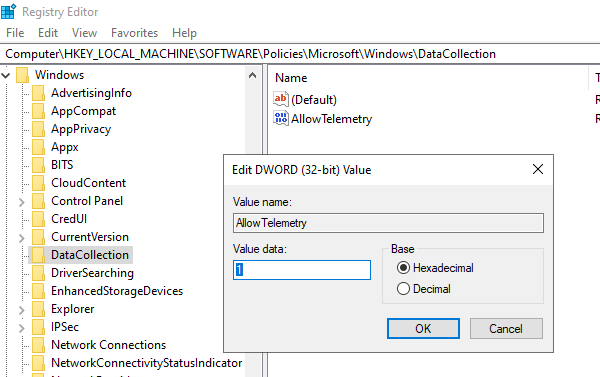
Open Registry Editor
Navigate to:
HKEY_LOCAL_MACHINE\SOFTWARE\Policies\Microsoft\Windows\DataCollection
Locate ‘AllowTelemetry’ entry
Double-click it and enter value 1, 2, or 3 (Basic, Enhanced, Full respectively)
If it’s not available, you can create DWORD (32-bit) named ‘AllowTelemetry.’ and then edit the value.
Make sure to restart the Remote Access Connection Manager services via the Services Manager.
We hope these steps helped you to resolve the issue of Remote Access Connection Manager Service not working.
Why has my Remote Desktop Connection Manager stopped working?
Remote Desktop Connection Manager may stop working due to network problems, incorrect firewall settings, antivirus conflicts, or corrupted registry files. To resolve this, check your network stability, ensure firewall and antivirus settings allow remote connections, and restart your computer.
How to restart Remote Desktop Connection Manager service?
To restart the Remote Access Connection Manager service, open Services Manager and locate Remote Access Connection Manager, right-click it, and click on Restart.
