
When opening Word, Excel, or PowerPoint, if you cannot see the Recent and pinned items on the start screen, here is how to get them back. Whether they are missing in Word, Excel, PowerPoint, or any other Microsoft 365 apps, you can follow the same solutions to troubleshoot the issue.

Primary reasons:
- It is manually disabled from the Word/Excel/PowerPoint Options wizard.
- MRU or Most-Recently-Used cache is corrupted.
- You have mistakenly deleted the File MRU in Registry Editor.
- File MRU is corrupted.
- The Start screen is disabled.
Although there are other reasons, these are among the most common.
Recent and pinned items missing in Word, Excel, PowerPoint
If Recent and pinned items are missing in Word, Excel, and PowerPoint, follow these solutions:
- Check Display settings
- Ensure the file is in local storage
- Check Registry settings
- Enable Start screen for Microsoft 365 apps
- Manually access Recent items
To learn more about these solutions, continue reading.
1] Check Display settings
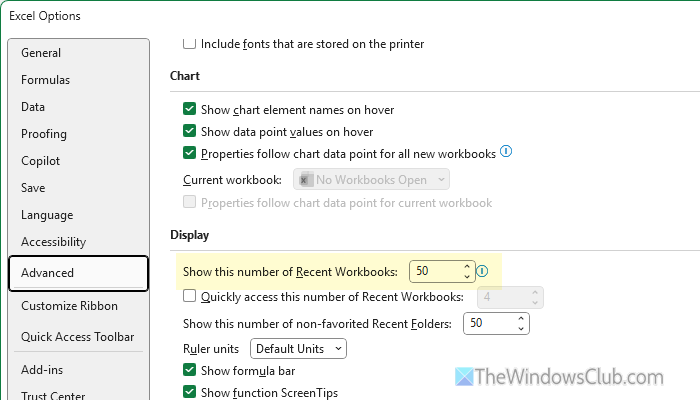
It is the very first thing you need to do since this setting lets you change the number of files you want to see in the list or disable the list entirely. If you have turned off this list by mistake, you cannot find it, no matter what you do.
To check the Display settings in Word/Excel/PowerPoint, follow these steps:
- Open Word/Excel/PowerPoint on your computer.
- Click on File > Options.
- Ensure that you are in the Advanced tab.
- Head to the Display section.
- Find the option that says Show this number of Recent Workbooks/Documents/Presentations.
- Make sure that it is not set to zero.
- If it is set to zero, enter a value more than that and click the OK button.
Read: How to increase number of Recent files in Word, Excel, PowerPoint
2] Ensure the file is in local storage

Whether it is Word, Excel, or PowerPoint, you must have the file in your local storage so it can appear in the Recent or Favorites list. If you do not have the original file in your local storage, create a new one and mark it as a favorite.
Read: How to search for files from the MS-DOS Command Prompt
3] Check Registry settings
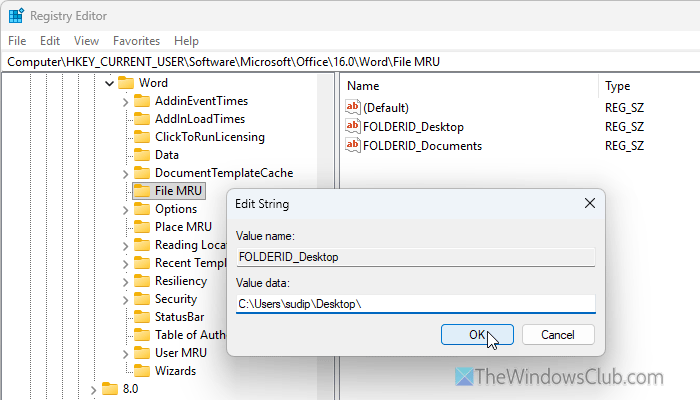
There are two String Values named FOLDERID_Desktop and FOLDERID_Documents that must be intact in the Registry Editor. If these two String Values have been deleted or the entire Registry files for Word/Excel/PowerPoint are corrupt, there is a high chance of getting this problem.
Follow these steps to verify the Registry settings:
Press Win+R, type regedit, hit the Enter button, and click on the Yes button on the UAC prompt to open the Registry Editor.
Then, navigate this path:
Word:
HKEY_CURRENT_USER\Software\Microsoft\Office\16.0\Word\File MRU
Excel:
HKEY_CURRENT_USER\Software\Microsoft\Office\16.0\Excel\File MRU
PowerPoint:
HKEY_CURRENT_USER\Software\Microsoft\Office\16.0\PowerPoint\File MRU
Here you can find two String Values as said earlier. You need to check the paths:
- FOLDERID_Desktop: C:\Users\your-username\Desktop\
- FOLDERID_Documents: C:\Users\your-username\Documents\
If any of the settings above are not set as mentioned, you must make the necessary adjustments. In case you do not have the String Values, create them. For that, right-click on the File MRU > New > String Value and name them FOLDERID_Desktop and FOLDERID_Documents.
Then, double-click on them and set the Value data as said.
4] Enable Start screen for Microsoft 365 apps
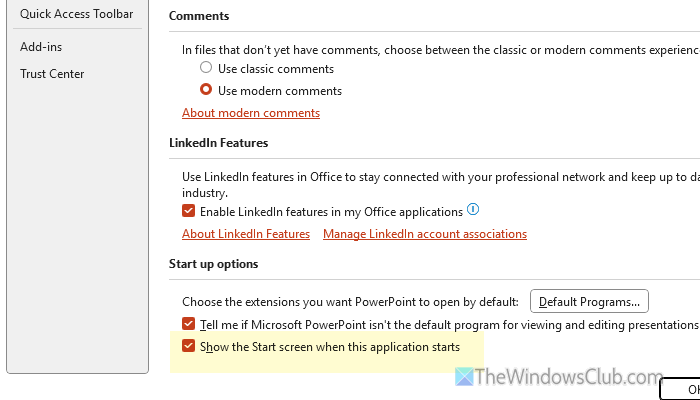
If the Start screen is not enabled, you cannot view the Recent and Favorites lists when opening those Microsoft 365 apps. Therefore, you need to verify the setting by following these steps:
- Open Word/Excel/PowerPoint and click on the File.
- Go to Options > General.
- Find the Show the Start screen when this application starts option and tick this checkbox.
- Click the OK button to save the change.
Read: Disable Splash Screen and Start Screen in Word, Excel, PowerPoint
5] Manually access Recent items
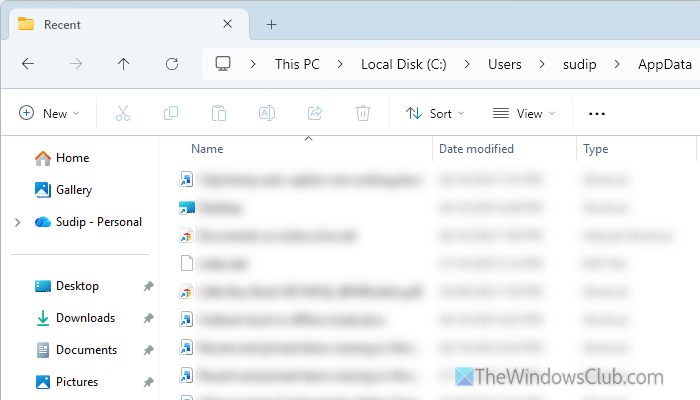
If none of the solutions above worked for you, you can manually access Recent items in Word, Excel, and PowerPoint. For that, open the File Explorer and go to this path:
C:\Users\your-username\AppData\Roaming\Microsoft\Office\Recent
Read: Word experienced an error trying to open the file
Where did my recent Excel files go?
If you cannot find the recently edited files, check the Display settings in the Excel Options wizard. Secondly, you must enable the Start screen, which represents the screen that appears when you open Excel.
What happened to my pinned Excel files?
Even though you cannot see your pinned or Favorite Excel files on the Start screen, they are intact unless you delete them manually. You can check them by navigating this path: C:\Users\your-username\AppData\Roaming\Microsoft\Office\Recent.
Read: How to Pin a Document in Excel, Word, PowerPoint
