
In this tutorial, we will show you how to prevent or allow Passkey Access for apps on a Windows 11 PC. When passkey access is enabled, apps can request to create or use passkeys on your device. You can also choose which apps can create and use passkeys on your Windows 11 device. Passkeys replace passwords and offer a more secure, fast, and convenient way to log in to apps and websites that support them. We can create and save passkeys locally for apps and websites that are protected by Windows Hello (PIN or biometrics).
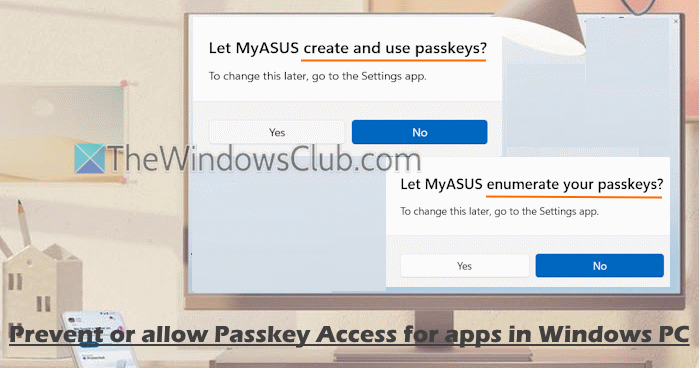
Apart from configuring the Passkey Access for apps, you can also prevent or allow Passkey Autofill Access to let apps enumerate passkeys (list and access passkeys stored on your Windows 11 PC). If allowed, you can decide which apps can enumerate passkeys. This post covers both scenarios separately with step-by-step instructions.
How to prevent or allow Passkey Access for apps in Windows 11
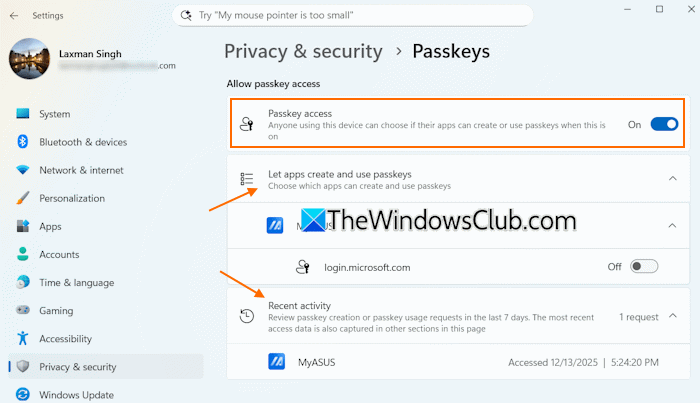
You can prevent or allow Passkey Access for apps in Windows 11 using the Settings app. Here are the steps:
- Right-click on the Start button and select the Settings option. The Windows 11 Settings app will open
- Select Privacy & security
- Scroll-down the page
- Select the Passkeys option
- Under the Allow passkey access section, turn on the Passkey access option to enable it. This will enable the default setting for apps, i.e., all apps can create and use passkeys by default. But you can change it
- Expand the Let apps create and use passkeys section. You will see a list of apps
- For each app, there’s a toggle. Use it to turn on/off access for apps that can create and use passkeys on your device.
You can also review passkey usage or passkey creation requests in the last 7 days. For this, expand the Recent activity section. You will see the total number of requests, the names of the apps, and the access date and time each time a request is raised.
Related: How to use Passwordless UX in Microsoft Account for faster sign-in
Prevent or allow Passkey Autofill Access for apps in Windows 11
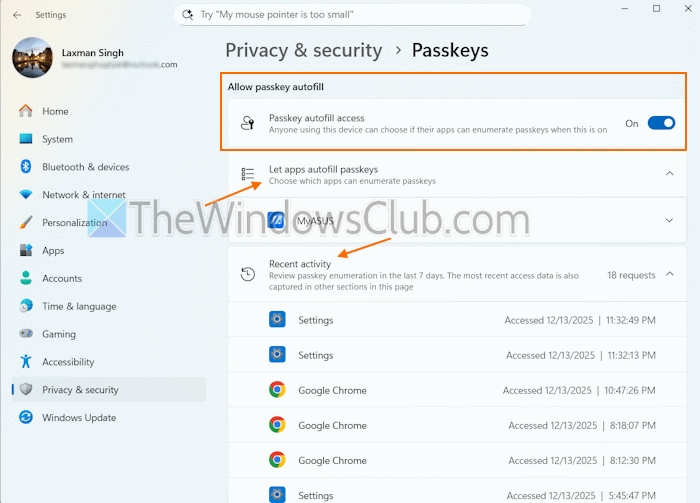
The steps to prevent or allow Passkey Autofill Access for apps in Windows 11 are:
- Press Win+I to open the Settings app
- Click on the Privacy & security category
- Select Passkeys from the right section
- In the Allow passkey autofill section, turn on the Passkey autofill access option
- Expand the Let apps autofill passkeys section, and a list of apps will be visible. By default, all supported apps are enabled to enumerate passkeys. But, using the section, you can choose which apps can enumerate passkeys
- Expand an app and use toggle to enable or disable that app for passkey autofill access. Repeat this step for all other apps.
A Recent activity section is also there. Expand it to review passkey enumeration by apps in the last 7 days.
You can see which apps (like Windows Settings, a browser (Google Chrome, Edge, etc.), Microsoft Store app, and more) requested and accessed passkey autofill. For each request made by an app, the date and time are also visible.
That’s all.
Now read: How to use Passkeys for your Microsoft account
How do I disable the passkey in Windows 11?
If you want to delete a saved passkey in Windows 11, open the Settings app. Navigate to Accounts > Passkeys. A list of saved passkeys will be visible. Click the More options (…) icon and select Delete passkey. In this way, you can delete saved passkeys for apps and websites on your Windows 11 device.
How to lock apps in Windows 11?
Windows 11 doesn’t come with a native feature to lock apps or set a password. However, you can block installed apps and programs from running using the AppLocker tool. You can create a rule and block an installed app or Microsoft Store from running. You can also prevent apps or programs from running on Windows 11 using the Local Group Policy Editor window. Access the Don’t run specified Windows applications setting in Group Policy, enable it, and add apps to the list. This option doesn’t work on some built-in Microsoft Store apps and apps that don’t have an EXE file.
Read next: How to create a Passkey and Lock your Xbox console.
