
Encountering a blank or entirely missing Settings app page in Windows 11 can be incredibly frustrating. As an integral part of the operating system, the Settings app (also known as the Immersive Control Panel) is your central hub for everything from personalization to critical system configurations. When this window fails to render, showing nothing but a white or grey void, it essentially blocks you from making the very tweaks needed to fix it. In this post, we will see what to do if Windows 11 Settings is blank or missing.
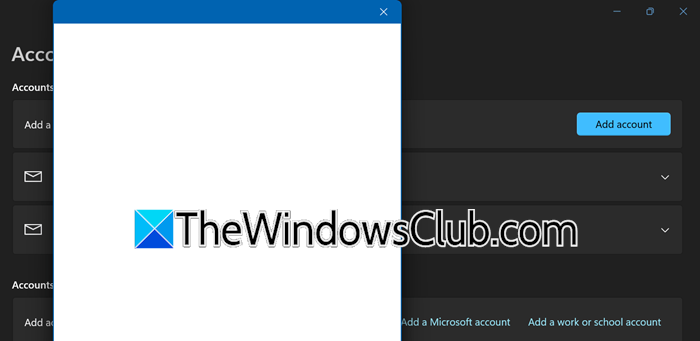
The most common cause of a blank Settings page is damage to Windows system files or app packages. This often happens after a failed Windows update, an interrupted upgrade, or an unexpected system crash. Sometimes, the visual interface fails because certain XAML-based components do not register properly when the system starts, especially after specific cumulative updates. You may also find that the Windows Explorer process, which manages your taskbar and app integration, has frozen, causing the Settings window to open but not be visible. Additionally, aggressive system cleanup tools or registry changes can accidentally remove the Settings app’s registration, causing it to disappear or appear blank when you try to open it.
Windows 11 Settings Blank or Missing
If the Windows 11 Settings page is blank or missing, follow the solutions mentioned below.
- Restart your PC and check
- Repair the Corrupted System
- Re-register the Immersive Control Panel via PowerShell
- Manually Register XAML Components Missing after Updates
Let us talk about them in detail.
1] Restart your PC and check
Before diving into more complex terminal repairs, it is crucial to resolve a simple UI crash. The Settings interface is deeply integrated with the Windows Explorer (explorer.exe) shell. If this process has hung or entered a frozen state, the Settings window may visually render as a transparent or completely blank rectangle. While you can always restart Explorer and see, restarting the PC and seeing would be better to eliminate any other glitches that may be causing this issue.
2] Repair the Corrupted System Image with SFC & DISM
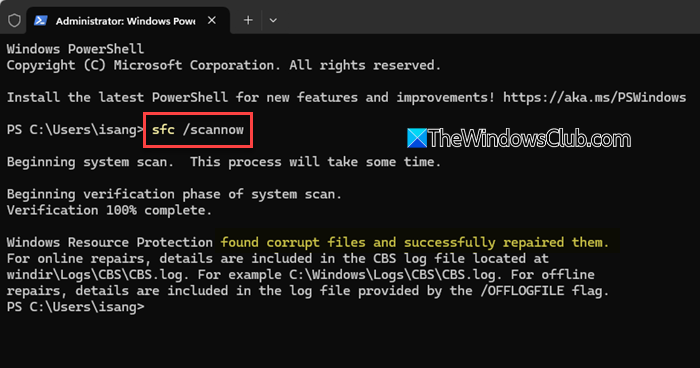
A blank screen often indicates that core libraries required by SystemSettings.exe have been damaged. The System File Checker (SFC) scans the integrity of Windows files and replaces broken versions with cached copies, while the Deployment Imaging Service and Management Tool (DISM) repairs the master system image that SFC relies upon. Running these commands in sequence ensures that the Settings app’s core skeleton is rebuilt from healthy components, eliminating any silent corruption that might manifest as a blank page.
To run SFC, open Command Prompt as an admin and run the following command.
sfc /scannow
Now, in the same window, run DISM.
DISM /Online /Cleanup-Image /RestoreHealth
Let the scan finish verifying the files. Restart your PC and check if the Settings app now renders correctly.
3] Re-register the Immersive Control Panel via PowerShell
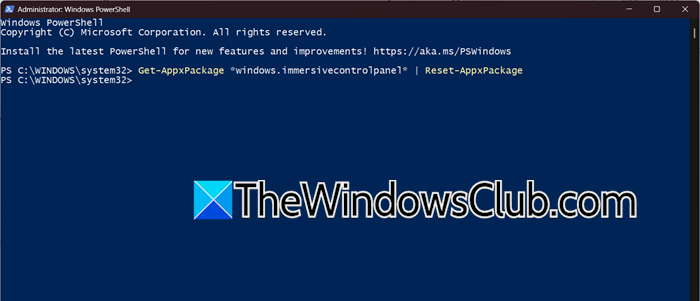
If the Settings app still shows a blank frame, the app package registration has likely been corrupted or hidden. The Settings app is technically a packaged UWP (Universal Windows Platform) entity internally named windows.immersivecontrolpanel. Aggressive debloating scripts, registry changes, or incomplete updates can unregister it without uninstalling the files, leading to a stark white window. Using PowerShell to manually re-install the package restores the registry pointers that tell Windows how to draw the interface.
Right-click Start and open Terminal (Admin). Ensure you are in a PowerShell tab.
To reset the specific Settings app cache, run the following command.
Get-AppxPackage *windows.immersivecontrolpanel* | Reset-AppxPackage
If the issue persists, perform a deep re-registration of all system apps using:
Get-AppXPackage | Foreach {Add-AppxPackage -DisableDevelopmentMode -Register "$($_.InstallLocation)\AppXManifest.xml"}.
You may see red error text appear in the window during this process. These are usually non-critical and can be safely disregarded.
4] Manually Register XAML Components Missing after Updates
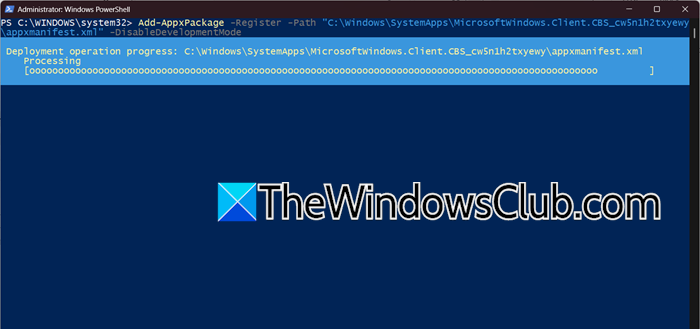
A specific problem related to certain Windows updates, like KB5072911, can cause apps that use XAML, such as the Start Menu and Settings, to fail in displaying their text and buttons. This results in a blank screen. The issue occurs when the XAML packages needed to show the user interface do not register quickly enough during startup. You can fix this by manually registering these packages, which install the missing user interface framework. This tells the Settings app how to build the layout correctly.
Open PowerShell as an admin.
Copy and execute the following commands one after another, pressing Enter after each to register critical framework packages:
Add-AppxPackage -Register -Path "C:\Windows\SystemApps\MicrosoftWindows.Client.CBS_cw5n1h2txyewy\appxmanifest.xml" -DisableDevelopmentMode
Add-AppxPackage -Register -Path "C:\Windows\SystemApps\Microsoft.UI.Xaml.CBS_8wekyb3d8bbwe\appxmanifest.xml" -DisableDevelopmentMode
Add-AppxPackage -Register -Path "C:\Windows\SystemApps\MicrosoftWindows.Client.Core_cw5n1h2txyewy\appxmanifest.xml" -DisableDevelopmentMode
Restart your system to allow the shell to detect these newly registered dependencies, then test the Settings window again.
Hopefully, with the help of these solutions, your issue will be resolved.
Read: Security at a glance page in Windows Security is blank in Windows 11
Can a Windows update cause a blank Settings window?
Yes, certain cumulative updates can inadvertently corrupt XAML components or app registrations required by the Immersive Control Panel. This often results in a white or grey window that refuses to render text and buttons. If you notice the issue right after an update, the manual XAML registration method detailed in Solution 4 is particularly effective, as it reinstalls the UI framework files that the update may have failed to register correctly during restart.
Read: Advanced Display Settings not showing in Windows 11
Why does the Settings app show a blank white screen?
A blank white screen typically indicates that the app’s graphical interface failed to load while the window frame itself launched. This can stem from a hung Windows Explorer process, corruption of core system files that handle the user interface, or broken registration of the Immersive Control Panel package. Essentially, the command to draw the content is never executed, leaving only the empty shell visible. Restarting Explorer or re-registering the app package usually resolves this rendering failure.
Also Read: Control Panel or System Restore window blank in Windows 11.
