
If Section Zoom is not available, working, or grayed out in PowerPoint, follow this article to get it working again. You can use these solutions on Microsoft 365 or Microsoft Office that is installed on Windows 11/10.
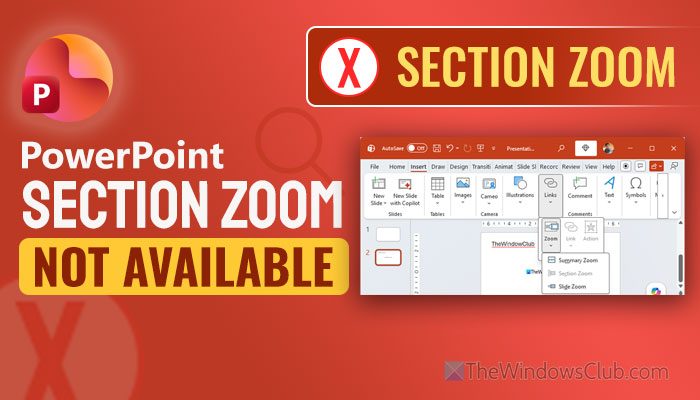
How to enable Section Zoom in PowerPoint?
To enable Section Zoom in PowerPoint, go to the Insert tab on the ribbon and select Zoom from the Links group. From the dropdown, choose Section Zoom. A dialog box will appear, showing the sections in your presentation. Pick the ones you want to zoom in on. Click Insert, and PowerPoint will add clickable thumbnails that let you jump directly to those sections.
Why is PowerPoint Section Zoom not available?
If PowerPoint Section Zoom is not available on Windows 11, these could be the reasons:
- You are using an older version of PowerPoint.
- Your presentation doesn’t have a section that can be zoomed.
- Your admin has disabled it via Group Policy Editor or Registry Editor.
- Section Zoom is an exclusive feature for Windows only.
Section Zoom is not available, working, or grayed out in PowerPoint
If PowerPoint Section Zoom is not available on Windows 11, follow these instructions:
- Update PowerPoint if you have older version
- Ensure that you have PPTX
- Add Summary Zoom first
- Create a section between two slides
- Check Group Policy and Registry Editor
- Re-verify your license
- Disable all add-ins
- Check in Safe Mode
To learn more about these solutions, continue reading.
1] Update PowerPoint if you have older version
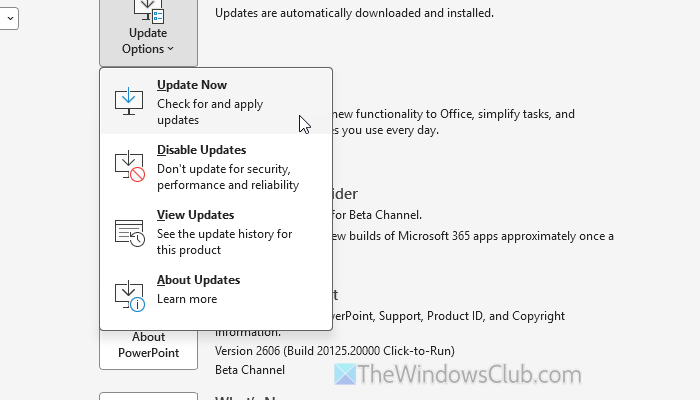
It is the very first thing you must do since Section Zoom is not available in any older version of PowerPoint. In case you have an older version than Office 2019, you must update it. To update PowerPoint, open the app and go to the Account menu. Then, expand the Update Options and click on the Update Now button.
It may take a few minutes to get the job done. Once done, try finding the Section Zoom option in Insert > Zoom.
Read: How to update Microsoft Office manually in Windows 11
2] Ensure that you have PPTX
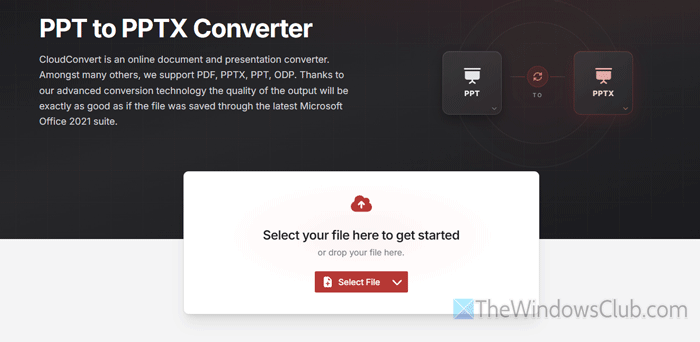
Section Zoom feature is not available for the PPT file, which is also a PowerPoint presentation file. In other words, if you have created a presentation in an older version of PowerPoint, it will create a PPT file. That said, you must convert the PPT file to PPTX.
To convert PPT to PPTX, you can use an online tool called CloudConvert. You can upload the file to their website and get the converted file within moments.
3] Add Summary Zoom first

To add a Section Zoom, you must add a Summary Zoom first. In case you don’t know, this option lets you zoom in on a particular part of your slide and create a new one accordingly. If your slide doesn’t have a Summary Zoom, it won’t find the section to zoom.
To add a Summary Zoom, open the presentation in PowerPoint and go to the Insert tab. Next, click on the Zoom menu and choose the Summary Zoom option.
Once done, click on the new slide that’s been created, and go to the same menu. Now, you can find the Section Zoom option.
Read: How to zoom in on Picture during PowerPoint presentation
4] Create a section between two slides
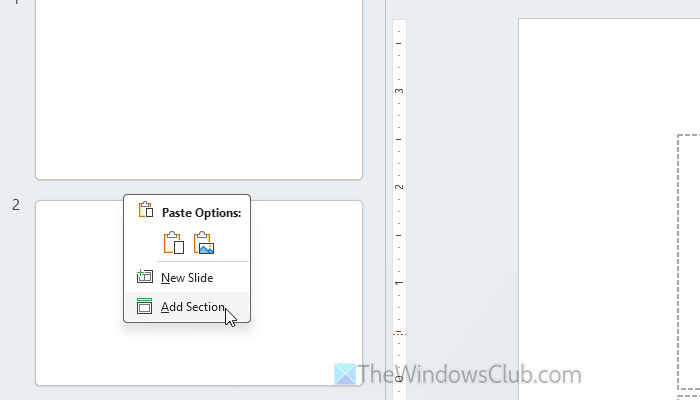
When you add a Summary Zoom, it creates a section between two slides. However, if you do not want to add Summary Zoom all the time, you can manually create the section between two slides on your own.
To do that, make sure that your presentation has at least two slides. If so, right-click between two slides on the left-hand side and select the Add Section option. Next, you can go to the Insert tab and follow the usual steps to add a Section Zoom.
Read: How to create a Magnifying Glass effect in PowerPoint
5] Check Group Policy and Registry Editor
If you have installed the Office template for Group Policy and changed a particular setting in the Local Group Policy Editor or Registry Editor, you may encounter this problem.
Group Policy Editor:
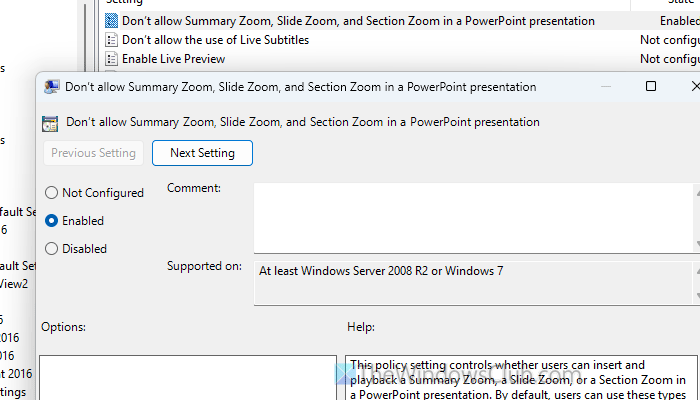
Press Win+R > type gpedit.msc and hit the Enter button to open the Local Group Policy Editor. Then, navigate to this path:
User Configuration > Administrative Templates > Microsoft PowerPoint 2016 > PowerPoint Options > General
Double-click on Don’t allow Summary Zoom, Slide Zoom, and Section Zoom in a PowerPoint presentation setting. Choose the Not Configured option and click the OK button.
Note: This setting is available only to those who have installed the Administrative Template for Microsoft Office. If you don’t have this template, there is no need to go through this step. However, if you want to install the template, visit Microsoft.com to download.
Registry Editor:
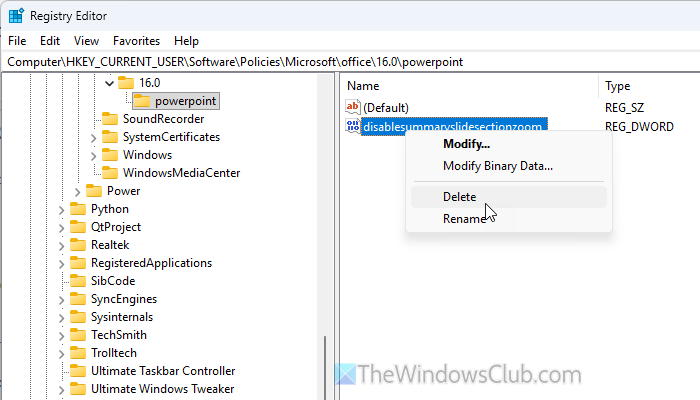
Open the Run prompt, type regedit, click the OK button, and click on the Yes button on the UAC prompt. Then, navigate to this path:
HKEY_CURRENT_USER\Software\Policies\Microsoft\office\16.0\powerpoint
Right-click on the disablesummaryslidesectionzoom REG_DWORD value and delete it.
Close all the windows and restart your computer.
Read: How to Backup and Restore Registry in Windows 11
6] Re-verify your license
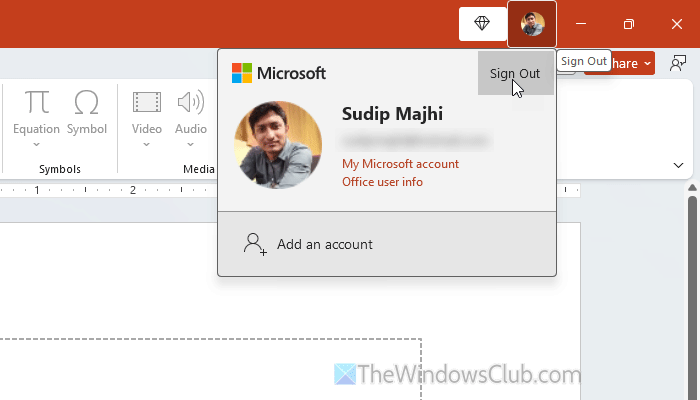
Certain features may not work properly if there are some issues with the existing license. That is why it is recommended to log out of your account and log back in. For that, click your profile picture in the top-right corner and select the Sign Out option.
Next, enter your account credentials to log in again.
Read: How to check License Type and Activation Status of Microsoft Office
7] Disable all add-ins
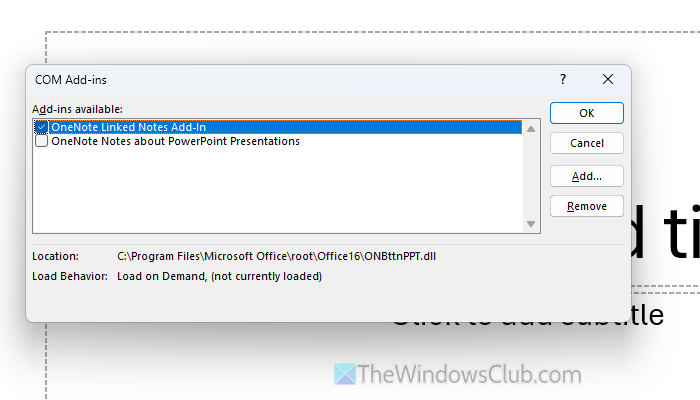
To disable all PowerPoint add-ins, open the PowerPoint Options wizard and go to the Add-ins tab. Click on the Go button and remove all the ticks from all the checkboxes. Finally, click the OK button.
For your information, it disables all add-ins. If you find something problematic, select the add-in and click the Remove button to remove it.
Read: How to add Add-ins in PowerPoint
8] Check in Safe Mode
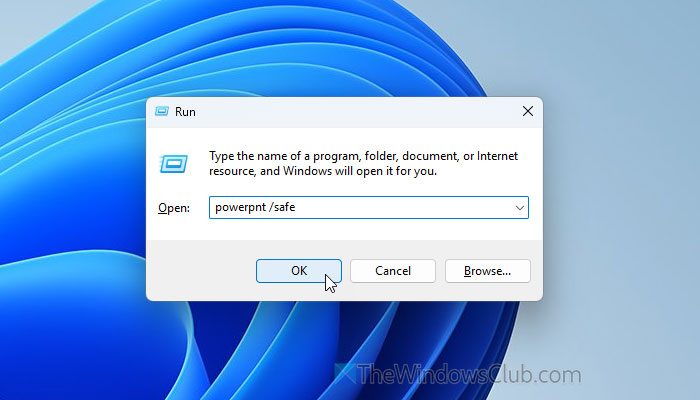
If nothing works, try opening PowerPoint in Safe Mode to determine whether the problem is due to an internal error or something else. For that, open the Run prompt and enter this command: powerpnt /safe.
Check whether you can find Section Zoom or not.
Read: How to change the default Zoom level in PowerPoint
Why can’t I select Section Zoom in PowerPoint?
You cannot select a Section Zoom in PowerPoint because you do not have any sections. You must create a section between two slides to select it for zooming in on purpose.
How to get Section Zoom in PowerPoint?
To get Section Zoom in PowerPoint, go to Insert > Zoom > Summar Zoom first. Then, go to Zoom > Section Zoom. It will let you zoom the entire slide.
Read: How to create Zoom animation effect in PowerPoint slide.
