
We believe if you’re going to present a presentation in Microsoft PowerPoint, then it needs to look professional. Now, when creating a presentation, many users use Sections and Slide Zooms to keep things running smoothly, but what are the best ways to accomplish these tasks?
How to create a Section Zoom and Slide Zoom in PowerPoint?
For those who are new to Microsoft PowerPoint, we should note that Slide Zoom and Sections are ways to place images on their slides rather than as linked text. Additionally, a neat zoom effect appears when the presenter clicks to navigate to a section. Before we begin, we must point out that creating a Section or Slide Zoom is possible in Microsoft PowerPoint and later on Windows. If you are using a Mac or a mobile device, you cannot create a Zoom but can play one.
How to zoom in on Picture during a PowerPoint presentation
It’s very easy to create a Slide Zoom and a Section Zoom in Microsoft PowerPoint. The information presented in this article will surely give you the knowledge you need to get the job done.
How to create a Section Zoom in PowerPoint?
Dividing your presentation into different portions is a great way to unclutter things and for a more professional look and feel. Let us discuss how to get this done in the best possible way.
- Open Microsoft PowerPoint: Begin the process by opening Microsoft PowerPoint by either launching it from your Desktop, the apps drawer via the Start Menu, or the Taskbar.
- Create a new Presentation: You can create a new Presentation from the main page by clicking on Blank Presentation or open one already saved on your computer.
- Go to the Links section: The next step then is to navigate to the Insert tab and click on it. From there, move your mouse cursor to the Links section found on the Ribbon.
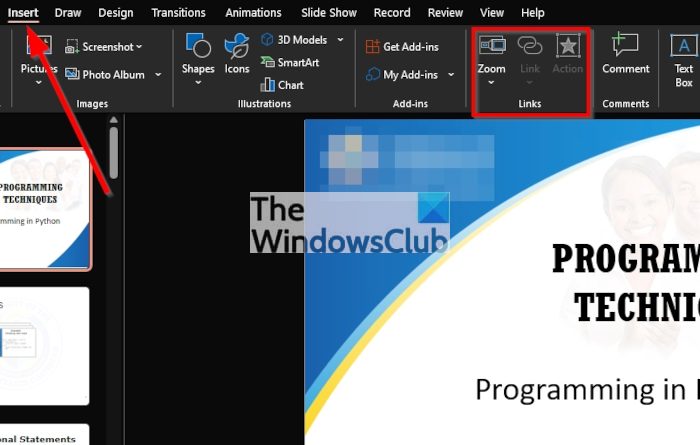
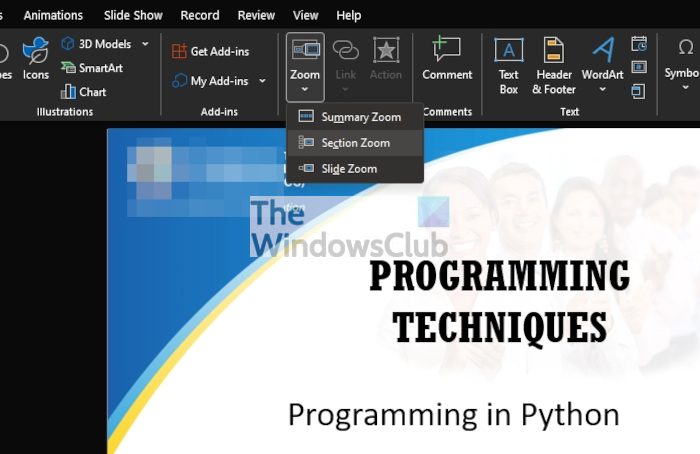
- Select Section Zoom: From the Links area, click on Zoom, then select Section Zoom from the dropdown menu.
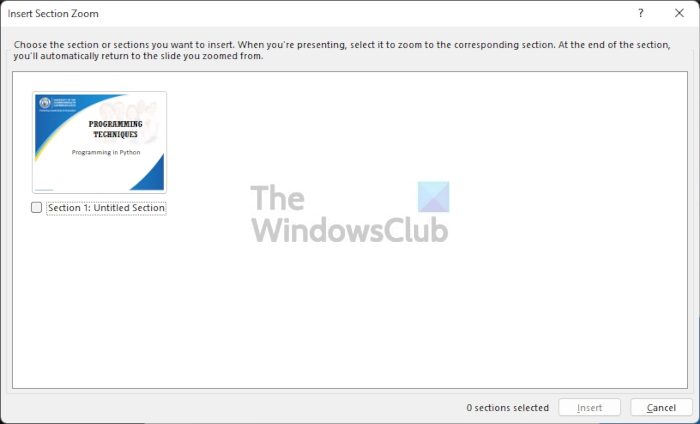
- Choose the section you want to use: A window should appear with the name, Insert Section Zoom. From here, you should see a list of sections, so go ahead and tick the box next to the section you prefer. The option is there to select multiple sections if you so wish. Finally, press the Insert button at the bottom to proceed.
- Move the Section Zoom: After hitting the Insert button, the zoom should now appear but bear in mind that it will look similar to the static image of the first Slide in your presentation. You can move it by dragging, or resize it to fit your needs.
How to create a Slide Zoom in Microsoft PowerPoint
Before we move forward, we must note that a Slide Zoom is similar to that of a Section Zoom. This is for people who do not like to use sections in their slideshow, people who want to be able to navigate to a certain slide with pace and ease.
- Select the preferred Slide: To begin, click on the Slide you want to use. As you should already know, the Slide is located to the left of the program.
- Navigate to Slide Zoom: The next step, then, is to click on the Insert tab, and from the Links area, click on Zoom, then Slide Zoom.
- Insert Slide Zoom: When it comes down to inserting a Slide Zoom, you should now be looking at a window with the title, Insert Slide Zoom. Tick one or more boxes from the available options, then complete the task by clicking the Insert button.
How to customize Section and Slide Zoom in PowerPoint
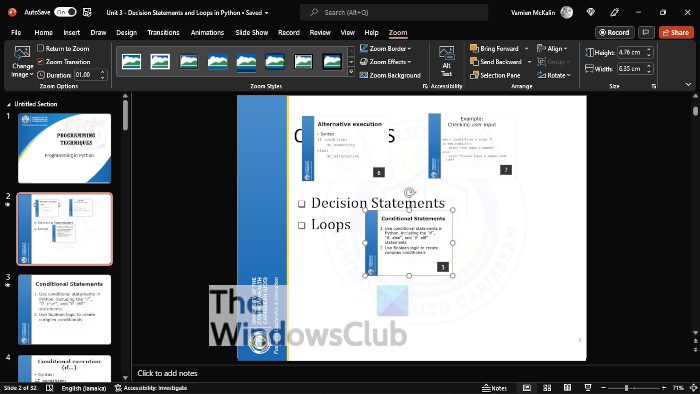
After you’ve added a Slide Zoom or a Section Zoom to your presentation, you may now feel the need to customize it to better align with your needs. This is easy to do, so let us discuss how to make the most of it.
The first thing you need to do here is to select the Section or Slide Zoom you want to edit, then click on the Zoom tab. From there, you should see a bunch of options to play around with.
For example, you can change the Duration of your Zoom transition, use Return to Zoom to go back to the Zoom on your favorite slide, use Change Image to showcase an image rather than the slide, and more.
Read: Save button grayed out in Word, Excel, PowerPoint
How do you Zoom in on part of a PowerPoint presentation?
During your PowerPoint presentation, you may feel the need to zoom in on a specific area. To do this, look at the bottom of the presenter view and click the magnifying icon. After you’ve done that, you can now click on any area of the presentation to get a closer look.
Also read: How to create Zoom animation effect in PowerPoint slide
What is Zoom slide in PowerPoint?
A slide zoom is a PowerPoint tool that allows users to create more dynamic presentations. Folks can use it to navigate freely between slides in any order they choose, without interrupting the flow of the presentation.
From our point of view, a slide zoom is perfect for shorter presentations that lack many sections. However, folks can use it however they please.
How do you Zoom in and Zoom out the pages in PowerPoint?
To zoom in on a part of a PowerPoint presentation, there are a few options. Users can use the Zoom Bar located at the bottom-right section of the window. Alternatively, one could use the Zoom tool, available under View > Zoom. Click on Zoom, then determine how you want to zoom.
What are the advantages of PowerPoint?
There are many advantages to using Microsoft PowerPoint, including the ability to use it anywhere, export in different formats, collaborate with colleagues, create unique designs, and more.
Should I use PowerPoint or Google Slides?
If you primarily use iOS or Android devices, we believe Google Slides is much better. However, when it comes down to desktop computers, there is no better alternative to Microsoft PowerPoint. Furthermore, PowerPoint is king in terms of features, usability, and just overall experience.
