
File Explorer is one of the best things about Windows 11/10 due to the fact it allows the user to gain access to several aspects of the operating system with just a few clicks of the mouse. The most impressive thing about Windows Explorer is the ability for users to improve it even further. In this article, we explain how to copy path a file or a folder in Windows 11/10 via Explorer UI or using freeware Path Copy Copy.
Many a time, we are required to upload documents to social media sites or other sites, which forces us to go through numerous folders until we find the desired file. Finding a path to upload a file or a folder in File Explorer can be time-consuming. In most cases, it can be quite tedious to navigate to the root directory of a file system. It is indeed tiresome to manually copy the path regularly from the address bar in order to paste it into the desired location.
How to copy Path of a file or a folder in Windows 11
Fortunately, there is a provision to easily copy the full path of a file or folder to the clipboard. All thanks to Windows, which is constantly updated with new features that make our life much simpler. In earlier versions of Windows, there was an option called Copy Path in the file context menu that let you copy the path of a file or folder to the clipboard. In Windows 11/10, the Copy Path button has been moved to the Home tab ribbon in File Explorer.
Open File Explorer and navigate to the file location whose path you want to copy. Select the file or folder you prefer to copy.
On the Home tab ribbon, click on Copy path button to copy the path of the selected file or folder.
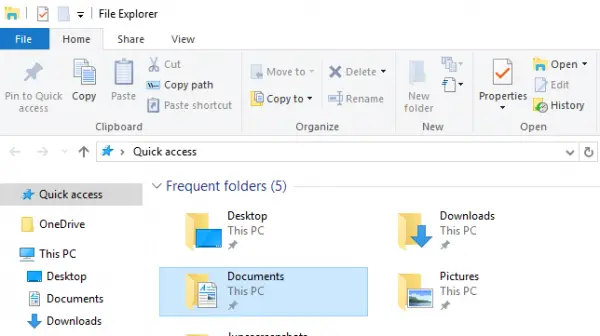
Now paste the path to the desired location or to the clipboard.
Many of us have been improving the feature with third-party software for years, so since we know how well these things can work if done properly, we chose to download and test an app known as Path Copy Copy.
You might be wondering what Path Copy Copy is all about and if it’s worth your time. Here’s the thing: this tool lets users copy the path of any file or folder, and it supports several formats. The addon is integrated into the file context menu. It also allows you to customize the settings according to your preferences. You can configure the software settings for various copy formats, such as short name, long name, long path, short path, Unix path, Internet path, etc. Additionally, you can configure the settings to encode whitespace, display a submenu, display an icon next to the submenu and many others.
TIP: To copy a file path, you can also select an item and press CTRL+Shift+C.
Path Copy Copy for Windows PC
You can use Path Copy Copy to copy file & folder paths.
Easily Copy Paths
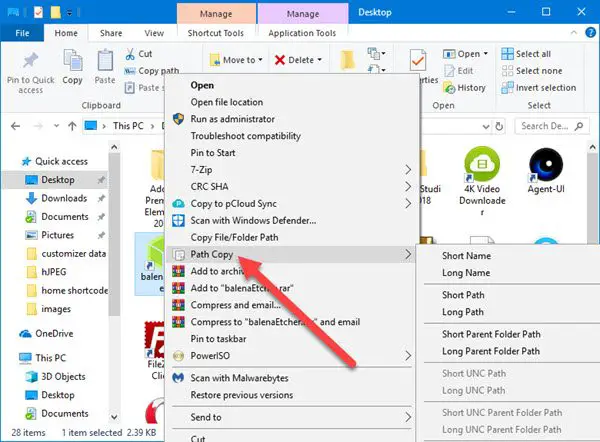
When it comes down to copying paths, this task is quite easy and we’re going to explain how. You see, the user should simply fire up Windows Explorer, locate the file or folder they’re interested in, then press the right-click button.
You should now see the contextual menu with all its many options. The next step, then, is to look for Path Copy and hover the mouse pointer over it. From there, users will see a new list of options from the sub-menu, which is where all the magic happens.
Select any of the available options to have a copied path, then press CTRL + V to paste the copied items in a Word document or wherever else.
Settings
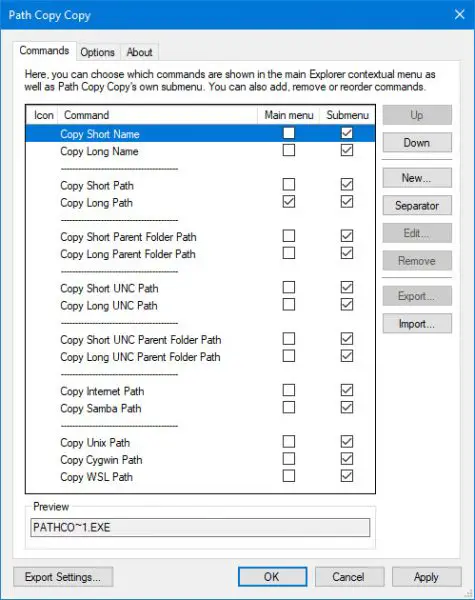
The Commands area gives the option to remove certain elements from the contextual menu. Not only that but if you want to gain easy access to some of the most Path Copy Copy options, the ability is there to place them in the main menu.
Right now, all features are available via the sub-menu, which is a good thing because it doesn’t allow for the cluttering up of the main menu.
In terms of the Options tab, this is where folks can decide if they want the sub-menu or everything in one place. We suggest never unchecking this feature, as things will become cluttered and difficult to control, even if you’re a power user.
Additionally, a click of the mouse can add quotes around copied paths with relative ease. Furthermore, if you’re interested in copying multiple paths on the same line, just tick the box that says “Copy multiple paths on the same line.”
Here’s the list of all the copy formats supported:
- Copy Short Name
- Copy Long Name
- Copy Short Path
- Copy Long Path
- Copy Short Parent Folder Path
- Copy Long Parent Folder Path
- Copy Short UNC Path
- Copy Long UNC Path
- Copy Short UNC Parent Folder Path
- Copy Long UNC Parent Folder Path
- Copy Internet Path
- Copy Unix Path
- Copy Cygwin Path
Personally, I’m not the one to regularly copy paths; therefore, Path Copy Copy is not for me. However, if you’re the opposite of who I am, you’ll find this tool immensely useful for a long time to come. You can download Path Copy Copy from GitHub.
