• Skip to primary navigation
  • Skip to main content
TheWindowsClub Logo

The Windows Club

TheWindowsClub covers authentic Windows 11 tips, tutorials, how-to, features, freeware. Created by Anand Khanse, MVP.

  • Home
  • Windows
  • Downloads
  • Security
  • Office
  • General
  • News
  • Reviews
  • About
Show Search
Hide Search
Netflix keeps logging me out on PC or Xbox

September 7, 2023

Netflix keeps logging me out on PC or Xbox

Link your Epic Games and Steam Accounts

September 7, 2023

How to link Epic Games and Steam Accounts

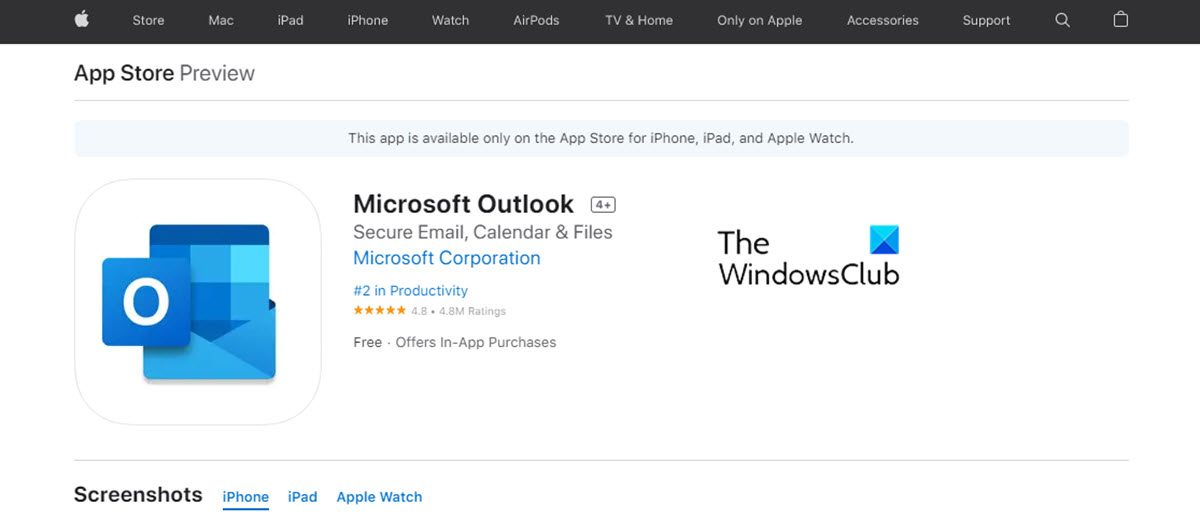
Microsoft has made it possible to work remotely from any place and from any device with few apps. Two such apps are Outlook for iOS and Office app for iOS. These two apps let users to create, edit and share their files (Word, Excel and PowerPoint) and also manage their emails. Let us see how to set up Office apps and email on iPhone and iPad. How to set up Outlook email on iOS devices It is pretty straightforward and easy to set up Outlook on iOS devices. Follow the next steps for this process: 1. Download Outlook for iOS from the iOS App Store. You can check the system requirements for your iOS devices on this link. 2. For the users who are setting up Outlook on their iOS devices first time, need to enter their full email address 3. Now, tap on Add Account. 4. Now, enter your email account password and tap Sign in. Please note that the sign in screen may look different for you depending on your email provider. 5. For security purpose, multi-factor authentication is enabled for Outlook. At this stage, you need to verify your identity. Accept any prompts for permission you may receive. If the Outlook for iOS is already used, then follow the next steps: • Open the Menu. • Now, tap on Settings. • Go to Add Account. • After that, Add Email Account. After the above action, follow the process from Step no.4 Please note: If you are asked to select your email provider, please contact your IT admin for support as there may be a misconfiguration. This way, Outlook is set up on your iOS device such as iPhone and iPad. How to set up Office apps on an iOS device? As mentioned before, integrating Office apps and email on iOS devices is pretty easy. There are two ways to get Office on your iPhone or iPad. 1. You can install the Office app for iOS that combines Word, Excel, and PowerPoint into a single app. Thus, with one app you can get all three Office apps. The Office app for iOS also offers new mobile-centric features to view, edit and share files without the need to switch between multiple apps. 2. Another way is to install Office apps individually on iPhone and iPad. You can use the Office mobile apps to work from anywhere. Simply sign in with a free Microsoft Account or a Microsoft 365 work or school account. As per your subscription, you can have the access to the app's extra features on your iOS devices. Setting up individual Office apps on iPhone or iPad Follow the next steps to set up individual Office apps on your iOS devices. 1. On your iPhone or iPad, open any standalone mobile Office app (for example, Excel). 2. Sign in with your Microsoft account, or Microsoft 365 work or school account and then tap Next. 3. If you don't have a Microsoft Account, you can create one for free. 4. If you have a Microsoft account that is associated with Office 2016 or Office 2019, you can upgrade to Microsoft 365. 5. In the next step, you are prompted to purchase a plan. If you don’t wish to purchase it at the time of set-up, tap on Maybe later. This way you can use the mobile apps without a subscription. If you get a Microsoft 365 subscription, you get an access to premium features if you. 6. When you are prompted to help Microsoft to improve their Office mobile experience, tap Yes to opt in, or No to opt out. 7. After this, you can enable alerts by tapping Turn on Notifications. If you wish to set up your preferences later, you can tap Not Now. 8. After you sign in, your account is automatically added to the current app, as well as any other Office apps that are installed on your iPhone or iPad. 9. If you wish to add another account or a cloud service, like OneDrive or Dropbox, tap Open, then Add a Place. 10. If you're using OneNote on your iPhone or iPad, tap on your profile picture in the upper left corner, and then tap Storage Accounts. 11. Finally, choose the cloud service that you want to add. Enter the email address and password to sign into your preferred service. This way, your Office apps are set on your iOS device. Is it possible to download Office apps on an iPhone or iPad? Yes, it is possible. Follow the next steps for this: 1. First, in the App Store search for Microsoft Office from your iOS device. 2. Now tap on Download to get this app, then install the app. 3. Once it is installed, open the app and set it up on your device. To know how to set up Office apps on an iPhone or iPad, read the above article. Can I use my Microsoft Office account on iPad? Yes, you can use your Microsoft Office account on your iOS devices. It is possible to use it for both Free and Microsoft 365 subscription. With an Office 365 subscription, you can edit and create new documents with the iPad. An Office 365 subscription not only gets you the complete Office apps for iPad, but also always-up-to-date versions of Office for PC and Mac.

September 7, 2023

How to set up Office apps and Outlook email on iPhone and iPad

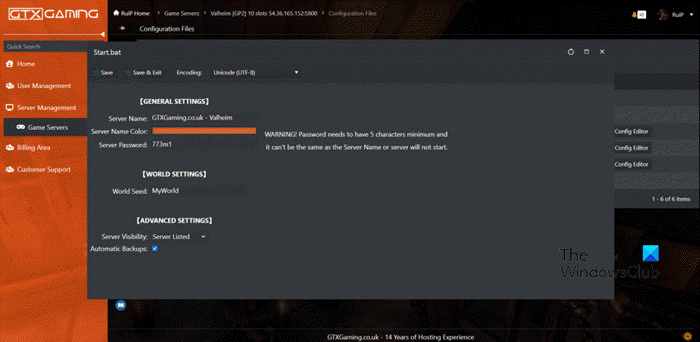
Best reasonable Valheim Server Hosting

September 7, 2023

Best Valheim Server Hosting: Cost and Requirements reviewed

TOZO T12 not working with Windows 11

September 7, 2023

TOZO T12 earbuds not working with Windows 11 [Fix]

Best free cloud gaming services

September 7, 2023

Best free Cloud Gaming Services

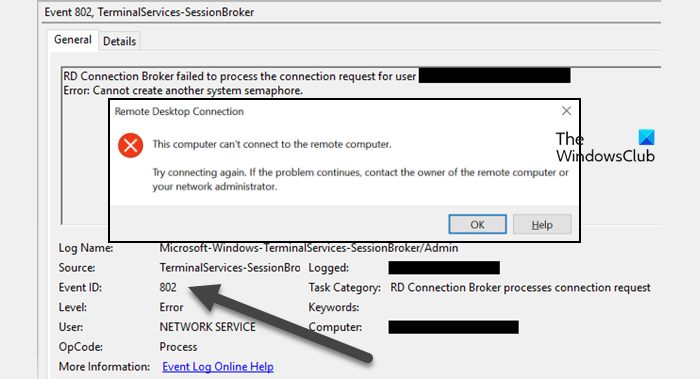
Event ID 802

September 7, 2023

Event ID 802: RD Connection Broker failed to process

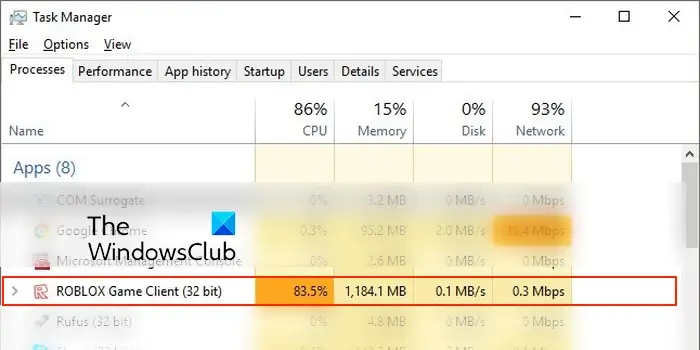
Fix Roblox high CPU usage

September 7, 2023

Fix Roblox High CPU Usage on PC

Use Phone as Webcam for PC

September 7, 2023

Use Phone as Webcam for PC using DroidCam or LiveDroid

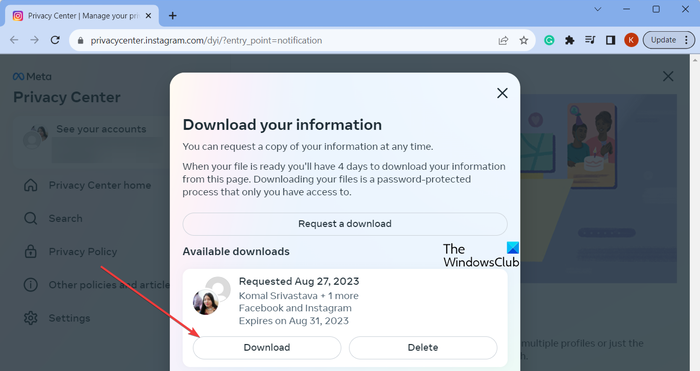
How to recover and download Instagram chats?

September 7, 2023

How to recover and download Instagram Chats?

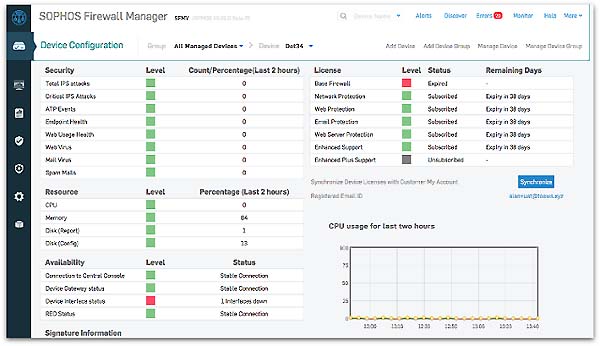
free Sophos xg firewall home edition

September 7, 2023

Sophos XG Firewall Home Edition is a free hardware-type firewall for Windows

How to trace objects in GIMP

September 7, 2023

How to Trace an Image in GIMP

  • « Go to Previous Page
  • Go to page 1
  • Interim pages omitted …
  • Go to page 1367
  • Go to page 1368
  • Go to page 1369
  • Go to page 1370
  • Go to page 1371
  • Interim pages omitted …
  • Go to page 2017
  • Go to Next Page »

Latest News

October 23, 2026

Meta Muse is coming to Windows 11 using MXC Integration

October 7, 2026

Project Zenith from Microsoft explained

October 6, 2026

Windows Settings are now backed up by default

October 4, 2026

Windows 11 26H2 introduces new features

Latest Reviews

October 23, 2026

Beyond Web Scraping: How TinyFish lets AI Agents execute real-world Web Tasks

October 22, 2026

Explee Review: AI lead generation and outreach platform

October 1, 2026

No-Code AI Data Warehouse: How CorralData Centralizes 600+ Sources Without Engineers

September 26, 2026

Beyond Chatbots: How River’s AI Sales Agent drives Live Product Demos & Closes Deals

Copyright © 2026 The Windows Club

  • Freeware Releases from TheWindowsClub
  • Free Windows Software Downloads
  • Privacy Policy