
Outlook on the web (OWA) includes a contact suggestion tool that shows email addresses and names from your contacts and organization’s address book as you type in the To, Cc, or Bcc fields. This AutoComplete feature enhances productivity, but when it fails, composing messages becomes slower as you have to manually search for or enter email addresses. In this post, we will discuss what you can do if the Outlook web suggested contacts are not working on your computer.
Why is Outlook not suggesting Contacts?
The issue typically occurs due to a service-side incident at Microsoft, a corrupted local browser cache or cloud-based suggestion data, a configuration problem with your specific account or license, or, in a work environment, an administrative policy that restricts contact visibility. If you are part of an organization, IT policies like Address Book Policies (ABPs) can intentionally restrict which contacts appear in suggestions.
Outlook web Suggested Contacts not working
Now that we know the reason for this issue, let us see what to do if the Outlook web suggested contacts are not working.
- Reset Outlook cache
- Refresh your License
- Check for Active Service Health Advisories
- Try a workaround
Let us talk about them in detail.
1] Reset Outlook cache
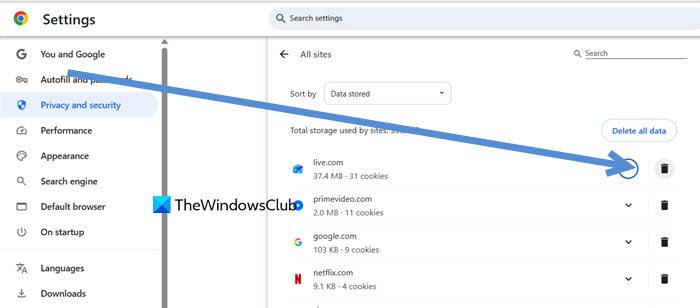
Clearing your browser cache for Outlook on the web can help fix issues. OWA stores temporary data, like scripts and contact suggestions, on your computer to help it work faster. If this data gets old or damaged, features like contact suggestions may not work properly. Clearing the Outlook cache forces your browser to download new, correct data from Microsoft’s servers, which usually solves display and functionality problems.
To reset the Outlook cache in Chrome, follow the steps below.
- In Chrome, go to Settings (Click on the three dots > Settings).
- Now, go to Privacy and security.
- Look for Site settings > View permissions and data stored across sites.
- Search for outlook.office.com or live.com, and click on the Junk or Bin button next to it.
If you are using Edge, follow the steps below.
- In Edge, click on the three dots and click on Settings.
- Click on Privacy, search, and services.
- Now, click on Cookies > See all cookies and site data.
- Search for outlook.office.com or live.com, click on the down arrow, and then on the Junk icon to delete data.
Now, open Outlook again and see if your issue is resolved.
2] Refresh your License
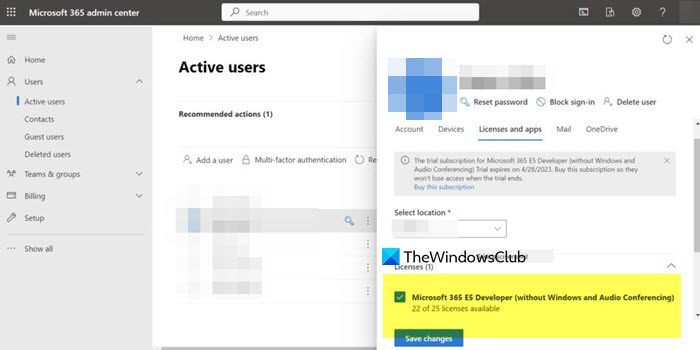
If you are an IT admin, refreshing a license can fix issues with a user’s service in Microsoft 365. This process removes the user’s current setup and rebuilds it from scratch when you reapply the license. It helps clear out corrupted data or temporary files, which can resolve glitches, such as contact suggestion issues.
You can follow the steps mentioned below to do the same.
- First of all, log in to your Microsoft 365 Admin Center account via admin.microsoft.com as a Global or User Admin.
- Then, go to Users > Active users, select the affected user from the list.
- Go to the Licenses and apps tab and note the specific product license assigned to them (e.g., Microsoft 365 E3).
- Deselect the checkbox for that specific license to remove it, then save the changes.
- Wait for at least 5-10 minutes to allow the cloud service to fully process the license removal.
- Return to the user’s Licenses and apps tab, re-select the checkbox for the same license, and save the changes again.
Inform the user that it may take 15-30 minutes for services to fully restore, and they should close and restart their browser before testing Outlook on the web again.
3] Check for Active Service Health Advisories
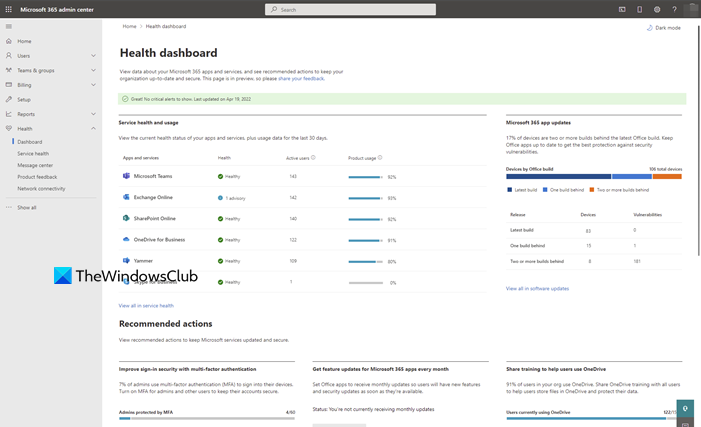
When there is a widespread code issue or service degradation on Microsoft’s side, it is recorded as an active “advisory” or “incident” in the admin center. Confirming a service health advisory ensures that the problem is not due to your local setup and indicates that Microsoft engineers are already working on a fix. Let us go ahead and check it.
- First of all, head to Microsoft 365 Admin Center and log in as an admin.
- In the left-hand navigation pane, select Health, then choose Service health. You can also use the Service health card on the main dashboard.
- Scan the list for active issues. Look specifically for advisories related to Exchange Online (the service for Outlook on the web). The advisory title or user impact description may mention problems with auto-complete, contact suggestions, or searching in Outlook on the web.
- Click on the title of any relevant advisory (e.g., a past incident was EX1162604) to open its details page. Here, review the User Impact statement and the timeline of updates under All Updates for the latest information on the resolution progress.
After applying the fixes, check if your issue is resolved.
Read: How to use Suggested replies, Meeting Insights, etc in Outlook
4] Try a workaround
Click the To or Cc button to open the full address book. This will help you avoid the broken suggestion cache. You can then search your organization’s Global Address List or your personal contacts to find the right recipients. This way, you can continue sending emails without any interruptions.
Hopefully, with these solutions, you will be able to resolve the issue.
Read: Turn On/Off Smart suggestions in new Outlook app in Windows 11
How do I turn on suggested Contacts in Outlook?
The contact suggestion feature in Outlook, often called AutoComplete or Contact Suggestions, is enabled by default and cannot be turned on manually with a single switch. To ensure it’s active in the desktop application, go to File > Options > Mail and verify that the box for “Use Auto-Complete List to suggest names when typing in the To, Cc, and Bcc lines” is checked.
Also Read: Fix Outlook Error Code 3399811147, Error Tag 7ita9.
