
Origin is basically a digital distribution platform by Electronic Arts that allows you to buy and play video games on your PC. While the desktop Origin client works most of the time smoothly, you might also face some errors and issues in some instances. A lot of users have complained of getting error code 106128 when trying to play a game on Origin. This error code is accompanied by the error message “External service is having some issues.”
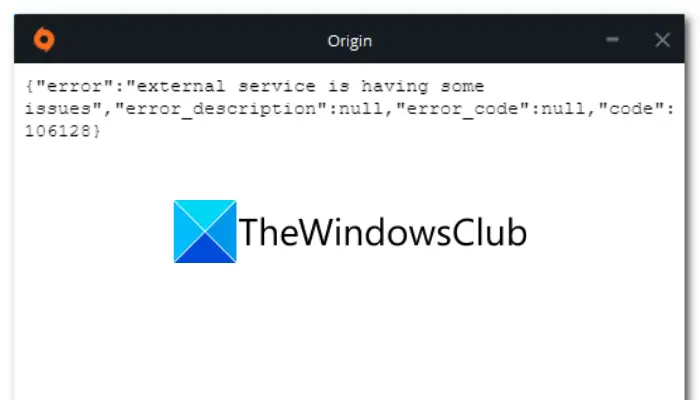
This error can happen for several reasons. However, in many cases, it might be a temporary glitch. So, try rebooting your system, then launch the game on Origin. If this doesn’t work, we have a full guide to help you out. Here, we’ll show you different fixes that can help you resolve the error.
What causes error code 106128 on Origin?
Multiple scenarios can trigger error code 106128 on Origin. Here are some of the potential causes:
- It could be caused due to a server issue at the end of Origin. So, make sure that the current server status of Origin is up and running.
- Another reason for this error could be missing administrator rights. If you are running Origin or the game without admin privileges, you might face this error. If so, run Origin and the problematic game as an administrator.
- Corrupted game files may trigger this error. So, if you own an Origin game on Steam, you can try verifying and fixing the game files.
- It could also be caused by a corrupted installation of the Origin app. Hence, you can try reinstalling the app.
Now that you know the scenarios that might trigger the error at hand. You can now apply the below fixes to get rid of the error.
Fix Origin error code 106128, external service is having some issues
Here are the solutions you can try to fix the error code 106128, External service is having some issues on Origin:
- Check the server status of Origin.
- Run Origin in offline mode.
- Launch Origin and the game as an administrator.
- Verify game files on Steam (if applicable).
- Reinstall Origin.
1] Check the server status of Origin
This error could be triggered if there is a server issue at the ned of Origin. Origin servers might be facing technical difficulties like server overload. Or, Origin servers might be down for maintenance. Hence, you need to check the server status and make sure that the Origin servers are not down at the moment. If you find out that the servers are down, wait for some time and then retry. Origin’s support team will resolve the issue as soon as possible.
If you want to check the server status of Origin, you can try a free server-status detector tool that shows severs status of websites and games. Apart from that, you can also check out the current server status of Origin on their official pages on Twitter and other social networking websites.
However, if there is no server problem at the end of Origin and you still get the same error, you can try the next potential fix to resolve it.
Read: Fix Origin error code 9:0, Installer encountered an error.
2] Run Origin in offline mode
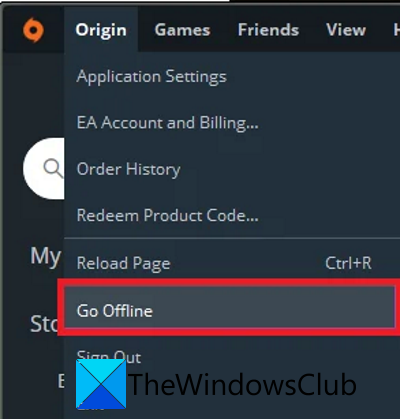
You can try running Origin in offline mode to fix the error. This has worked for many affected users and might just work for you as well. Using Origin in offline mode will basically enable you to use it without connecting to the servers. However, you can use this method only when you are playing single-player games and campaigns. It won’t work with multiplayer games as that would require you to connect with game servers.
Here are the steps to run Origin in offline mode:
- Firstly, open the Origin launcher on your system.
- Now, press the Origin button which is present in the top left corner.
- Next, from the appeared menu options, click on the Go Offline option.
- After that, try relaunching your game and check if the problem is fixed or not.
If you still get error code 106128 (“external service is having some issues”), try the next potential fix.
See: Fix Origin Error 196613:0 when downloading or updating games.
3] Launch Origin and the game as an administrator
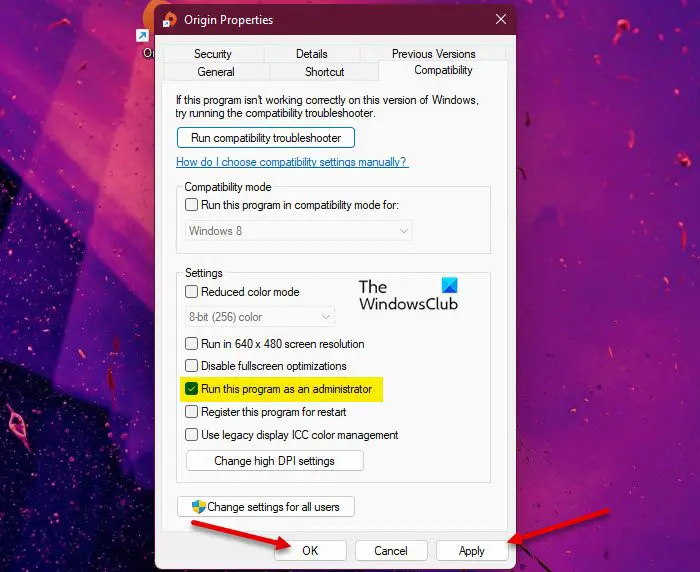
Another fix you can try is running Origin and the problematic game as an administrator. The error might also be caused due to a lack of administrator privileges. Hence, running the launcher and game with admin rights should resolve the issue.
Here is how to make Origin and your game run as an administrator:
- Firstly, go to the location where the Origin shortcut is present and right-click on it.
- Now, press the Properties option from the appeared context menu.
- Next, move to the Compatibility tab and make sure to check the Run this program as an administrator option.
- After that, press the Apply > OK button to save changes.
- Now, move to the location on your PC where the game executable is saved. And then, repeat the above process for the game to run its as an administrator.
After following the steps above, try running the game to see whether the error is fixed. If not, no worries. We have some more fixes for you. So, move ahead and try the next potential solution.
Read: Fix Origin Error 327683:0 when updating or installing the game.
4] Verify game files on Steam (if applicable)
You can try verifying the integrity of your game files in case you own the Origin game on Steam and get this error. This fix is recommended by some affected users on answers.ea.com. You can try the same to fix the error. Since the error could be caused by corrupted game files, this method should fix it.
Here is how you can verify the integrity of the game files on Steam:
- Firstly, open the Steam desktop app and go to its LIBRARY.
- Now, find the problematic game and right-click on it.
- From the appeared context menu, click on the Properties option.
- After that, navigate to the LOCAL FILES tab and tap on the Verify integrity of game files button.
- Steam will now verify the game files and replace corrupted ones with updated files. This process might take 10-15 minutes or even more than that.
- Once the process is complete, try opening your game and check whether the error is resolved.
If you still get the same error, try the next potential fix to resolve it.
Read: Fix Origin Error while playing games on Windows PC.
5] Reinstall Origin
As a last resort, reinstall the Origin client on your PC. Corrupted Origin files may be causing the error. Uninstalling and reinstalling it should help fix the error. It will help you get rid of the corrupted installation files.
First, you need to uninstall Origin from your PC. For that, you can open the Settings app (Win+I) and then go to the Apps > Apps and features section. After that, select the Origin app and press the Uninstall option to remove it. Once done, go to the origin.com website and download the latest version of Origin. Finally, run the installer to install the app on your PC.
Hopefully, this fixes the error.
How do I fix Origin connection?
If you are facing issues like Origin not loading or connecting, you can try clearing the Origin cache to fix the issue. Also, try launching Origin in compatibility mode with administrator rights, make sure you have installed pending Windows updates, and update your graphics drivers. If none of these fixes work, consider reinstalling the Origin app.
Can’t connect to Origin services?
If you can’t connect to the Origin servers, first make sure the Origin servers aren’t down. This problem most likely occurs if Origin servers are experiencing technical difficulties. Also, make sure the correct date and time are set on your PC. This issue could also happen if your antivirus or firewall blocks Origin or a related process. So, try whitelisting Origin in your security suite.
How do you fix Origin games not launching?
If you can’t launch Origin games, try running the Origin client as an administrator. You can also try closing other background programs that might be causing conflict with Origin. Also, clear Origin’s cache on your system. If nothing works, your only option is to uninstall and reinstall the app to fix the issue.
Now read:
- DirectX Setup Error: An internal error has occurred in Origin.
- Origin installation requires an internet connection error on Windows PC.
