
While opening the Rules and Alerts panel, if you get The operation failed because of a registry or installation problem message in Outlook, here is how you can fix the issue.
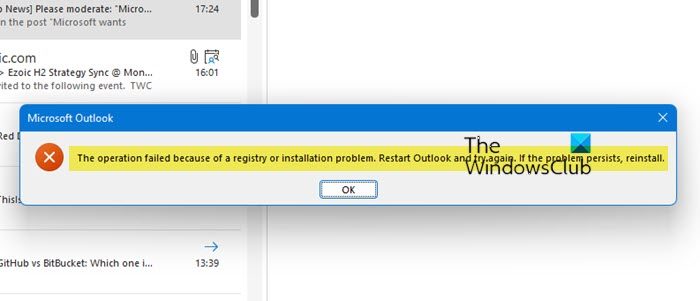
The entire error message says something like this:
The operation failed because of a registry or installation problem. Restart Outlook and try again. If the problem persists, reinstall.
The operation failed because of a registry or installation problem, says Outlook
To fix The operation failed because of a registry or installation problem, follow these steps:
- Restart Outlook
- Update Office
- Repair Microsoft Office
- Recreate profile in Outlook
To learn more about these steps, continue reading.
1] Restart Outlook
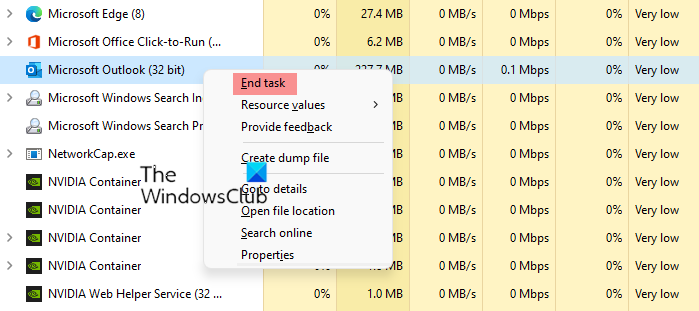
Completely close Outlook. Check Task Manager to confirm the outlook.exe process has exited.
After that open Outlook and see if it has made the problem go away.
2] Update Office
As it was a bug, you need to update the Office app to get rid of this issue. For your information, you can update the Office app manually on your Windows 11/10 PC. If the automatic update doesn’t work for you, you can manually update Microsoft Office on Windows 11/10 PC.
Microsoft also released a hotfix for your Office installation. Whether you use Outlook 2016 or Microsoft 365, you can install the hotfix for your version. For that, head to the support.microsoft.com website to download the hotfix.
3] Repair Microsoft Office
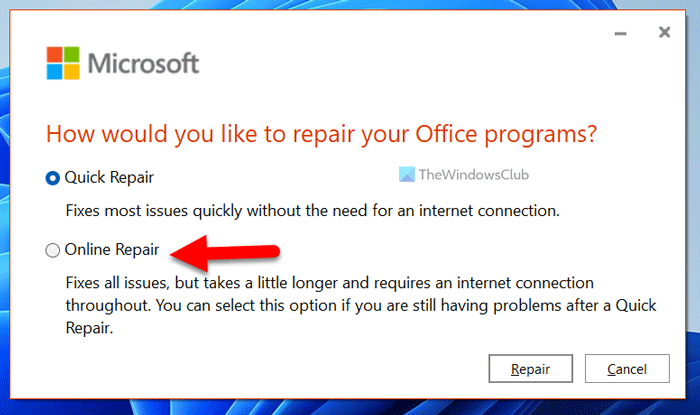
If the hotfix doesn’t resolve the issue, you’ll need to run the repair process. Previously, you could repair individual Office apps. However, things have changed in the last few years, so you can’t repair an individual app. Instead, you need to repair the entire Microsoft Office installation, whether you use Windows 11, Windows 10, or an older version.
To repair Microsoft Office on Windows 11/10, follow these steps:
- Press Win+I to open Windows Settings.
- Go to the Apps section.
- Click on the Apps & features menu on the right side.
- Find the Microsoft 365.
- Click the three-dotted icon and select the Modify option.
- Click on the Yes button.
- Choose the Online Repair option.
- Click the Repair button.
Then, you need to follow the screen instructions to get the repair done.
Read: How or Reset or Repair Individual Office apps in Windows
4] Re-create profile in Outlook
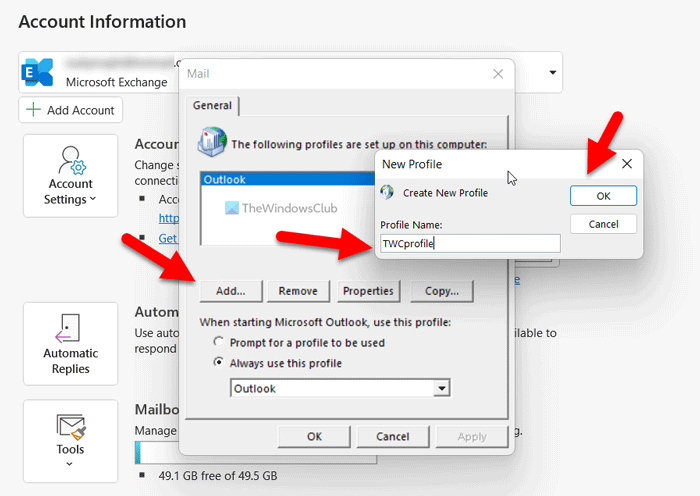
When you add a mail account for the first time, Outlook creates a profile automatically. However, if the profile has a conflict, it may cause the issue mentioned above. Therefore, you can create a new profile and use it for Outlook.
To create a profile in Outlook, follow these steps:
- Open Outlook on your PC.
- Click on the File menu.
- Click the Account Settings > Manage Profiles.
- Click on the Show Profiles button.
- Click the Add button.
- Enter the Profile Name and click the OK button.
- Enter the email account credentials and set the account.
Once done, you can use Outlook normally.
Read: Outlook crashes when creating a new profile
How do I fix my Outlook registry?
If you get an Outlook registry issue, follow the guide above. Although this bug was fixed a long time ago, you may still get this error. If so, download the hotfix and install it, or update your Microsoft Office installation.
How do I reset Outlook registry?
Outlook stores the Registry values in this path: HKEY_CURRENT_USER/Software/Microsoft/Office/version/Outlook/Setup. So, go to this path and delete the unnecessary keys from the Setup key. However, it is best to know what you are deleting. Otherwise, you may run into trouble later and may need to reinstall the app.
Read: Fix Microsoft Outlook problems like freezing, corrupt PST, Profile, Add-in, etc.
