
Here are the best free, open-source screen recorders with audio for Windows 11. These free screen recording software allow you to record your screen videos with audio. Additionally, this software comes with a free and open-source license. So, you can download, study, and modify the source code of this software. Now, let us check out the list!
Best Free Open Source Screen Recorder with Audio for PC
Here is a list of the best free open source screen recorders with audio software for Windows 11/10:
- OBS Studio
- CamStudio
- ShareX
- Webinaria
- Krut Computer Recorder
- Captura
- ScreenGun
1] OBS Studio
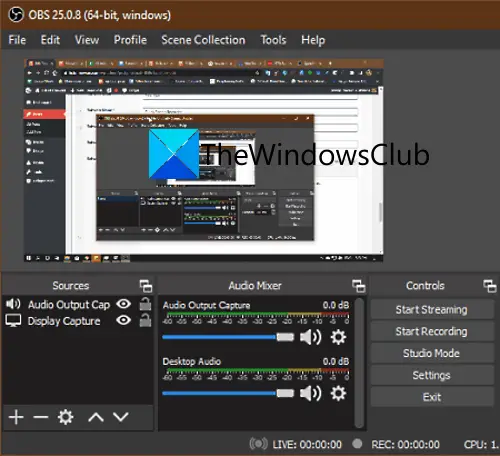
OBS Studio needs no introduction. It is one of the most popular screen recording and streaming software. The software is completely free and open-source. It lets you record screen videos and stream them on various broadcasting platforms like YouTube, Twitch and Facebook. This one can be used to record your screen video along with the audio. Using it, you can record videos with feeds from multiple microphones, including system audio. It also lets you capture video from multiple webcams and audio devices, and switch between webcam recordings. While recording the video, you can also rotate and flip the screen.
The final recorded video with audio can be saved in a variety of video formats, including MP4, MKV, MOV, FLV, and TS. It also provides options to customize video settings before screen recording, such as frame rate, resolution and video encoder.
How to record a screen video with audio using OBS Studio?
Here are the main steps that you can follow to capture a screen video with audio using OBS Studio:
- Firstly, navigate to the Sources section and tap on the + button in order to add Display Capture.
- Now, you can add Audio Output Capture or Audio Input Capture for recording the system or microphone audio, respectively.
- Next, press the Settings option to customize several audio and video options.
- After that, tap on the Start Recording button to record a screen video with audio.
- Once done, tap on the Stop button to stop the recording and save the final video.
It is one of the best open source screen recorders with audio. You can also stream your videos to YouTube, Twitch, Facebook, and a few more video broadcasting platforms.
2] CamStudio
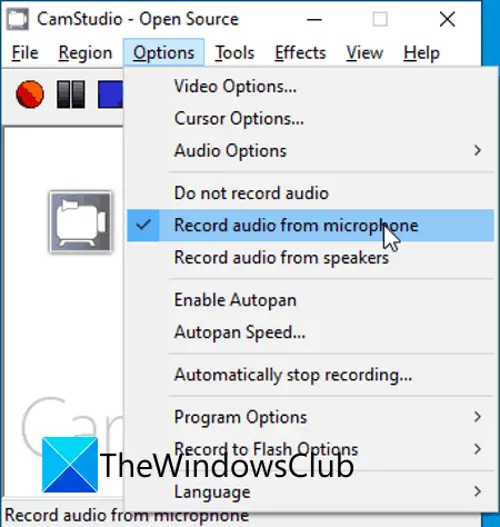
CamStudio is a free open source screen recorder with audio for Windows. Using it, you can capture your screen video along with both system and microphone audio feeds. It also lets you customize the output video’s properties before you record it. You can export the final in formats like AVI, SWF and MP4.
It also offers various video annotation features using which you can add captions, watermarks, and timestamps to your screen recordings. An SWF Producer feature is also present in it that lets you convert AVI recordings to SWF format.
How to record screen with audio in CamStudio?
You can follow the simple steps below to record a screen video with audio in CamStudio:
- First, go to its Options menu and select the Record audio from microphone or Record audio from speakers option, to record microphone or system audio.
- Now, choose the video recording quality and frame rate in the Video options.
- Next, from the Region tab, select the screen region that you want to capture in the final video.
- After that, press the Record button to start the screen recording with audio.
- When done, you can stop the recording and the final video will be saved in the selected video format.
Overall, it is a simple yet effective free and open source screen recorder with audio.
3] ShareX
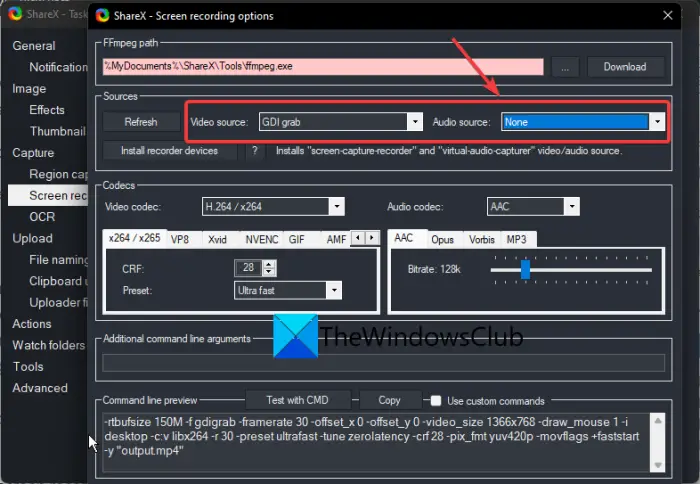
You can also try ShareX to record screen videos with audio. It is free, open-source screen capture and recording software that includes the option to record videos with audio. You can save the final video with recorded audio in MP4 format only. Additionally, videos with audio can be saved as animated GIFs.
Do note that ShareX needs the FFmpeg.exe tool to record and save screen video wth audio. You can manually install it or ShareX can automatically install it for you when required.
How to record screen video with audio using ShareX?
Here are the steps to record a screen video with audio using ShareX:
- Firstly, simply launch this software and then right-click on its icon from the system tray
- After that, tap on the Task Settings option, move to the Screen Recorder tab, and click on the Screen recording options button.
- Next, select Audio Source and Video Source from the Sources section. It also lets you customize recording options such as audio and video codecs, FPS, etc.
- Now, again right-click on its icon from your system tray and select the Capture > Screen recording option.
- Then, choose the region that you need to capture and start recording the screen video.
- Finally, you can click on the Stop button to stop and save the resulting video.
It is a great screen recorder with audio that comes with some additional tools Image Editor, QR Code Encoder/Decoder, Image Combiner, Color Picker, Image Splitter, etc.
4] Webinaria
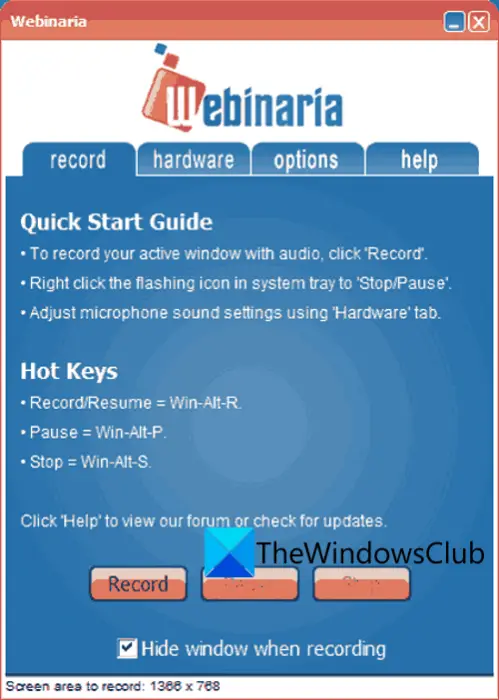
Another free and open source screen recorder with audio on this list is Webinaria. You can capture the screen with microphone audio. You can select the frame rate from 5, 10, and 15 FPS to save your final video. It supports AVI video format to save the screen recordings with audio
How to record screen with audio in Webinaria?
Here are the steps to record a screen video with audio using this free and open source software:
- First, from its options tab, enable the Record audio narration option
- Now, go to the hardware tab and select the microphone device from the Sound Device options.
- Next, select the capture screen region, then press the Record button to capture the screen video with audio.
It is a simple screen recorder that also lets you record audio. You can download it from sourceforge.net.
RELATED: Multiple ways to record Xbox One Gameplays Videos with Audio.
5] Krut Computer Recorder
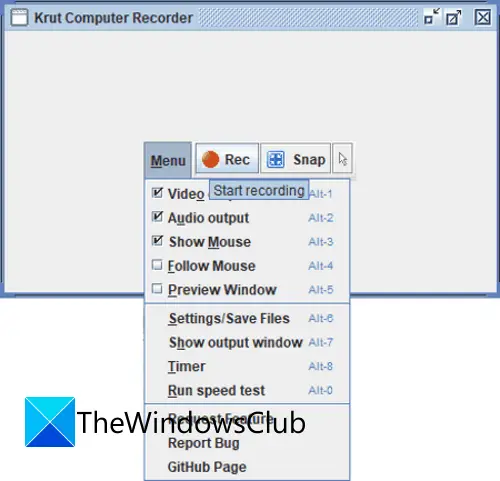
Krut Computer Recorder is yet another free, open-source screen recorder with audio for Windows. You can record video with sound captured via an external microphone. To save the final output, you can customize the frame rate, video encoding quality, etc. The supported output format to export your videos is MOV.
How to record screen with audio using Krut Computer Recorder?
Here are the steps to record a screen video along with microphone audio using Krut Computer Recorder:
- First, turn on the Audio output and Video output options from its Menu.
- Now, customize the output video options from Settings as per your requirements.
- After that, choose the capture screen area and press the Rec button to start screen recording with audio.
It is a basic application to record tutorials and gameplay with audio.
Get it here.
6] Captura
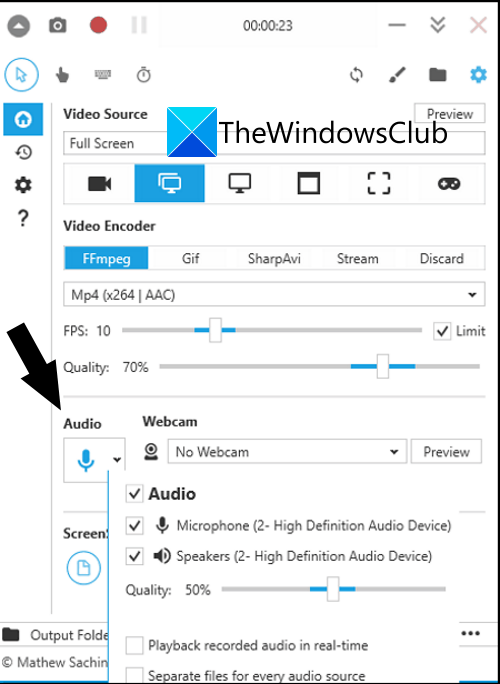
Captura is a nice free open source screen recorder with audio for Windows. You can capture a screen video with audio in 3 video formats namely MP4, AVI, and WebM. It lets you capture a region, window, or full screen. There is a game recording feature too in it. Apart from that, you can use it to capture screenshots and upload them via Imgur.
How to record a screen video with audio using Captura?
Here are the steps to follow to capture a screen video along with sound using Captura:
- First of all, launch this software and switch to the Fullscreen, Screen, Window, or Region tab depending on the region you want to record.
- Now, customize the output video options, such as enabling the audio feed, choosing the audio source, selecting the output video format, recording the webcam, setting the FPS and quality, etc.
- After that, tap on the record button to capture a screen or webcam video with audio.
- Once done, stop the recording, and it will be saved at the chosen location.
7] ScreenGun
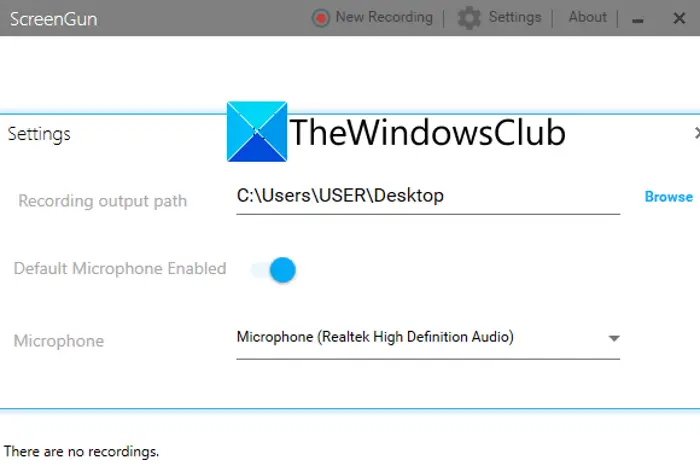
ScreenGun is another piece of software for recording screen videos with audio. Using it, you can save a screen recording with microphone audio in MP4 format.
How to record screen with audio using ScreenGun?
Here are the main steps to recording a screen video with audio using ScreenGun:
- First, start the software, tap the Settings button to enable microphone audio, and choose the microphone device.
- Next, press the New Recording option and choose the region to record.
- Now, turn on the microphone option and click on the record button to initiate the screen recording.
- When done, stop screen recording and the video will be saved.
Download it from github.com.
Is there any inbuilt screen recorder in Windows 11?
Yes. Windows 11 includes the Snipping Tool (with video capture) and the Xbox Game Bar. Both let you record your screen without installing third‑party apps. Windows 11 users can also use the Snipping Tool to record the screen. You can also use the Xbox Game Bar app to record the screen. Open the app, go to the Capture menu, and tap the Start recording button.
Now read:
- How to make Video Presentation with Audio Narration in Windows 11?
- How to use Voice Recorder in Windows 11?
