
If OneNote freezes when typing or drawing in Windows 11, here is how you can fix the problem. This article is mainly for those who use the desktop version of OneNote.
Why does OneNote freeze when typing or drawing?
If OneNote freezes when typing or drawing, one of these could be the reason:
- Your OneNote version is corrupt.
- Your age-old OneNote doesn’t comply with the pen you are using.
- Your user account is corrupt.
- Incorrect settings.
OneNote freezes when typing or drawing
If OneNote freezes when typing or drawing, follow these solutions:
- Update OneNote
- Disable automatic handwriting recognition
- Check with another user account
- Use a different notebook
- Repair and Reset OneNote
- Delete OneNote cache
To learn more about these solutions, continue reading.
1] Update OneNote
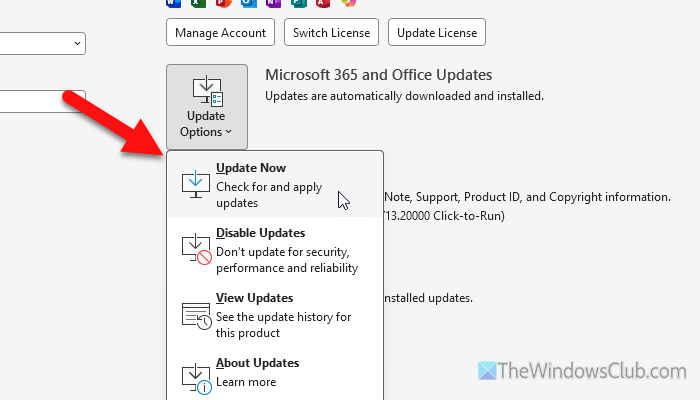
To update OneNote, follow these steps:
- Open OneNote and go to File > Account.
- Click on the Update Options and select Update Now.
Do not close the window or disconnect from the internet. Once it is done, try re-using OneNote.
Read: How to update Microsoft Office manually in Windows 11
2] Disable automatic handwriting recognition
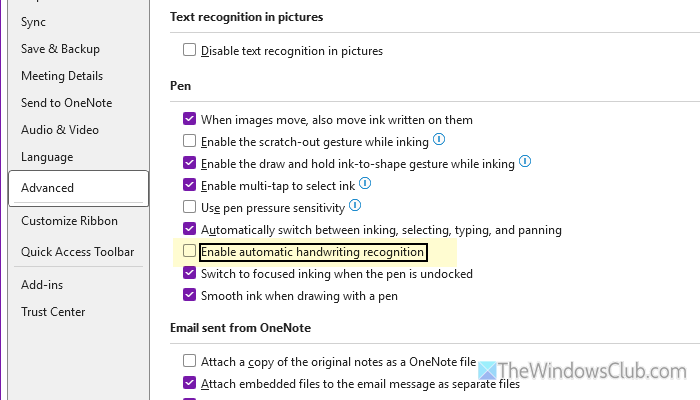
OneNote has an option called Automatic handwriting recognition, which lets you convert your handwritten text into any font you want. However, if you have an old computer, this feature might not work smoothly or cause slowness.
In such situations, it is suggested to turn off automatic handwriting recognition. To do that, follow these steps:
- Open OneNote on your computer.
- Go to File > Options.
- Switch to the Advanced tab.
- Head to the Pen section.
- Find the Enable automatic handwriting recognition option.
- Remove the tick from the corresponding checkbox.
- Click the OK button.
Read: How to Disable Inking and Typing Data Collection in Windows 11
3] Check with another user account
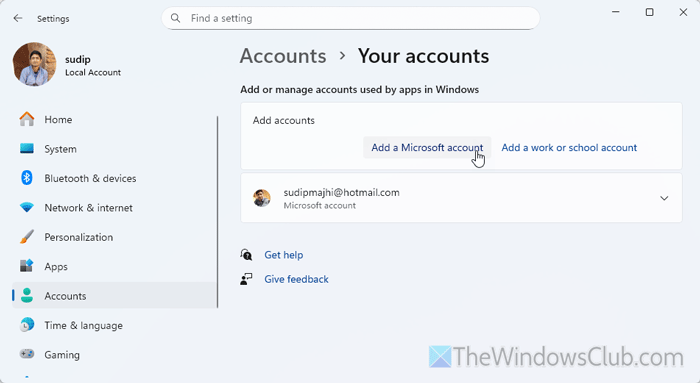
At times, this problem might arise due to corruption, a glitch, or a bug in the Windows user account. That is why it is recommended to use a different user account to verify whether the issue is due to your account or something else.
If you already have a second user account, you can sign out of your current account and use the second one. However, if you do not have a second account, follow these steps to create a new user account in Windows 11.
Read: How to create a new User Account or Profile in Windows
4] Use a different notebook
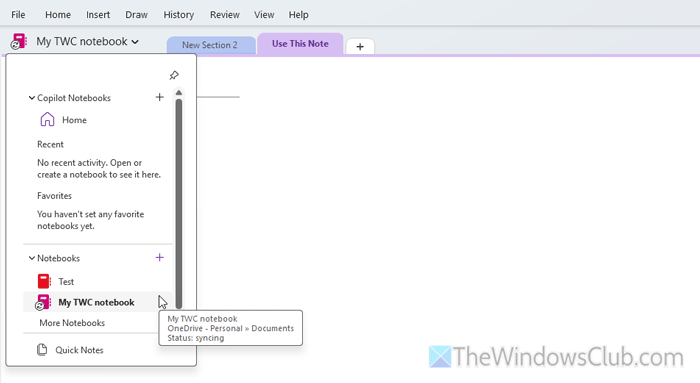
At times, this problem may occur when your existing notebook has issues or the owner has revoked access. That is why it is suggested to use a different notebook and check if the same problem remains or not.
5] Repair and Reset OneNote
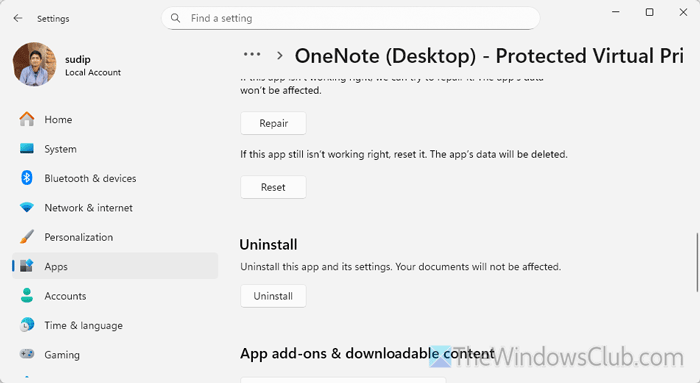
To repair and reset OneNote, follow these steps:
- Press Win+I to open the Windows Settings panel on your computer.
- Go to Apps > Installed apps.
- Click on the three-dotted icon of OneNote and select the Advanced options.
- Click the Terminate button to close all background processes.
- Click the Repair button to restart the repairing process.
If it works, there is nothing more to do. However, if it doesn’t work, click on the Reset button twice.
Read: How or Reset or Repair Individual Office apps in Windows
6] Delete OneNote cache
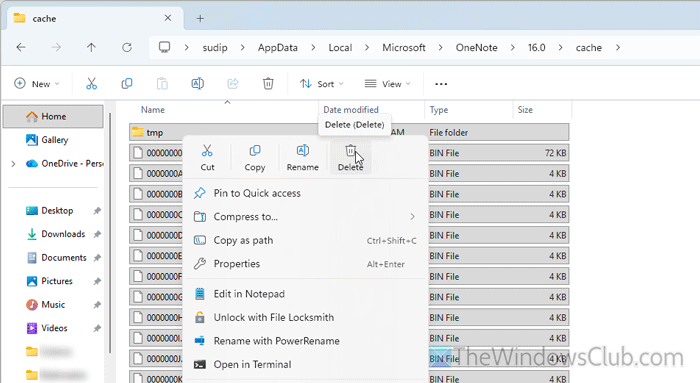
To delete the OneNote cache, follow these steps:
First, open the File Explorer and navigate to this path:
C:\Users\username\AppData\Local\Microsoft\OneNote\16.0
Note: You must show hidden files to access the AppData folder.
However, you can also press Win+R to open the Run prompt and type the following path:
%localappdata%\Microsoft\OneNote
Click the OK button to open the same folder as above.
Here you can find a folder called Cache. You have two options:
- You can directly delete this folder.
- You can open the folder and delete all the contents.
Once done, restart OneNote and check if the problem still exists or not.
Other basic solutions
- Restart your computer.
- Close a few unnecessary apps.
- Do not run multiple apps at startup.
- Update Windows if it hasn’t been updated in a long time.
Read: OneNote keeps crashing on Windows 11
How do I stop OneNote from freezing?
To stop OneNote from freezing, update the drivers and OneNote. Apart from that, you can tweak Pen settings, which often create problems while recognizing handwritten words. Also, repair the OneNote app.
Why is OneNote not letting me type?
If you have a corrupt notebook or you do not have permission to access a notebook, OneNote will block you from typing or drawing. On the other hand, if you use an outdated version of OneNote, it might cause the same problem.
Read: Fix OneNote Not working, Not opening Problems, Errors, Issues
