
Windows 11 and Windows 10 collect various data, including speech, text, handwriting, apps, and device usage and health, while you are using the system. This doesn’t mean it logs everything like a keylogger; it collects data points to improve the OS and make the next version better. The good news is that you can easily disable inking and typing recognition on Windows 11/10.
What is inking and typing on Windows 11?
Whatever you type or ink, the data is generalized, anonymized and sent to Microsoft to give you a better ‘dictionary’ experience. If you are wondering why it’s a concern, it tracks what you type for next-word prediction, spelling correction, and autocorrection, which can feel like a keylogger. That said, privacy organizations, including the government, have pushed Microsoft hard to give users an option to opt out of this kind of recording.
Microsoft has rolled out an option that lets you disable inking and typing recognition in the user experience. You should also know that Windows 11/10 comes with extensive options in Privacy Settings which you can configure even before installing the OS. These options are also available post-Windows 11/10 installations.
Amidst all these security questions and data-stealing charges on many big corporations, users are unwilling to share their data with companies. Fairly, Microsoft lets users stop various forms of data sharing, and in this post, we’ll show you how. We will disable Inking and Typing Data Collection in Windows 11/10 with some simple steps.
Disable Inking and Typing Data Collection in Windows 11
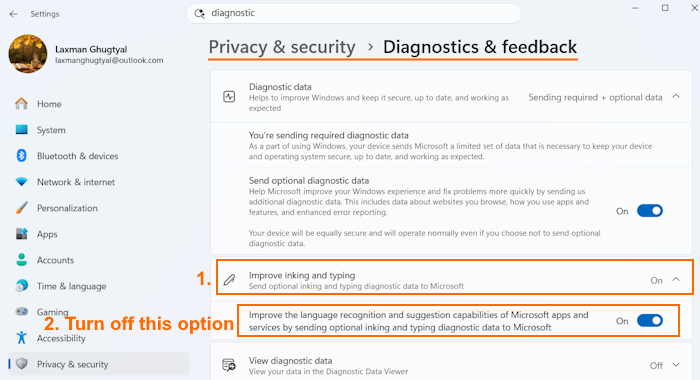
If you are a curious Windows 11 user, you may have noticed that the Settings app in Windows 11 is somewhat different from that of Windows 10. To disable Inking and Typing Data Collection in Windows 11, follow the prescribed procedure.
- Open the Windows 11 Settings app using the Win+I hotkey
- Click on Privacy & security in the left section
- Access the Diagnostics & feedback page
- Expand the Improve inking and typing option
- Turn off the Improve the language recognition and suggestion capabilities of Microsoft apps and services by sending optional inking and typing diagnostic data to Microsoft option. This option will remain disabled or turned off if the Send optional diagnostic data setting is turned off.
This adds another layer of privacy and security to your system.
Turn off Inking and Typing Data Collection in Windows 10
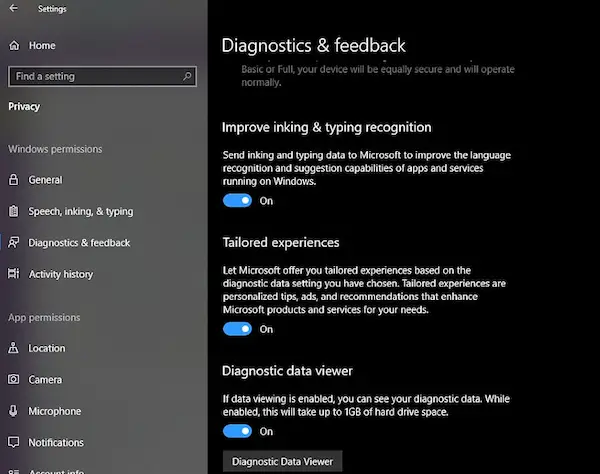
- Open Settings > Click on Privacy > Click on Diagnostic & feedback.
- Turn off the Improve inking & typing recognition toggle switch.
- You can also choose to turn off “Tailored Experiences“. This feature offers personalized Tips, ads, and recommendations that enhance Microsoft products and services for your needs.
How to disable Inking and Typing Personalisation using Group Policy
If you want to disable the feature with the help of Group Policy, you need to open the Group Policy Editor from the Start Menu and navigate to the following location.
Computer Configuration > Administrative Templates > Windows Components > Text Input
Look for Improve inking and typing recognition, double-click on it, select Disabled, and click Ok.
Now, navigate to the following location.
User Configuration > Administrative Templates > Control Panel > Regional and Language Options > Handwriting personalization
Look for Turn off automatic learning, open it, select Enabled, and click Ok.
This will work on Windows 11 and Windows 10 too.
Diagnostic data viewer from Microsoft
After that, Windows will no longer collect and send your inking and typing data to Microsoft. However, you can use the Diagnostic data viewer to see what data Microsoft has collected so far. It’s an official Microsoft app that shows all the data Microsoft has collected from you and lets you view and delete it. It usually takes up to 1 GB of your hard disk space.
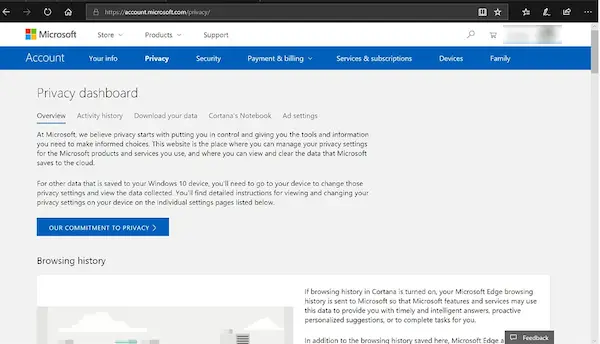
This guide only covers disabling data collection through handwriting and typing. There are other types of Telemetry like speech which can not be controlled from here. To check each telemetry setting, visit your Microsoft Account Portal Privacy settings, which include clear search history, browsing history, location activity, voice activity, media activity, product and service, performance, Cortana, and Microsoft Health Data.
Hope you find this feature useful!
