
When creating a backup for OneNote notes and encountering an error message stating ‘Unable to create backup,’ follow these steps to troubleshoot the problem. If the given troubleshooting guide doesn’t help at all, you can follow these solutions to get it fixed.
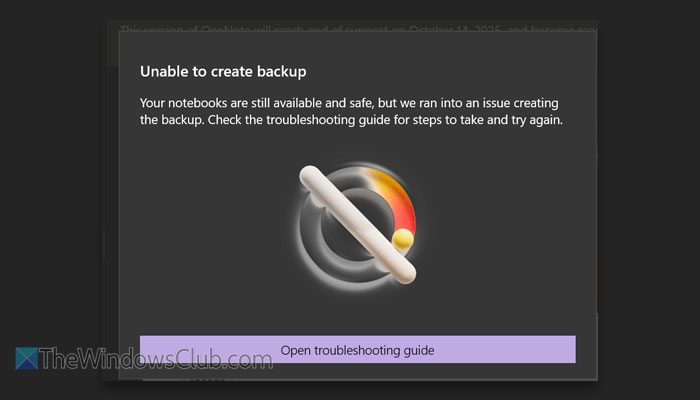
Fix OneNote error Unable to create backup
To fix the Unable to create backup error in OneNote, follow these solutions:
- Manually backup your notes
- Check and change backup folder
- Change automatic backup interval
- Change cache location
- Change number of backup copies
- Repair and reset OneNote app
- Update OneNote
To learn more about these solutions, continue reading.
1] Manually backup your notes
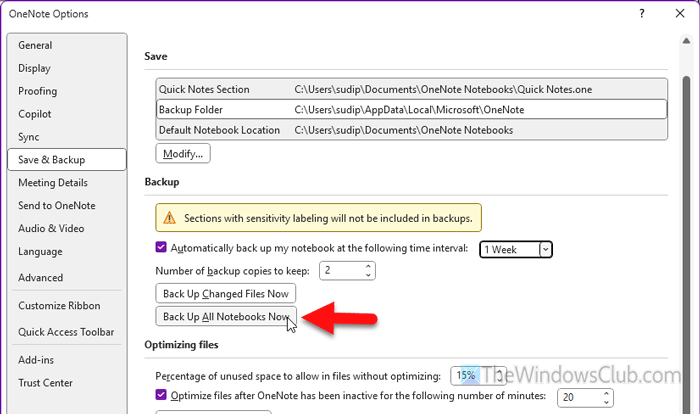
Although it is not a permanent solution, you can use it to temporarily fix the issue and address it immediately. To manually back up your notes, follow these steps:
- Open the OneNote app.
- Go to File > Options.
- Switch to the Save & Backup tab.
- Click on the Back Up All Notebooks Now button.
- Click the OK button.
It may take some time. In the meantime, do not interrupt the process or disconnect your internet connection.
2] Check and change backup folder
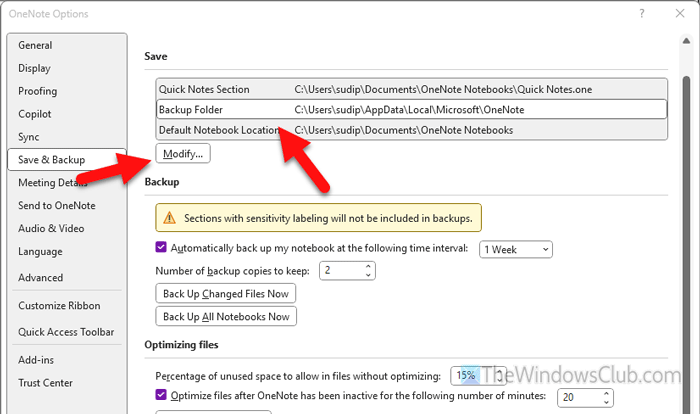
The default backup folder of OneNote is:
C:\Users\user_name\AppData\Local\Microsoft\OneNote
However, if this folder is corrupted, there is a chance of getting the error above while trying to back up OneNote notes. That is why we suggest changing the backup folder once. To do this, open the OneNote Options panel and navigate to the Save & Backup tab. Next, choose the Backup Folder option and click the Modify button.
Then, choose another folder other than the existing one and click the Select button.
Finally, click on the OK button to save the change.
3] Change automatic backup interval
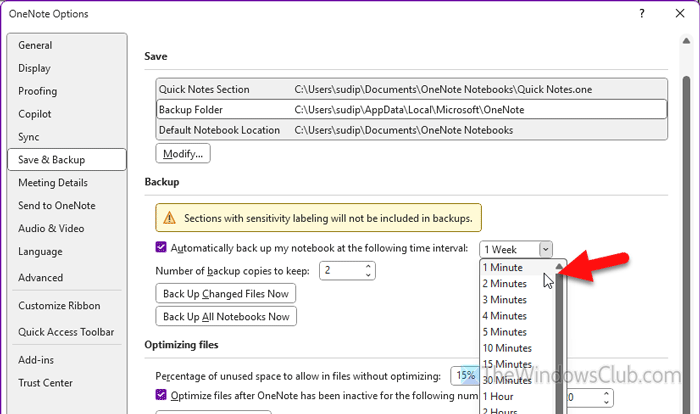
By default, OneNote backs up all the notebooks and notes once a week. However, if you encounter the error mentioned above, you can adjust the backup interval to a shorter duration. To do this, open the OneNote Options panel and switch to the Save & Backup section. Next, head to the Automatically back up my notebook at the following time interval option and choose the shortest interval.
Click the OK button to save it. However, one thing to remember is that if you update your notebooks very frequently, you cannot disconnect from your internet connection.
Read: How to automatically backup Microsoft Outlook PST Data File
4] Change cache location
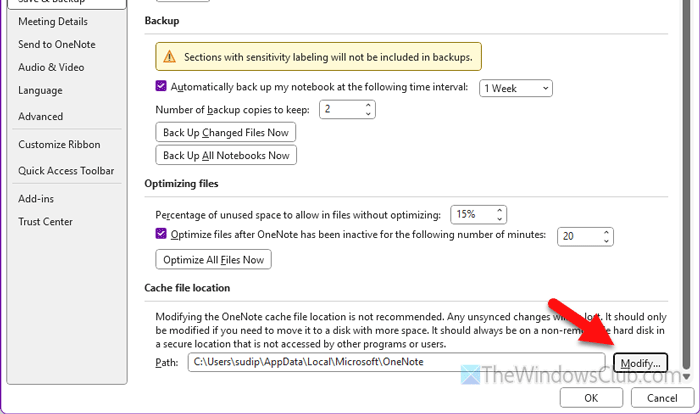
The default cache folder location of OneNote is:
C:\Users\user-name\AppData\Local\Microsoft\OneNote
This problem may arise due to an old cache. You can change the default cache folder location to resolve this issue. For that, you need to open the OneNote Options panel and go to the Save & Backup section. Next, find the Cache file location section and click on the Modify button.
Choose a folder you want to use as a cache storage and click the Select button. Finally, click the OK button to save the change.
Read: How to clear Office Word, Excel, PowerPoint cache
5] Change number of backup copies
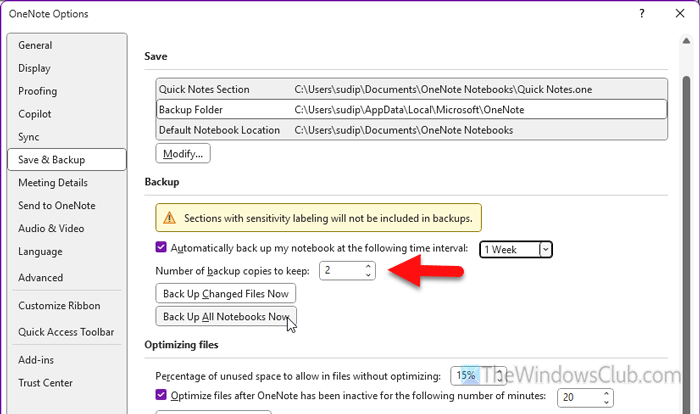
By default, OneNote stores only two copies of the backup on your computer, and those copies are uploaded for online use. However, if you use more copies to keep, there is a chance of creating a conflict. In that case, you need to reduce the number of copies you want to keep on your computer.
To do this, open the OneNote Options wizard and switch to the Save & Backup tab. Then, find the Number of backup copies to keep button and choose either one or two.
Click the Save button.
Read: How to change Name, Color, Location of your OneNote notebook
6] Repair and reset OneNote app
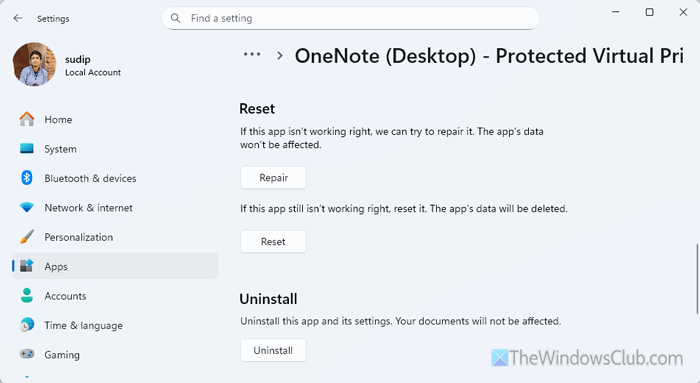
To repair and reset the OneNote app in Windows 11, follow these steps:
First, press Win+I to open Windows Settings. Then, go to Apps > Installed apps. Click the three-dotted icon of OneNote and select Advanced options. Click the Repair button once and let the process be finished.
If it doesn’t work, click the Reset button twice to get the job done.
Read: How or Reset or Repair Individual Office apps in Windows 11
7] Update OneNote
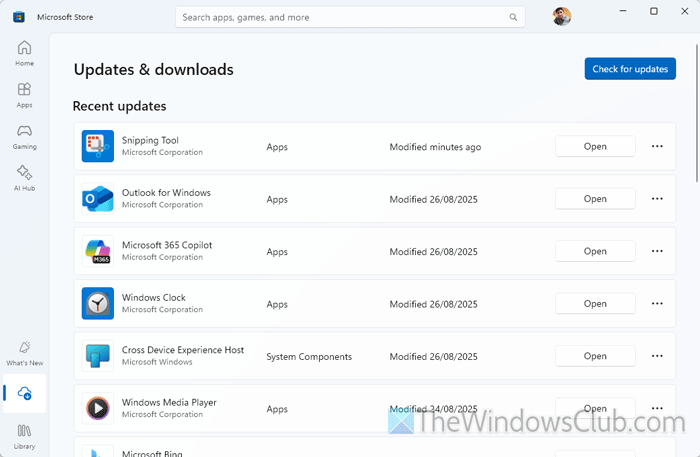
If none of the solutions have worked for you, you can try updating the app. For that, open the Microsoft Store and go to Updates & downloads. If you find the OneNote app in the list, it is recommended that you update it to the latest version.
Read: Fix OneNote You’re out of disk space error
How to create a OneNote backup?
To create a OneNote backup, open the OneNote app and go to File > Options > Save & Backup. Then, click on the Back Up All Notebooks Now button.
How to fix OneNote sync error?
To fix the OneNote sync error, do the following:
- Check your internet connection.
- Disable proxy and VPN.
- Update the OneNote app.
- Repair and reset the OneNote app.
Read: Fix OneNote is not syncing: Guide to fix OneNote Sync problems and issues.
