
Windows File Explorer offers basic functionality, making it difficult to get things done quickly. Most of the time is spent navigating folders and locating them. This calls the need for alternate software for Explorer, and today we are talking about One Commander.
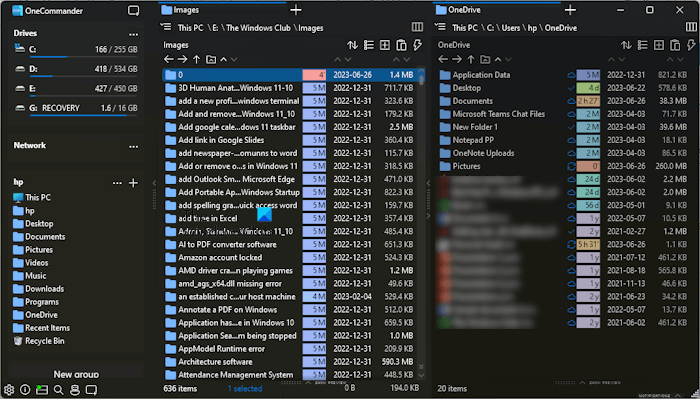
Microsoft has designed File Explorer in Windows 11. Windows 11 File Explorer has a lot of new features. The tabbed feature in Windows 11 File Explorer has made it easier to manage files. Now, you can open multiple tabs in the same window instead of opening multiple instances of File Explorer. However, if you need some more features, you can install One Commander.
One Commander alternate File Manager for Windows
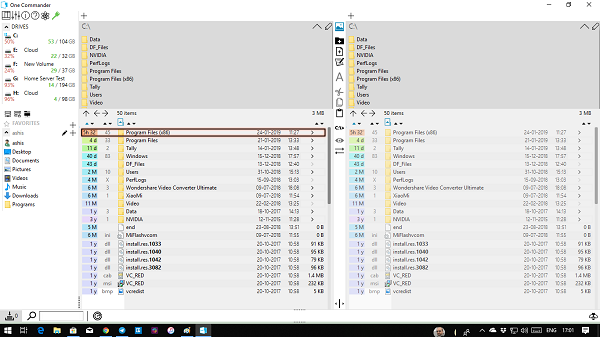
Instead of just being a dual window file manager, One Commander offers both double window view, and multi-column view. You can choose that when you launch it for the first time. Along with this, you can choose between white, dark and light theme.
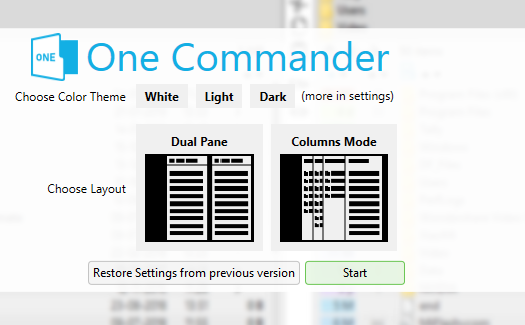
One Commander Layout
While it’s simple to use, the layout requires some understanding. When you select dual-pane or columns mode, it appears as four windows. Each pane has two parts. The top section shows folders and drives only, while the bottom section also displays files.
The left section provides quick access to drives, favorites, and options to connect to network computers, map network drives, and access secure network drives.
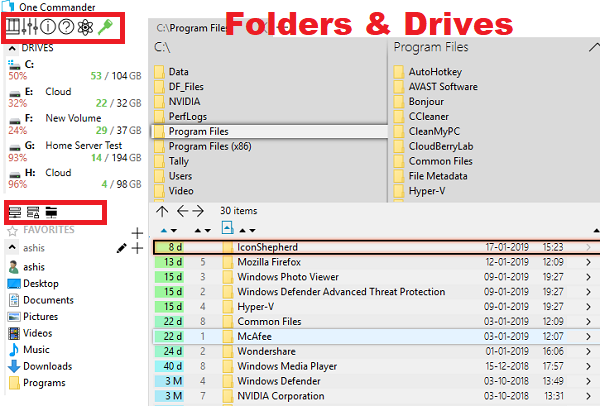
The top controls let you switch pane modes and configuration, and open enhanced file operations, which will be discussed shortly.
If you see colors around in the interface, that’s something to love, they refer to the size of the folder, files and drives, and also the modification date as well.
One Commander File Operations
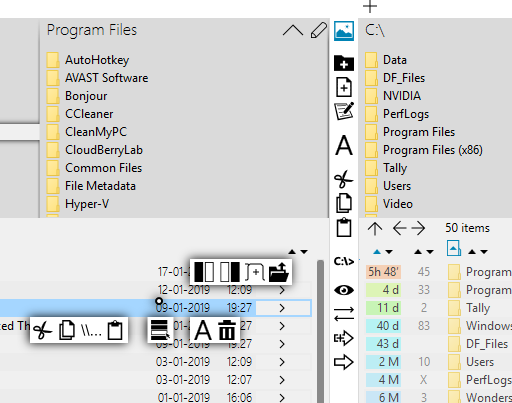
It is a complete UI-based interface where you can do a lot with your mouse and keyboard. Right-click on any file or folder, and you get quick access to file operations (cut, copy-paste), rename files, open a folder in the tab, open in the next pane, and so on.
The file operation is also built between the panes which reveal when you select any of the files. You can quickly copy files between them, open Command Prompt, rename, and so on.
File Processor Feature
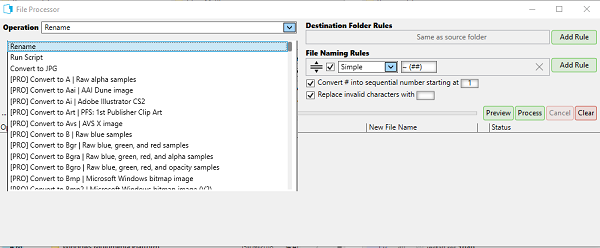
In the primary mode, which is free to use, you can bulk-rename, run scripts, and convert images to JPG. It supports file renaming rules, turns # into a sequence number, and replace invalid characters from the file names. You can add multiple rules.
If you love the software, you can always upgrade to Pro mode to access other features which in my opinion are worth.
One Commander Configuration offers you to
- Change the look and feel
- Metadata preview details
- Control performance if it gets heavy on the system by reducing the number of threads that run parallel.
- Enable the option to keep files at the original location when copying files.
- And more.
Overall, it’s a great Windows Explorer alternative, and those who value the UI and need additional functionality will find it offers excellent functionality. And when you need to, you can also open the Windows Explorer context menu right from the software.
One Commander File Automator
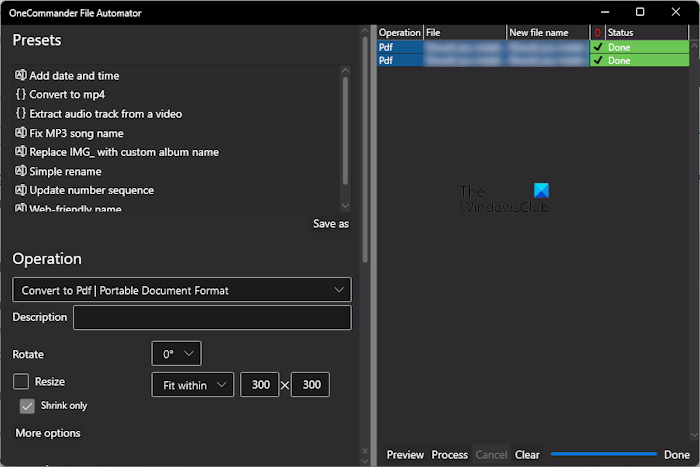
The File Commander lets you define presets for your files. Using it, you can also carry out the file conversion process. It offers multiple options to convert one file to another, such as Convert to PDF and Convert to JPG.
Other Features of One Commander
- File Age/Relative File Dates (hours/days from modification time)
- File Preview
- Tabs
- Organize Favorites into project groups
- Quick Filtering of Current Folder
- ToDo Tasks and Notes in Any Folder
- Drop List/Smarter Clipboard
- Easy sorting to multiple destinations
- Image/Audio/Video/Document metadata
- Picture Preview with Metadata and GPS photo location
- Monitoring folders for changes
- Add an image called folder.jpg or cover.jpg, and it will become folder background image.
Lastly, it can unpack the archive files including AR, ARJ, CAB, CHM, CPIO, CramFS, DMG, EXT, FAT, GPT, HFS, IHEX, ISO, LZH, LZMA, MBR, MSI, NSIS, NTFS, QCOW2, RAR, RPM, SquashFS, UDF, UEFI, VDI, VHD, VMDK, WIM, XAR and Z.
Free download
It is available from the Microsoft Store, as an installer and a standalone version as well. The standalone version is not automatically updated unlike the other two. So unless you want a portable version, it’s best to choose one of the first two versions. Download it from onecommander.com.
What is the difference between One Commander free and pro?
One Commander is available in two versions: free and paid. The free version is available for personal use and has all the basic features. With the free version, you can manage your files and folders, move and copy your files from one location to another location, etc. Its Pro version includes advanced features, such as selecting a preferred Command Shell and adding capabilities to the built-in Preview display.
What is free alternative to Total Commander?
Total Commander is file manager software for Windows 11/10. There are many free File Managers alternatives to Total Commander, like FileVoyager, Multi-Commander, Ureal Commander, One Commander, Tabaculus, etc.
