
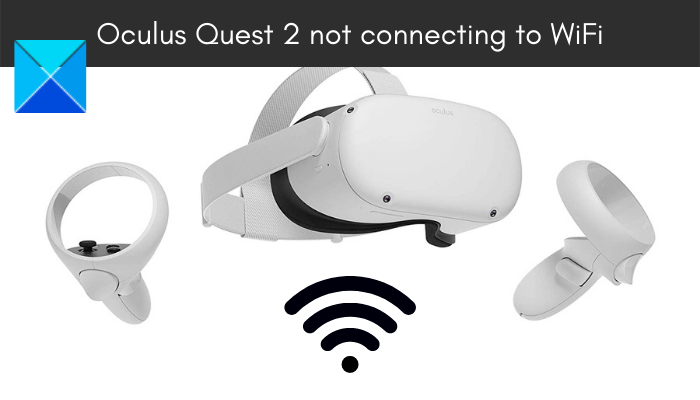
Are you unable to connect your Meta Quest device to WiFi? Many Quest device users have reported that their Quest headsets won’t connect to WiFi. Some users have also reported of being encountering WiFi disconnection issues with the device. If you are one of the affected users experiencing the same problem, this guide will help you fix it. Here, we are going to discuss several fixes that will help you if Meta Quest is not connecting to WiFi.
Why can’t I connect my Meta Quest to Wi-Fi?
The problem of being unable to connect Meta Quest to WiFi is most likely due to poor internet connectivity. Hence, make sure there is no internet connection issue and you are connected to a stable internet connection. Also, issues with your router might be contributing to the problem at hand. So, you can try performing a power cycle on your router or resetting the device to its factory defaults.
There might also be a temporary glitch with your Meta Quest device causing the issue at hand. So, you can try rebooting your headset or performing a hard reboot on your device to fix the issue. Additionally, you might also need to factory reset the Meta Quest headset as corrupted settings and data can also cause the problem at hand.
If you are on a PC, the issue might be caused by a corrupted Meta Quest driver. Hence, you can try reinstalling or updating the driver to fix the issue.
Meta Quest not connecting to WiFi
Here are the fixes you can try if your Meta Quest (earlier called Oculus Quest) device is not connecting to WiFi:
- Test your internet connection.
- Perform a power cycle on your router.
- Restart your headset/ Perform a hard reboot on Quest.
- Forget the Wi-Fi network and reconnect using the Meta Quest app.
- Check your Meta Quest drivers.
- Modify the Wi-Fi channel.
- Reset Router to default settings.
- Set up a dedicated router for Quest.
- Factory reset Quest.
Meta Quest keeps disconnecting from WiFi
1] Test your internet connection
First of all, make sure your internet connection is stable and optimized. So, check your internet connection and ensure that you are connected to a stable and high-speed internet connection. Here are some tips you can follow to optimize your internet connection:
- Check your internet connection and troubleshoot the WiFi problems, if there are any.
- Try connecting to some other network connection that is more reliable and stable.
- You can try restarting your router/modem to see if it works.
2] Perform a power cycle on your router
This problem might occur if there is an issue with your router or due to a bad router cache. Hence, you can perform a power cycle on your router/ modem and then check if your Meta Quest device is connecting to WiFi or not. Here is how to power cycle your router:
- Firstly, switch off your router by pressing and holding the power button on your router.
- Now, remove the power cord of your router from the main switch and wait for at least 30 seconds to a minute.
- After that, you can put the power cord of your router back to the main switch and switch it on.
- Finally, connect your Quest device to the internet and see if the problem is now fixed or not.
In case you find out that your internet is not the main culprit, try the next potential fix to resolve the issue.
3] Restart your headset/ Perform a hard reboot on Quest
The problem might lie with your headset itself. There might be some temporary glitch with the device. Hence, you can try restarting your headset and then see if it connects to the internet or not. To restart your Meta Quest device, follow the below steps:
- First of all, make sure your device is turned on.
- Now, press and hold the power button on your device present on the right side.
- Next, on the shutdown screen, select the Restart button to reboot your headset.
- When your headset is restarted, try connecting it to WiFi and see if the problem is resolved or not.
If a simple reboot doesn’t help your fix the issue, try performing a hard reboot on your Meta Quest device. Here is how to do that:
- Firstly, switch off your headset.
- Now, press and hold the power and volume (-) buttons at the same time until you see the boot screen.
- Next, highlight the exit and reboot option using the volume (+/-) buttons and then press the power button.
On the next startup, try connecting the headset to WiFi and check if the issue is now resolved. If the issue persists, try the next potential solution.
Read: Oculus has detected a problem with your graphics drivers.
4] Forget the Wi-Fi network and reconnect using the Meta Quest software
If the above solutions didn’t work, you can try forgetting the WiFi network. Then, try reconnecting to your WiFi by reentering the login credentials. After that, reconnect the device via the desktop Oculus app. In case this works for you, well and good. If not, try the next potential solution to fix the issue.
5] Check your Meta Quest drivers
The problem might occur because of outdated or corrupted Meta Quest drivers on your PC. So, if the scenario applies, double-check your Meta Quest drivers and make sure they are up to date. You are most likely to find your Oculus drivers at the location below
C:\Program Files\Oculus\Support\oculus-drivers\
If there are issues with your Oculus driver, you might need to re-download or update it to resolve them. You can manually download the driver from the official Meta Quest website. After that, double-click on the driver’s set up file and follow the onscreen instructions to complete the installation or update process.
You can also use the built-in Device Manager app to update the Meta Quest Driver. Just open the app and under the Universal Serial Bus controller category, choose the correct USB and right-click on it. Then, select the Update driver option and follow the prompted instructions to complete the process.
After updating or reinstalling the driver, check if the “Meta Quest not connecting to WiFi” issue is fixed or not. If not, move on to the next potential fix.
6] Modify the Wi-Fi channel
The next thing you can try is changing your device’s Wi-Fi channel to resolve the issue. You can try setting up your Quest headset on the 5 GHz band and then check whether it connects to WiFi. You also need to ensure that no other device is connected to the 5 GHz band.
RELATED: Fix Oculus Rift errors and problems.
7] Reset Router to default settings
You can also try resetting your router to default settings to fix the issue. Since the problem is likely related to your router (e.g., corrupted settings), this method should fix it.
To do so, enter the router’s IP address into your web browser and log in with your username and password to enter the main settings page. Then, go to System (or System Tools) and find the Restore or Factory Default option. Then, select the option and confirm the reset process. When the process is complete, restart your router and then try connecting your device to WiFi.
8] Set up a dedicated router for Meta Quest
If nothing else worked for you, try setting up a dedicated router for Quest to fix the issue. A lot of users prefer using a dedicated router for Virtual Desktop. So, you can try doing the same and see if it works for you.
9] Factory reset Meta Quest
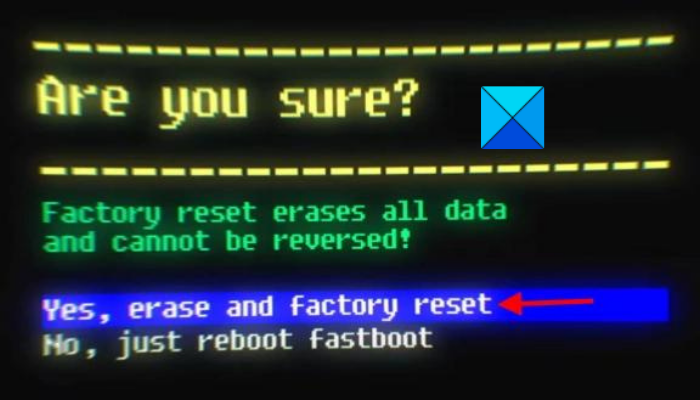
The last resort to fix the issue is by performing a factory reset on your Quest. If the issue is caused due to errors and bugs in the Meta Quest software and your headset, this should fix the problem for you. But, do note that after doing so, you will lose all your game data. So, use this method only after you have tried all other potential fixes or if you are sure of what you are doing.
To perform a factory reset on your Quest device, try the steps below:
- Firstly, press and hold the power and volume buttons simultaneously.
- Now, on the next screen, highlight the Factory reset option using the volume (+/-) buttons and then press the Power button.
- Next, select the Yes, erase and factory reset option and press the Power button to initiate the reset process.
Hopefully, you can now connect your Meta Quest to Wi-Fi without any issues.
That’s it!
Why is my Meta Quest not connecting to my PC?
If your Meta Quest headset is not connecting to your PC, it might be because your PC doesn’t meet the minimum requirements to support Oculus devices. Apart from that, check your USB Cable/Port, update the Meta Quest software, power cycle your devices, update your device drivers, etc.
Now read:
- Oculus or Meta Quest Software not installing on Windows 11.
- Fix Meta Quest Mic not working on Windows PC.
