
Some users may encounter the NVIDIA Installer cannot continue or NVIDIA Installer failed error with NVIDIA graphics drivers while carrying out a fresh install of Windows 11/10. In today’s post, we will identify the cause of this error and provide a possible remediation for the issue as well.
NVIDIA Installer cannot continue on Windows 11
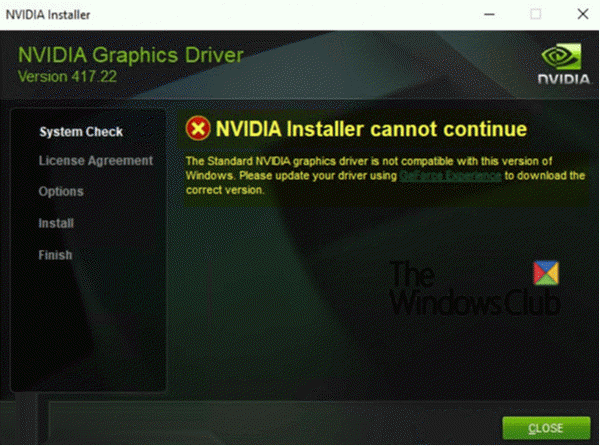
The following error message pops up on the screen during the installation process;
The Standard NVIDIA graphics driver is not compatible with this version of Windows. Please update your driver using GeForce Experience to download the correct version.
The other messages you could see are:
You already have a newer version installed
This graphics driver could not find compatible graphics hardware
The “NVIDIA Installer cannot continue” issue occurs because the GeForce 398.36 DCH graphics driver is automatically installed through Windows Update after the first log-on.
To resolve this issue, you can try the recommended solutions below.
- Disconnect the computer from the network during the OS installation
- Use the NVIDIA GeForce Experience application to work around the issue
Before you begin, first verify if the NVIDIA DCH graphics driver is installed on your Windows 11/10 OS by checking if there is a value named DCHUVen in Windows Registry.
Here’s how:
Launch Registry Editor (press Windows key + R. In the Run dialog box, type regedit and hit Enter).
Navigate to the following registry entry:

Computer\ HKEY_LOCAL_MACHINE\SYSTEM\CurrentControlSet\Services\nvlddmkm
If the DCHUVen value exists, that means you are running an NVIDIA DCH driver.
Now that you have confirmed that the NVIDIA DCH graphics driver, not the standard driver, is installed on your computer, you can follow the steps below to completely uninstall the DCH driver (otherwise, skip this procedure) before proceeding with the recommended solution to prevent the error from occurring.
If you uninstall the NVIDIA GeForce driver normally, it won’t be gone from the system until you reboot your computer. However, Windows Update will start immediately after reboot and reinstall the DCH driver that you just uninstalled.
To uninstall the GeForce graphics driver properly, do the following:
Launch the Device Manager (press Windows key + X. Select Device Manager from the menu).
Open the NVIDIA graphics adapter.
Go to the Details tab and select Inf name under Property. Then make a note of the value.
Next, run a command prompt as administrator.
Copy and paste the command below into the command prompt and hit Enter.
pnputil /delete-driver X /uninstall
X is the place-holder for the Inf name value you identified previously.
After successfully uninstalling and deleting the driver package, run the following command to remove any remaining driver artifacts.
sc delete nvlddmkm
After completing these steps, you can now try either of the two solutions to resolve the issue.
1] Disconnect the computer from network during the OS installation
This is the most direct and effective method to avoid the issue. Disconnecting the computer from the network during the OS installation will block the OS from installing the GeForce 398.36 DCH graphics driver via Windows Update. And you need to manually install the driver from USB media or driver disc before the network is available. Windows Update won’t replace any existing driver with a DCH driver.
Related: GeForce Game Ready Driver, Installation can’t continue, An error has occurred
2] Use the NVIDIA GeForce Experience application to work around the issue
GeForce Experience is a companion application to your GeForce GTX graphics card. You can get a DCH version of the graphics driver via it to avoid potential conflicts. Therefore, using the GeForce Experience application can also help avoid the “NVIDIA Installer cannot continue” issue.
That’s it, folks!
What is a DCH driver?
Windows DCH (Declarative Componentized Hardware-supported apps) Drivers are driver packages that install and run on Universal Windows Platform (UWP)- based editions of Windows 11/10. The only difference between the DCH driver and the Standard Driver is that the former allows Microsoft to ‘hijack’ your NVIDIA Control Panel so that they can monitor and delegate how and what developers develop, as driver software.
Why does NVIDIA installer fail?
If the NVIDIA driver version you are trying to install is not compatible with your operating system, or if its setup file has become corrupted, this issue can occur.
