
GeForce Experience is a driver & experience solution that NVIDIA offers all of its GPUs. Every time a new game is launched, you may see a game-ready driver available for install. However, when doing so, if you receive an error saying that Installation can’t continue, An error has occurred, then this post will help you resolve the problem.
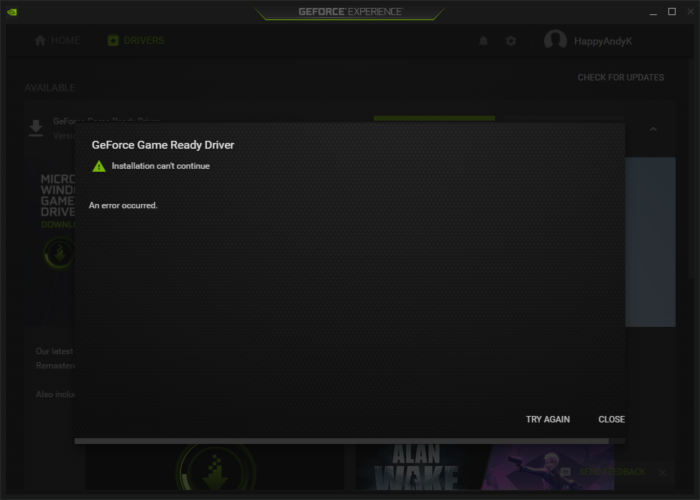
GeForce Game Ready Driver
Installation can’t continue
An error occured.
Why is the GeForce game ready driver not installing?
It may be due to interference from a running program in the background, another installation is already in progress, or a Windows update is downloading something in the background.
Fix GeForce Game Ready Driver Installation can’t continue error in Windows 11
It is essential to understand that this scenario doesn’t require you to reinstall the driver. Here the software is trying to install a game-tailored driver. It’s optional, and you only need to install it if you have the game. However, at times NVIDIA bundles some bugs and fixes, which makes installation important. Follow the steps below to resolve the problem.
- Download specific NVIDIA Game Ready Driver
- Close all open programs
- Install using Admin permission
- Clean Install Driver
Ensure you use an administrator account throughout the entire process.
1] Download specific NVIDIA Game Ready Driver
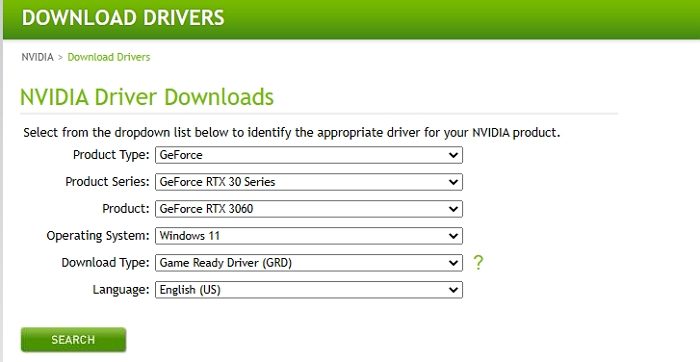
When you download the software directly, it gets a generic installer that automatically detects the GPU during installation. Alternatively, you can also download by selecting the OS version and the corresponding GPU.
2] Close all open programs
Ensure any running programs or installations are closed. It will ensure the Game Ready Driver installation doesn’t face any interference. At times, some programs install small components in the background without running any other installation.
You may also want to review the programs running in the background and close any that are not necessary. Those programs can be relaunched.
3] Install using Admin permission
Some software needs admin permission to install as they need to copy files and register DLLs with the OS. Usually, you will receive the UAC prompt asking for permission; however, if you are not seeing this screen, you can manually install it with administrative permission.
Right-click on the installer and select ‘Run as administrator’. The UAC prompt should appear, and you need to click on Yes.
4] Clean Install Driver
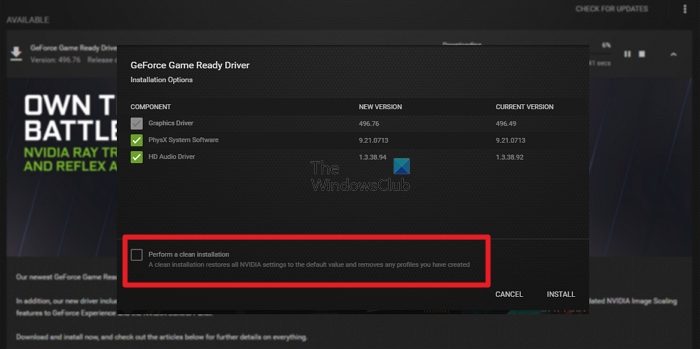
When installing the software, you can choose part or complete installation. Launch the software, and then click on the Download button. Once the download is full, you should see two options—Express Installation and Custom Installation. Choose the latter.
On the next screen, you can choose from the available files. It usually includes Graphics Driver, PhysX System Software, and HD Audio, driver. You need to check the box at the bottom-left, which says Perform a clean installation. Then click on the install text, to begin the process.
Read: How to fix NVIDIA GeForce Experience C++ Runtime Error.
Does NVIDIA GeForce work with Windows 11?
Yes, NVIDIA GeForce graphics cards work smoothly with Windows 11. As of now, no compatibility issues have been found by anyone. However, some people encountered issues while installing the driver on their Windows 11 PC. If you are one of them, you can go through the aforementioned tips and tricks to get them fixed.
Related: Fix NVIDIA GeForce Experience Scanning Failed error when scanning games.
