
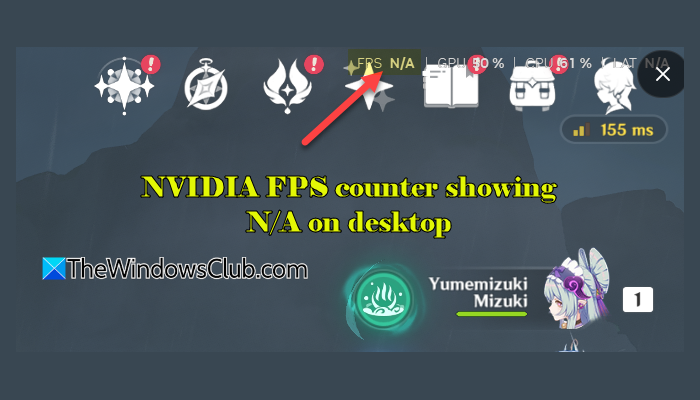
If you’ve noticed an FPS counter showing N/A on your Windows 11 desktop, you’re not alone. Some users report that the counter shows N/A instead of the frame rate during gameplay, while others say it randomly appears in the top-right corner of their screens, leaving them unsure where it came from and how to remove it. In this guide, we will explain how to hide the counter when you do not need it and troubleshoot the issue if it persists during gameplay.
Why is my NVIDIA FPS counter showing N/A?
The counter is part of NVIDIA’s performance overlay, which displays gaming statistics such as frames per second (FPS), GPU and CPU usage, and latency (LAT). When no game is actively rendering frames, the overlay may not have an FPS value to report. However, if the counter also displays N/A while you are actively playing a game, the overlay may not be retrieving performance data correctly.
Fix NVIDIA FPS counter showing N/A on desktop
If NVIDIA FPS counter is showing N/A on your Windows desktop, use these solutions:
- Toggle off the NVIDIA overlay
- Close and relaunch the affected game
- Restart the NVIDIA FrameView SDK service
- Temporarily disable Windows Game Mode
- Update or reinstall NVIDIA software and drivers
- Repair Windows performance counters
Let’s take a look at these solutions in detail.
1] Toggle off the NVIDIA overlay
Hide the NVIDIA FPS counter on the desktop
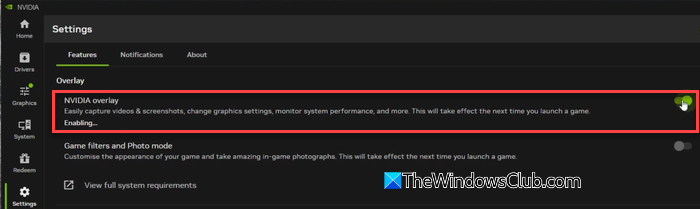
If you simply want to remove the FPS and performance overlay from your desktop, press Alt + R. This shortcut toggles the statistics overlay off. Press it again to display the statistics.
If you want to disable the NVIDIA overlay entirely, follow these steps:
- Press the Start menu and type NVIDIA.
- Open the NVIDIA app.
- Select Settings from the left navigation pane.
- Under the Features tab, turn off the toggle next to NVIDIA Overlay.
Once disabled, the NVIDIA overlay and its associated shortcuts will no longer be available until you enable it again.
Fix NVIDIA FPS counter showing N/A during gameplay
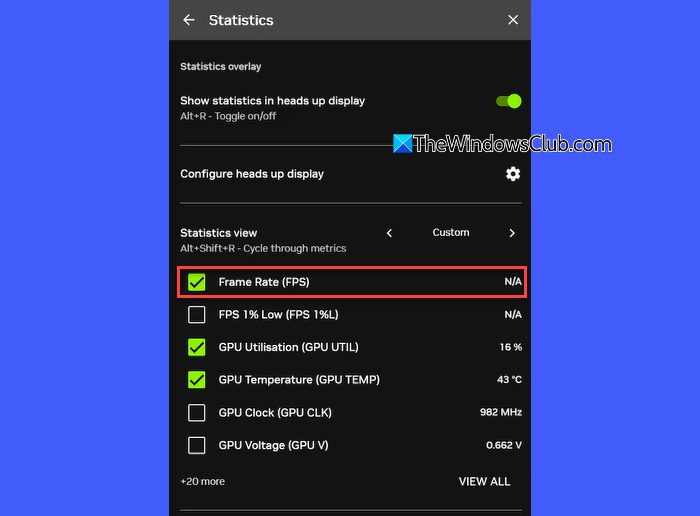
If the FPS counter displays N/A while you’re actively playing a game, try refreshing the FPS statistic in the NVIDIA overlay.
- Press Alt + Z to open the NVIDIA overlay.
- Select Statistics to open the Statistics overlay settings.
- Under Statistics view, locate Frame Rate (FPS).
- Uncheck Frame Rate (FPS) and wait a few seconds.
- Check Frame Rate (FPS) again.
- Return to your game and check whether the counter displays the actual FPS value.
If it continues to show N/A during gameplay, proceed to the next troubleshooting method.
2] Close and relaunch the affected game
Restarting the game can help reinitialize its connection to the NVIDIA overlay and restore FPS readings.
- Save your progress and exit the game.
- Open Task Manager by pressing Ctrl + Shift + Esc.
- Check the Processes tab to ensure the game has completely closed. If it is still running, select it and click End task.
- Relaunch the game and check whether the FPS counter displays a numerical value.
3] Restart the NVIDIA FrameView SDK service
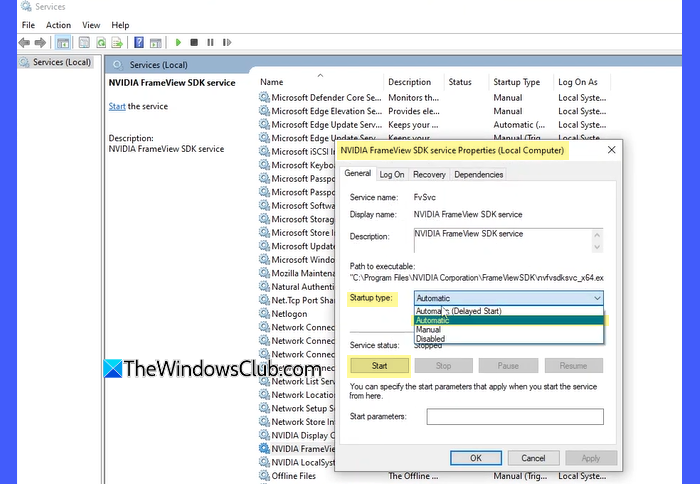
The NVIDIA FrameView SDK service helps NVIDIA collect and display performance statistics, including FPS. If it isn’t running correctly, the overlay may show N/A.
- Press Win + R to open the Run dialog.
- Type services.msc and press Enter.
- In the Services window, locate NVIDIA FrameView SDK service.
- Right-click the service and select Restart. If the service is not running, select Start instead.
- Next, right-click the service, select Properties, and check its Startup type.
- If it’s manual, change it to Automatic or Automatic (Delayed Start).
- Click Apply, and then click OK.
- Reboot your PC and check whether the FPS counter displays the correct value.
4] Temporarily disable Windows Game Mode
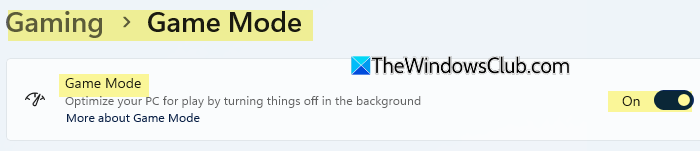
Windows Game Mode optimizes system resources for gaming. However, some users have reported that disabling it helped resolve issues with the NVIDIA FPS counter showing N/A. Try turning it off temporarily to see if it makes a difference.
- Press Win + I to open Windows Settings.
- Select Gaming > Game Mode.
- Turn off the Game Mode toggle.
- Restart the affected game and check whether the FPS counter displays the correct value.
If the issue persists, turn Game Mode back on and proceed to the next solution.
5] Update or reinstall NVIDIA software and drivers
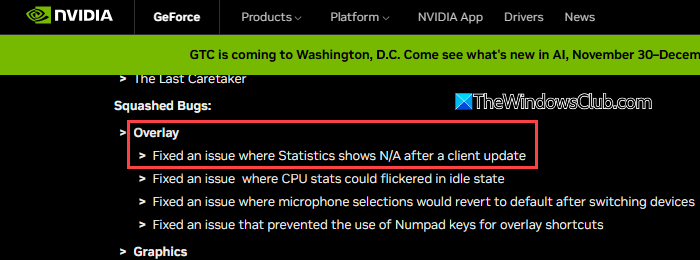
NVIDIA has acknowledged issues with statistics displaying N/A in its NVIDIA App release notes on two occasions and has also documented a related fix in its graphics driver release notes. Your issue may also be related to a buggy version of the NVIDIA App or graphics driver.
- Open the NVIDIA App.
- Select Drivers from the left navigation pane.
- Check for available driver updates.
- If an update is available, download and install it.
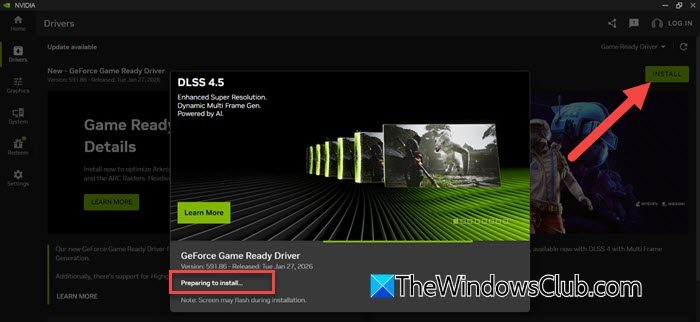
If the issue persists, try reinstalling the NVIDIA App:
- Open Windows Settings and go to Apps > Installed apps.
- Find NVIDIA App, click the three-dot menu next to it, and select Uninstall.
- Follow the on-screen instructions and restart your computer.
- Download the latest installer from the official NVIDIA App website.
- Run the installer and follow the on-screen instructions to complete the installation.
6] Repair Windows performance counters
Performance counters help Windows and compatible applications collect and report performance data. If these counters are corrupted, the NVIDIA overlay may fail to retrieve performance statistics and display N/A.
You can try rebuilding the counters using the following steps:
Open Start, type cmd, and select Run as administrator.
Enter the following commands one at a time, pressing Enter after each command:
cd %windir%\system32

lodctr /R

cd %windir%\syswow64

lodctr /R

winmgmt /resyncperf
Wait for each command to finish before running the next one. After running each ‘lodctr /R’ command, you should see a message similar to “Successfully rebuilt performance counter settings from system backup store“.
Restart your computer and check whether the NVIDIA FPS counter displays the correct value during gameplay.
NVIDIA FPS counter shows N/A inside a game
If N/A appears only on the desktop but the FPS counter works in games, it is the expected behavior. If N/A also appears while gaming, the overlay may be unable to capture or calculate the game’s frame rate. To fix it, try adding that game to NVIDIA Control Panel. This lets you configure NVIDIA’s 3D settings for that game and may help if the NVIDIA overlay isn’t recognizing it correctly.
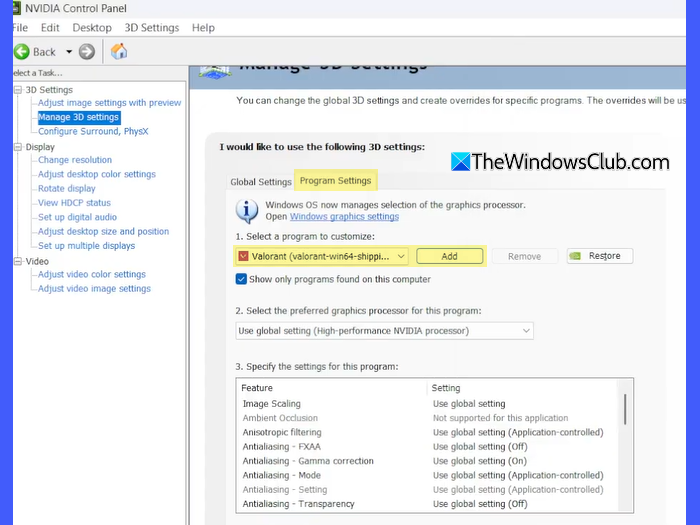
Follow these steps:
- Open NVIDIA Control Panel.
- Select Manage 3D settings from the left pane.
- Switch to the Program Settings tab.
- Click Add and select the affected game from the list. If it is not listed, click Browse and locate the game’s executable file (.exe).
- Click Add Selected Program.
Close and relaunch the game, then check whether the FPS counter displays the correct value.
I hope this helps.
Read: NVIDIA Overlay shows wrong FPS and GPU.
Why isn’t the NVIDIA Alt+R showing FPS?
The NVIDIA Alt + R shortcut may not show FPS if the performance overlay is disabled in the NVIDIA App. The shortcut toggles the statistics overlay on and off, but it won’t work if the NVIDIA Overlay feature itself is disabled.
Read Next: NVIDIA GeForce Experience overlay not working on Windows PC.
