
Drivers are the most important piece of software that runs hand in hand with the operating system and lets the components of your computer perform their tasks with ease. In this guide, we will show you what you can do if NVIDIA drivers aren’t downloading, installing, detecting, loading, or working in Windows 11/10.
Whatever we see on the screen of our PC or the visual aspect of our PC is handled by the graphics driver. It helps us set the perfect size, quality, and color for our displays. They get updated regularly to deliver peak performance with the latest tweaks. Some of the users are experiencing issues with NVIDIA drivers. Some are unable to download, some cannot install, so and so. These issues can be fixed easily and we have a few solutions that help you resolve whatever errors you see with NVIDIA drivers. Let’s see what they are and fix the issue.
NVIDIA drivers not downloading, installing, detected, loading, or working
If NVIDIA drivers are not downloading, installing, working, detected or loading on your Windows computers and you are seeing errors related to NVIDIA drivers, the following methods can help you fix them.
- Check physical connections
- End tasks related to NVIDIA drivers
- Manually download the correct drivers
- Update Windows
- Update GeForce Experience
- Uninstall and reinstall the GeForce Experience
- Turn off your antivirus
Let’s get into the details of each method.
1] Check physical connections
There are huge chances that the state of physical connections, like wires and PC components, might cause the issue. Make sure that all the connections are well in place when you see the error. If you encounter any connection issues, fix them and then try installing the NVIDIA drivers.
Read: The NVIDIA OpenGL driver detected a problem with the display driver.
2] End tasks related to NVIDIA drivers
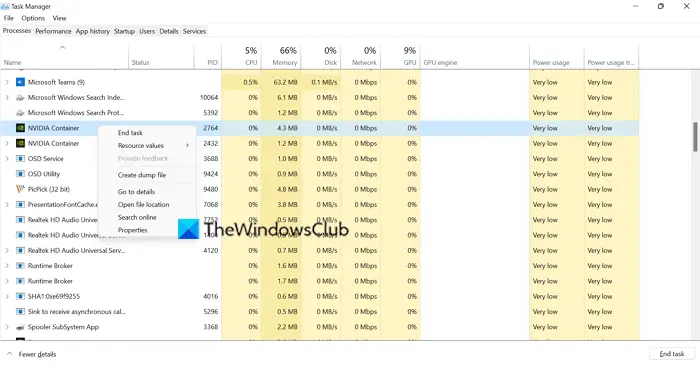
Sometimes you may see these errors when you are trying to update the existing NVIDIA drivers while they are still running in the background. You have to close them using the Task Manager. In Task Manager, right-click all the NVIDIA processes you see and select End task to stop them. Then, try installing the drivers.
If you are still unable to install them, uninstall NVIDIA drivers using the Device Manager or any third-party application. Then, restart your PC and try installing the drivers.
Read: NVIDIA graphics card not detecting HDMI
3] Manually download the correct drivers
When the drivers we download do not match the device, we will face issues while installing them. We have to download the right version of NVIDIA drivers that are suitable for the hardware and components of our PC. With the right drivers, we can install them without any issue.
Read: How to Update NVIDIA Drivers.
4] Update Windows
If you are still facing the issue with the NVIDIA drivers, you have to manually check for the Windows Optional Updates and install them if there are any. The update will correct the misconfiguration with NVIDIA drivers by automatically installing or updating them.
5] Update GeForce Experience
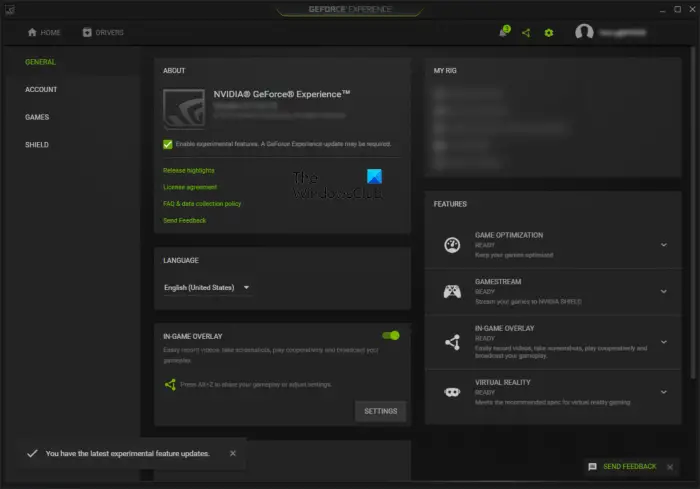
GeForce Experience is an app developed by NVIDIA. Gamers can use it to configure the graphics settings for video games. In addition, NVIDIA GeForce Experience can be used to update NVIDIA graphics card drivers. If you are unable to update or install graphics card drivers using GeForce Experience, it is recommended that you update the app.
6] Uninstall and reinstall the GeForce Experience
If the above fix did not help, uninstall the GeForce Experience from your computer. Then download the latest version of GeForce Experience from NVIDIA’s official website and reinstall it. But this time, you have to install the GeForce Experience by running it as an administrator. Right-click on the installer file and select Run as administrator.
7] Turn off your antivirus
It is also possible that your antivirus suite is blocking GeForce Experience from updating drivers. It is recommended to temporarily disable your antivirus software and see if this resolves the problem. You can turn your antivirus back on after updating or installing the drivers.
Your problem might have been fixed by now. There are many third-party applications that can be used to install or update drivers.
Related: How to download and reinstall Realtek HD Audio Manager.
Why can’t I download NVIDIA drivers?
There are many issues that can obstruct the download of NVIDIA drivers. First, you need a good internet connection. Then, you have to select the right version for your PC and download it for installation.
Why is my GeForce experience not downloading driver?
If you are using outdated or incompatible drivers for your PC’s configuration, you might encounter this issue. You have to reinstall them manually by downloading the right drivers from the official NVIDIA website.
How do I know if my GPU is faulty?
If your graphics card is faulty, you will experience frequent graphics glitches on your PC. You will also hear strange fan noise. In addition to that, you will also experience frequent drops in FPS in all your video games. If your GPU is old, it is time to replace it with a new one.
Related read: How to update Graphics Drivers in Windows 11.
