
NotebookLM users sometimes face an error uploading source messages when adding PDFs, websites, or text files. This prevents you from building your knowledge base and stops your research workflow entirely. In this post, we will see what to do if NotebookLM throws an error uploading the source.
Error uploading source, try again!
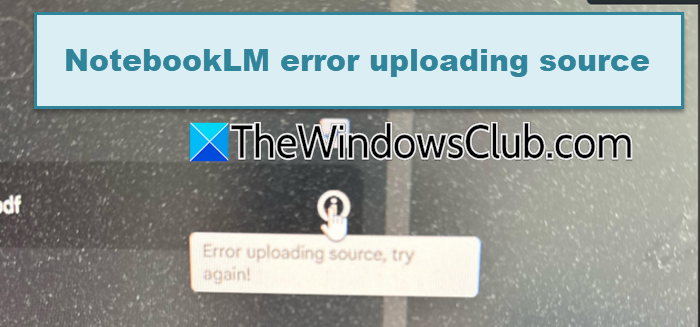
Fix NotebookLM error uploading source
This upload failure usually occurs due to file size or format restrictions imposed by Google. The source file might be too large or contain unsupported elements like complex tables or scanned images without text. Your browser’s cache or extensions could also interrupt the upload process. Unstable network conditions or a brief session timeout from Google’s server often trigger this error as well.
If NotebookLM throws an error uploading the source, follow the solutions mentioned below.
- Split a large file into smaller chunks
- Convert the file to a plain text format
- Use a different browser to isolate extension conflicts
- Clear your browser cache and cookies
- Wait and retry after one hour
Let us talk about them in detail.
1] Split a large file into smaller chunks
A single large document often exceeds NotebookLM’s internal upload limit, but smaller pieces upload without trouble. Breaking the file reduces the load per request and lets the system process each part separately.
Identify the original file size. If it exceeds 200 MB, split it using a PDF splitter tool or a document editor. You can create files of roughly 50 MB each. Upload these smaller files to NotebookLM one by one.
2] Convert the file to a plain text format
Rich formatting or embedded images in a PDF can confuse the upload parser, while plain text files consistently work. Removing all styling gives NotebookLM a clean, readable structure. You need to follow the steps mentioned below to do the same.
- Open your original document in a word processor like Word or Google Docs.
- Select all text, copy it, and paste it into a basic text editor such as Notepad.
- Save the result as a .txt file.
Now, upload the .txt file to NotebookLM instead of the original PDF or DOCX.
3] Use a different browser to isolate extension conflicts
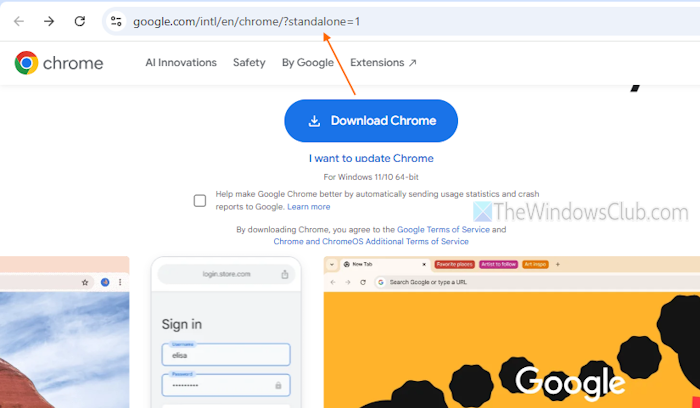
Your current browser might have extensions that block background upload requests, whereas a clean browser profile avoids such interference. A fresh browser environment ensures no hidden script interrupts the connection. Switching to a secondary browser gives you a pristine version of Chrome, Edge, or Brave, where no third-party tool can tamper with the upload process.
Install or open a browser you rarely use, such as Edge or a clean Chromium build, without logging into any extensions. Do not sync any existing profile data. Navigate to NotebookLM and sign in to your Google account. Attempt to upload the same source file that previously failed. If the upload works, return to your original browser and disable all extensions. Re-enable them one by one while testing uploads each time. Once you identify the interfering extension, keep it disabled. This approach pinpoints the exact cause without altering your primary browser settings permanently.
4] Clear your browser cache and cookies
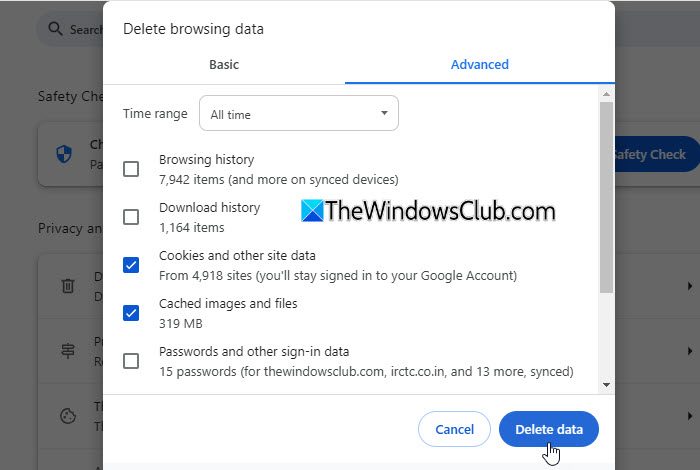
Old cache data can store corrupted session tokens that confuse Google’s upload handler. Removing this data forces the browser to fetch fresh authentication and allows a clean upload handshake. You can clear Chrome or Edge’s cache and see if that helps.
5] Wait and retry after one hour
Server-side throttling sometimes triggers temporary upload bans when you send multiple requests quickly. Waiting gives Google’s rate limiter a chance to reset your session. This approach works because the block is usually time-based; forcing more uploads only extends the ban, while stepping away allows the server to clear your request queue naturally.
Note the exact time when you first saw the error. Do not attempt any upload for the next 60 minutes. After one hour, restart your browser completely to flush any stale connection handles. Log back into NotebookLM using the same Google account. Before uploading your original large file, test with a single small source, such as a one-page text file, to confirm the session has been restored. If that small upload succeeds, proceed with your main file. This method avoids repeated failures and respects the server’s internal cooldown period without risking a longer lockout.
That’s it!
Read: How to use Google NotebookLM on Windows 11
NotebookLM unable to fetch project or source
NotebookLM is sometimes unable to fetch projects or sources due to issues like file permissions, broken links, or account mismatches. If the source is a Google Doc or Drive file, make sure it’s shared correctly with the account you’re using in NotebookLM. Files that have been moved, renamed, or deleted can also cause errors, and occasionally the problem is just a temporary sync glitch.
To fix this, check the sharing settings for your source file, then try removing and re-adding it to your project. Confirm you’re logged into the correct Google account, and, if needed, test in a different browser or in incognito mode to rule out cached login conflicts. If the file is still accessible and the issue persists, it’s likely a temporary service issue, so waiting and retrying later often resolves it.
How to upload source in NotebookLM?
Open NotebookLM on your computer and either create a new notebook or open an existing one. Click the + Add Source button located in the left panel, then choose the source you want to upload. Select files from your computer, Google Drive, a website URL, or paste copied text directly.
Read: How to create Podcast using NotebookLM AI?
How many notebooks can you have in NotebookLM?
A free NotebookLM account lets you create up to 100 notebooks. Each notebook can hold 50 sources, and each source can contain up to 500,000 words or 200 MB. Upgrading to NotebookLM Plus increases this limit to 500 notebooks, with 300 sources allowed per notebook.
Also Read: Afirstsoft PDF: All-in-one AI-powered PDF solution for Windows users.
