
Here is a guide on how to fix the ‘Not Authenticated with Minecraft.net’ error on Minecraft. Minecraft is a popular video gaming series developed and published by Mojang Studios and Xbox Game Studios. While it offers a great gaming experience, you might also run down into some errors and issues on Minecraft. Some users have reportedly encountered the error ‘Not Authenticated with Minecraft.net’ when attempting to create or join a Minecraft server. The full error message is as follows:
Failed to connect to the server, Not Authenticated with Minecraft.net
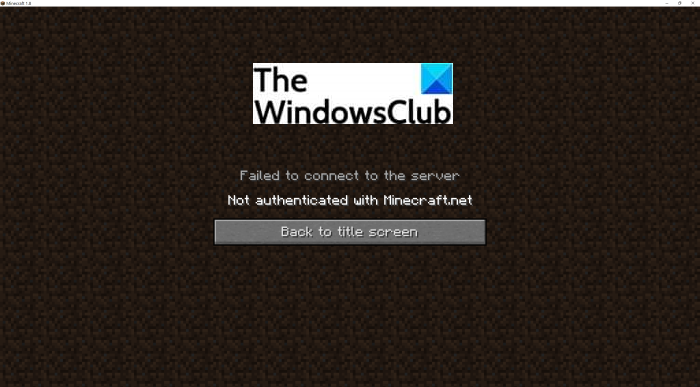
This error occurs on Windows 11, Windows 10, and older versions of Windows. Now, if you are also facing this error message, no worries. In this post, we will list some potential methods to help you resolve the issue. Let us check out!
What causes the ‘Not Authenticated with Minecraft.net’ error on Minecraft?
Before we proceed with the solution to fix the error, let us try to understand the scenario that might trigger this error. So, after analyzing several user reports, here are some of the main causes that result in the ‘Not Authenticated with Minecraft.net’ error on Minecraft:
- If you have modified your account details recently, there are chances that your login remnants from old account details might be causing this error. In this case, refreshing your login session by signing out and then signing in again may help resolve the issue.
- In case the Hosts file on your computer contains conflicting domain information about Mojang or Minecraft, you might receive this error. You can edit the hosts file to fix the issue if this scenario applies to you.
- Using a gaming VPN or an equivalent software might cause interference with your connection with certain Minecraft servers. So, try disabling the conflicting software to fix the error.
- If your account is banned or you are using an illegitimate account, this error may occur.
Let us now examine the solutions to resolve the error.
Failed to connect to the server, Not Authenticated with Minecraft.net
Here are the main methods to fix the ‘Not Authenticated with Minecraft.net’ error on Minecraft:
- Log out, then log in again.
- Remove Minecraft mentions from the Hosts file.
- Disable or Uninstall GPN like WTFast.
- Use a legitimate account.
- Contact Support team.
1] Log out, then log in again
The first step in resolving this issue is to refresh your login session. For example, if you have recently changed the name of your Minecraft account, you will need to sign in again for the server to acknowledge your new game. If this scenario applies to you, you should sign out of your Minecraft account and then log in back to your account.
To sign out, start the Minecraft launcher app and click on your account drop-down option from the top. Then, tap on the Log out option to sign out of your account. After successfully logging out of your account, try logging back in using the correct login credentials. Now, see if you are able to create or join a server without the “Not authenticated with Minecraft.net” error. If the error persists, proceed to the next potential fix outlined in this guide.
See: Minecraft keeps crashing or freezing on Windows PC.
2] Remove Minecraft mentions from the Hosts file
The Hosts file in Windows is basically used to map hostnames to IP addresses. In case the Hosts file consists of conflicting information regarding Minecraft or the game publisher, i.e., Mojang, you might end up receiving the ‘Not authenticated with Minecraft.net’ error. If you are receiving this error because the hosts file is pointing to an incorrect domain, you can resolve the issue by making a simple tweak to the Hosts file.
Here are the steps to remove Minecraft mentions from the Hosts file:
- Firstly, open the Run dialog box by pressing the Windows + R hotkey.
- In the Run dialog, type and enter “%SystemRoot%\System32\drivers\etc” which will open up the File Explorer with the Hosts file.
- Now, right-click on the Hosts file (not the hosts.ics file) and select the Open with option. Then, select the Notepad application to open the file.
- Next, scroll down to the bottom of the file and check if there are lines with mentions of Minecraft or Mojang. If you find any such mentions, select the lines and delete them
- After that, save the hosts file to apply changes.
- Finally, reboot your PC and see if the error is resolved on Minecraft.
Read: Fix Error Placing Order for Minecraft via the official Mojang Store.
3] Disable or Uninstall GPN like WTFast
In case you are using a GPN i.e., Gamers Private Network like WTFast to improve game latency, it can cause this error. Some affected users reported that their GPN or equivalent software caused interference with certain Minecraft servers like Hypixel, which resulted in this error. If the same scenario applies to you, disable your GPN and then check if the issue still persists.
If the error persists, there may be another reason behind it. So, you can try the next potential fix to resolve the issue.
See: Port forwarding not working in Minecraft in Windows.
4] Use a legitimate account
You are likely to receive this error if you are using an account from a doubtful or questionable third-party website like Mcleaks, Mineshafter, etc. Therefore, ensure that you are using a legitimate account to avoid this error and successfully join a server.
5] Contact their Support team
If none of the above solutions work for you, please contact Mojang’s official support team. Just submit an Account Support ticket with an explanation of the error. They will respond within 24 hours to assist you with what to do to fix the error.
Read: Fix Minecraft game has crashed with Exit Code 0.
How do I fix Minecraft not authenticated with Minecraft.net?
To resolve this issue, please sign out of your account and then sign in again. Additionally, you need to open the Windows Hosts file and remove all entries related to Minecraft. The most important thing is to ensure that you are using a legitimate Minecraft account.
What does it mean when it says failed to authenticate your connection?
The error “Failed to Authenticate Your Connection” in Minecraft prevents you from joining a server. A bug in the server itself may cause this error. Alternatively, it may be a result of being connected to an unstable internet network or experiencing other internet-related issues. To resolve the issue, try power cycling your router and see if that resolves the problem. If not, the error might have occurred due to server problems. So, wait for some time for the error to be fixed.
Now read: Fix Minecraft Can’t keep up, Is the server overloaded error.
