
Folks who often play Minecraft will likely have come across an error message Can’t Keep Up! Is The Server Overloaded? As the name suggests, this error is related to the server, so it’s not really your fault.
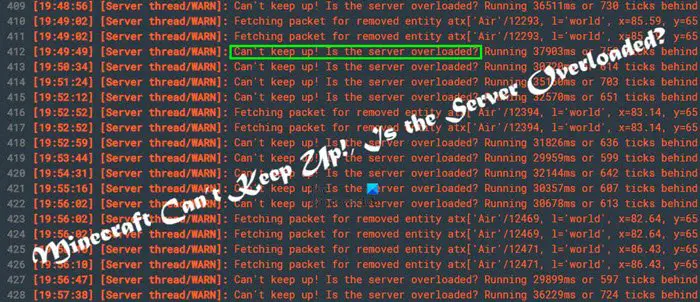
You can tell things are not in the best position when the server begins to lag, which then causes navigation issues. After that, the error appears, and you’re very confused because you have no idea what to do at this point.
What causes Minecraft Can’t keep up, Is the server overloaded error?
Based on our findings, there are three primary reasons for this specific server error. They are Client lag, Network lag, and Server lag.
Fix Minecraft Can’t keep up, Is the server overloaded error
Fixing this problem is easier than you might think, so have a look at the information below to learn more:
1] How to fix Server lag
Server lag makes everything a mess, especially since this is your own Minecraft server. First, ensure the correct drive is being used. We recommend a fast and reliable drive, so instead of using a Hard Drive, how about investing in an SSD or RAMDISK?
For situations where only a Hard Drive is available for use, then defragmenting the drive should improve its overall IO performance. At least, we hope this happens.
With the Hard Drive out of the way, let’s focus a little on the processing power. Chances are that your CPU is okay, so you may need to reduce the stress it’s facing. We can complete this task by closing unnecessary running applications.
If Windows powers your server, open the Task Manager and kill all unimportant services. Furthermore, enable gaming mode on your anti-virus software if it supports that feature.
Finally, we want to look at the RAM. Server lag, in many cases, is often related to RAM. If you don’t have enough, increase it to allocate more for the game. Bear in mind that excessive RAM can cause a CPU bottleneck, so be cautious.
2] How to fix Network lag
Network lags are easy to fix, to be honest, so let us look at what you should do here. We recommend troubleshooting the network.
Also, check if any programs are running in the background that might be using too much bandwidth.
3] How to fix Client lag
When it comes to the client lag issue, this is primarily due to the game itself. You should visit the Video Settings area of the game and make a few adjustments as needed.
For example, you should set Particle Effects to minimal, turn off Entity Shadows, set the Entity Distance to around 50 percent, turn off VSync, and turn off Biome Blend. You can also choose to turn off Clouds if you so wish.
Doing these things will reduce the load on the graphics card, and as such, Minecraft should run a lot smoother than before.
READ: Best Minecraft Seeds you should try out right now.
