
If you’re experiencing no sound after installing Realtek audio drivers in Windows 11/10, you’re not alone. Many users have reported similar issues, where they either lose sound after Windows Update automatically installs drivers or find that their audio output device disappears with the message “No audio device found“.
Audio issues are among the most commonly reported problems in Windows 11. They can appear suddenly, even if everything was working fine earlier. While the problem isn’t limited to Realtek (users with Intel, NVIDIA, or other third-party audio devices also face it), Realtek users are affected the most, as it’s the most widely used audio driver in Windows PCs.
No sound after installing Realtek audio drivers in Windows 11/10
To resolve the no sound issue after installing Realtek audio drivers in Windows 11, use these solutions:
- Uninstall Realtek and let Windows reinstall automatically
- Install OEM-specific audio driver
- Roll back to previous driver
- Enable/show disabled devices in Sound settings
- Update BIOS and chipset drivers
Let us see this in detail.
1] Uninstall Realtek and let Windows reinstall automatically
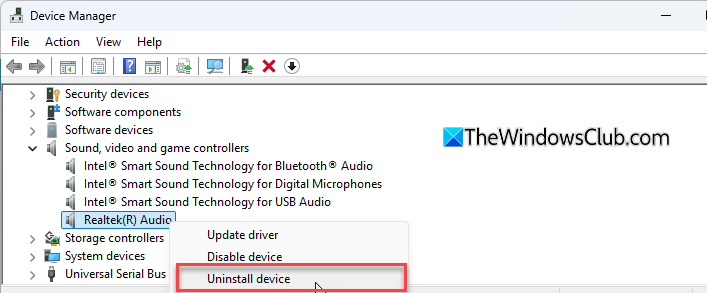
If Realtek drivers are corrupt, outdated, or incompatible with your device’s hardware, it may result in poor audio quality or no sound at all. By uninstalling the drivers, you force Windows to install either the default HD Audio drivers or a clean version of Realtek.
Press Win + X and select Device Manager from the menu. Expand the section Sound, video and game controllers. Find Realtek Audio (it may also appear as Realtek High Definition Audio).
Right-click Realtek Audio and select Uninstall device. Check Delete the driver software for this device, then click Uninstall.
Restart your PC. Windows will automatically detect and reinstall the required audio drivers.
2] Install OEM-specific audio driver
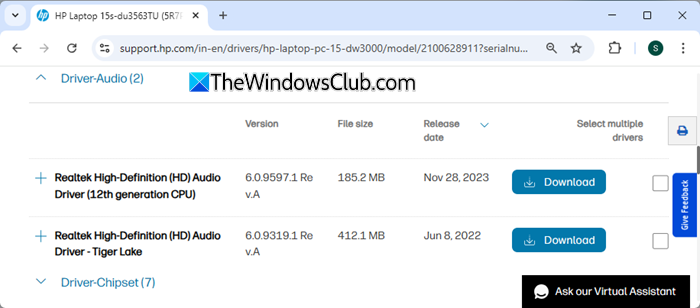
If the issue persists even after reinstalling drivers through Windows Update, try installing the OEM-specific driver from your laptop or motherboard manufacturer’s website. Windows often installs a generic Realtek driver that may not be fully compatible with your hardware.
Press Win + R, type msinfo32, and press Enter. Note your System Model.
Next, visit your OEM’s support website, enter your system model, and navigate to the Drivers & Downloads section.
Look for the driver under Audio. Before downloading, make sure it matches your OS (Windows 11, 64-bit). Download and install the driver package.
After installation, restart your system to apply the changes.
3] Roll back to previous driver
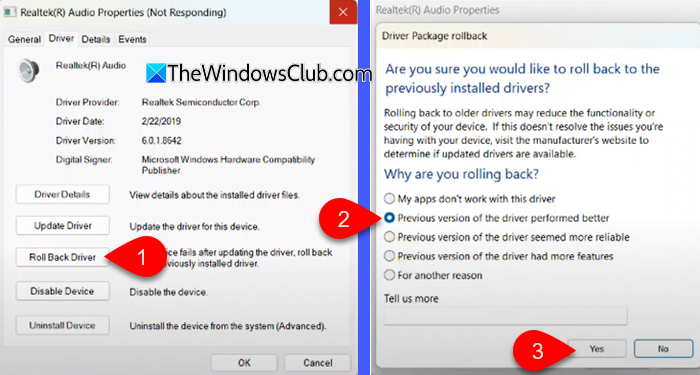
If the sound stopped working right after a Windows or Realtek update, rolling back to the previous driver may help. This fix has restored sound for many affected users.
Open Device Manager. Expand Sound, video and game controllers. Right-click Realtek Audio and select Properties.
Go to the Driver tab. Click Roll Back Driver (if the button is grayed out, it means no previous version is available).
Follow the prompts and restart your PC to apply changes.
4] Enable/show disabled devices in Sound settings
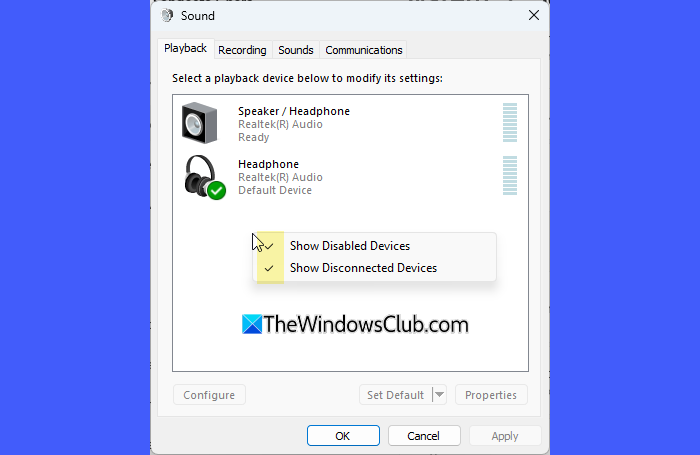
This is another common fix that has helped users when their playback device doesn’t show up. Sometimes Windows hides or disables these devices after an update or driver change. Enabling or showing these devices allows you to select the correct one as your playback device, restoring audio instantly.
Right-click the speaker icon in the taskbar and select Sound settings. Scroll down and click the arrow next to More sound settings.
In the Playback tab, right-click inside the device list and check Show Disabled Devices and Show Disconnected Devices.
Look for your audio device (e.g., Speakers – Realtek High Definition Audio). Right-click it and choose Enable. Again, right-click and click Set as Default Device.
5] Update BIOS and chipset drivers
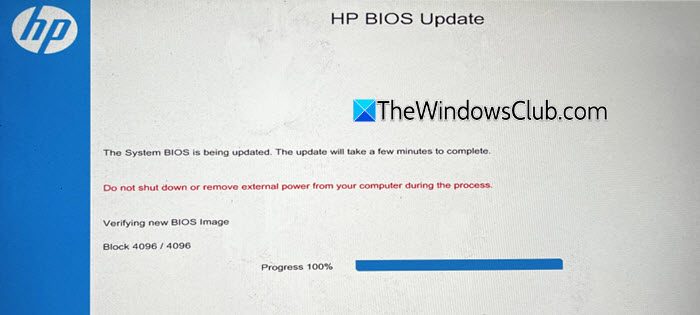
For many users, updating the BIOS and chipset drivers restored missing Realtek audio devices or fixed sound issues that persisted even after reinstalling drivers. This is a more advanced step, but if your PC manufacturer provides an update, it may resolve stubborn audio problems.
Visit your PC or motherboard manufacturer’s support website. Enter your exact model number. Download and install the latest BIOS update (if available). Download and install the latest chipset drivers.
Restart your PC and check if the sound issue is fixed.
Note: Always ensure your PC is plugged into power before running a BIOS update. Interruptions may cause serious issues.
I hope this helps!
Read: Realtek Audio Console No Equalizer in Windows 11.
Why is no sound coming from my PC Windows 11?
If no sound is coming from your Windows 11 PC, you may have disabled audio devices, outdated or corrupted drivers, incorrect output device selection, or muted sound settings. To fix the issue, ensure that your audio drivers are up to date. You can also run the Get Help Audio Troubleshooter to automatically scan for audio issues and fix them.
How to check Realtek audio driver version Windows 11?
Open Device Manager and expand the Sound, video and game controllers section. Then right-click Realtek Audio and select Properties. Go to the Driver tab and check the Driver Version field. It shows the version of the Realtek driver currently installed on your system.
Read Next: NVIDIA, AMD, Realtek drivers won’t install in Windows.
