
In this article, we will see some fixes for the “No access permissions to the item” error in OneDrive. This error occurs when a user places a file in OneDrive. It prevents OneDrive from syncing new files to the cloud. Therefore, it is important to fix this error; otherwise, your files won’t be synced.
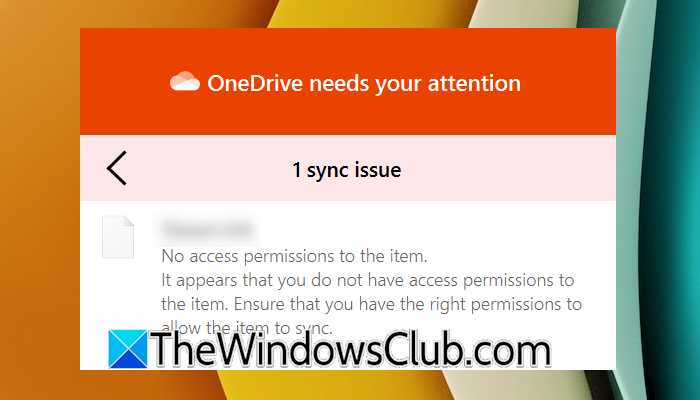
The complete error message is:
No access permissions to the item.
It appears that you do not have access permissions to the item. Ensure that you have the right permissions to allow the item to sync.
This error usually occurs with the program shortcuts placed on the Desktop.
No access permissions to the item OneDrive
Use the following fixes for the “No access permissions to the item” error in OneDrive.
- Unlink and relink OneDrive
- Reset OneDrive
- Edit file permissions
- Uninstall and reinstall OneDrive
- Create a new user profile
All these fixes are explained below in detail.
1] Unlink and relink OneDrive
First, try unlinking and relinking OneDrive to see if that helps. When you unlink OneDrive from your system, all the files and folders stored on the cloud will disappear from your computer. They will appear again when you relink OneDrive.
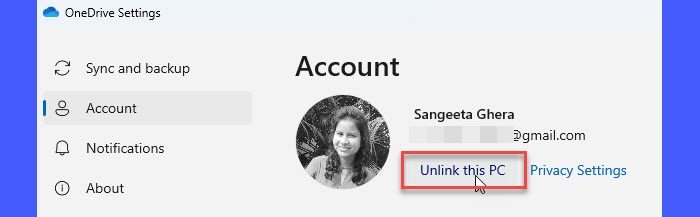
To unlink OneDrive, follow these steps:
- Click on the OneDrive cloud icon on your Taskbar.
- Click on the gear-shaped icon and select Settings.
- Select Account from the left side and click Unlink this PC.
- Restart your computer.
Now, click the OneDrive cloud icon on your Taskbar again and click Sign in. Follow the on-screen prompts to set up OneDrive on your system.
2] Reset OneDrive
If unlinking and relinking the OneDrive does not help, reset OneDrive. This step can sometimes resolve sync issues. Open the Run command box, copy the following command, and paste it into the Run command box. After that, click OK.
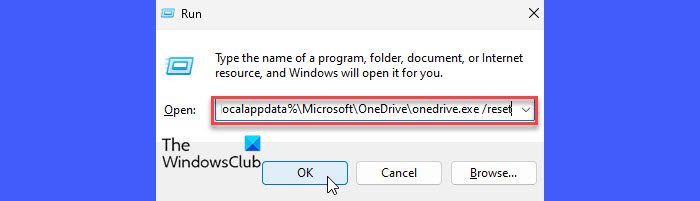
%localappdata%\Microsoft\OneDrive\onedrive.exe /reset
If the above command does not work and you receive an error, use the following command:
C:\Program Files\Microsoft OneDrive\onedrive.exe /reset\
Use the following command if the above command still does not work:
C:\Program Files (x86)\Microsoft OneDrive\onedrive.exe /reset
After executing the reset command, the OneDrive folder will open automatically, and OneDrive will start syncing all the files and folders. Wait until the sync process completes. After that, check if the error occurs.
3] Edit file permissions
Since the error says that you have no access permissions to the item, editing the file permissions can fix this error.
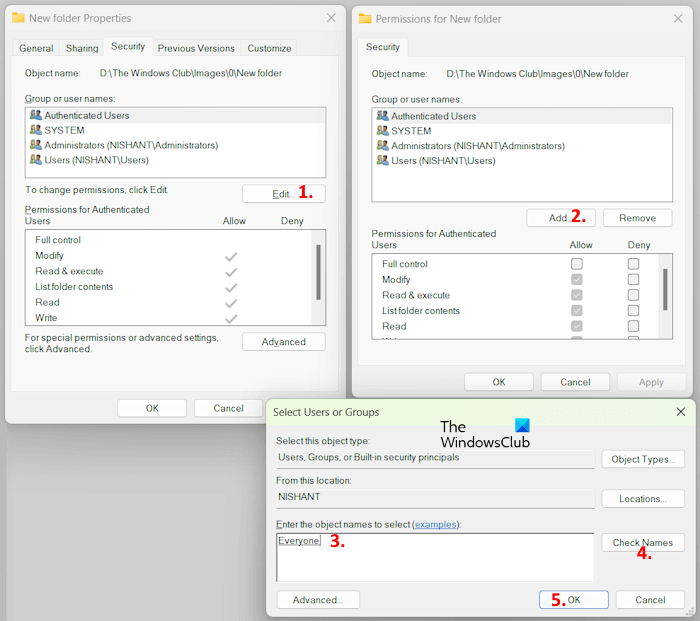
Follow these steps:
- Right-click on the problematic file in OneDrive and select Properties.
- Go to the Security tab.
- Click Edit to change the permissions of the file.
- Click Add to add a new user.
- Now, click Advanced and then click Find Now. All the usernames available on your PC will become visible.
- Select Everyone from the list and click OK. Click OK again to add Everyone as a new user.
- Select Everyone in the user names box and enable the Allow checkbox for Full Control.
- Click Apply, then click OK.
This should fix the error. If not, edit file permissions and remove the Everyone user. Now, move the problematic file outside the OneDrive, then move it back to the same folder in OneDrive, and repeat the above steps again.
4] Uninstall and reinstall OneDrive
If the error still occurs and OneDrive cannot sync your files, you can try uninstalling and reinstalling OneDrive. This step fixes OneDrive issues most of the time.

Follow these steps:
- Open Windows 11 Settings.
- Go to Apps > Installed Apps.
- Locate OneDrive and uninstall it.
Restart your system. Download the latest version of OneDrive from the official Microsoft website and install it.
5] Create a new user profile
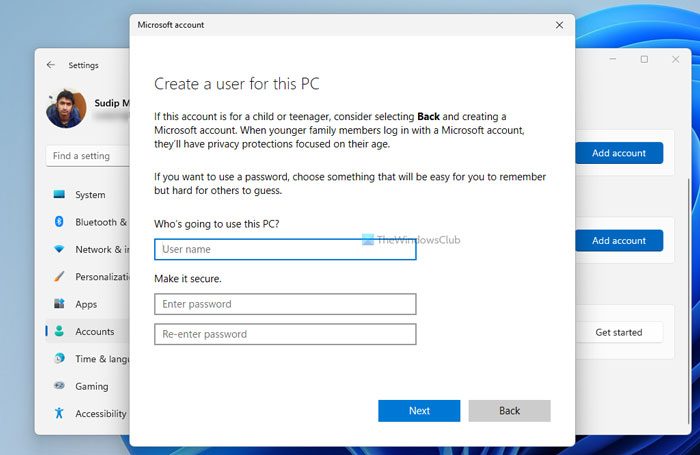
The problem might be with your Windows 11 user profile. To check this, create a new user profile and sign in to that profile. Now, launch OneDrive and sign in with the same Microsoft account. If the error does not occur in the new user profile, you can keep using it and transfer all your data from the previous user profile to the new one.
Transwiz is a free tool that lets users transfer data between profiles on Windows.
That’s it. I hope this helps.
Related: How to fix OneDrive sync issues and problems on Windows 11
How do I give access permission to OneDrive?
The access permission error in OneDrive usually occurs due to permission issues. To give access permission to your files in OneDrive, you need to edit their permissions. Create a new user, Everyone for your files, and grant Full Control to that user for your file.
How do I modify the permissions of a folder?
You can modify the permissions of a folder only if you are signed into your computer with an administrator account. To do so, right-click on the folder and select properties. Now, go to the Security tab and click Edit to edit its permissions. If you want to add a new user, click Add and select a new user.
Read next: OneDrive Personal vault Error Code 0x8004db94.
